
Left Handed Joystick for PC: 5 Models Compared

The Thrustmaster T16000M FCS suits most left-handed PC flight-sim players because its ambidextrous design uses removable, swappable components to adapt to either hand. Choose another model if you need a dual-stick setup, Xbox support, or adjustable resistance; a flight stick translates hand movement into aircraft or spacecraft control inputs.
We earn a commission if you buy through links on this page. As an Amazon Associate I earn from qualifying purchases. Products are compared on manufacturer specifications, not hands-on testing.
- Best overall: Thrustmaster T16000M FCS – Its ambidextrous design has removable, swappable components for left- or right-handed control.
- Best for dual-stick space sims: Thrustmaster T16000M FCS Space Sim Duo – The set includes two sticks and 32 programmable buttons.
- Best for Xbox and PC: Turtle Beach VelocityOne Flightstick – It supports PC and Xbox and has an ambidextrous design.
| Product | Best for | Programmable buttons | Axes | Platform | Shop |
|---|---|---|---|---|---|
| Thrustmaster T16000M FCS | Left-hand flight sims | 16 | 4 | PC | Check Price on Amazon |
| Thrustmaster T16000M FCS Space Sim Duo | Dual-stick space sims | 32 | 4 per stick | PC | Check Price on Amazon |
| Turtle Beach VelocityOne Flightstick | PC and Xbox | 27 | 8 | PC, Xbox | Check Price on Amazon |
| Thrustmaster T-Flight Stick X | Adjustable stick tension | 12 | — | PC | Check Price on Amazon |
| PXN 2113PRO | Windows vibration | — | — | Windows 7–11 | Check Price on Amazon |
Left handed joystick for PC options
These flight sticks differ in hand adaptability, control layout, and supported platforms.
Thrustmaster T16000M FCS

The T16000M FCS is the clearest fit for left-handed PC players because its ambidextrous design has three removable, swappable components. It combines four axes, a twist rudder, integrated throttle, an 8-way hat switch, and 16 programmable buttons. Thrustmaster says its H.E.A.R.T. magnetic sensors provide drift-free precision that does not degrade over time. This single-stick option suits flight-sim players who want to configure the grip for their dominant hand, but it is not a dual-stick setup for players who want a control in each hand.
Bottom line: Choose this if you want one adaptable stick for left-handed PC flight sims.
Thrustmaster T16000M FCS Space Sim Duo

The Space Sim Duo stands apart with two sticks, making it the option for players who want independent controls in both hands. It has 32 programmable buttons across the pair, weighted bases, an 8-way hat switch, twist rudders, and integrated throttles. Thrustmaster says both sticks use Hall-effect magnetic sensors for precision without drift or degradation over time. A dual-stick layout can suit space sims that map movement and aiming separately, but it takes more desk space than a single joystick and may be unnecessary for conventional flight controls.
Bottom line: Pick this if you want two sticks for separate space-sim controls.
Turtle Beach VelocityOne Flightstick

The VelocityOne Flightstick is a cross-platform alternative with an ambidextrous design, supporting PC and Xbox Series X|S or Xbox One. Its 27 programmable buttons, eight axes, POV hat, rapid-fire trigger, customizable throttle and flap levers, and integrated OLED flight-management display provide a broad control set. It also includes a touchpad navigation sensor and adjustable RGB lighting. This design suits left-handed players who also want Xbox compatibility, but the feature set is broader than a basic PC-only flight stick needs.
Bottom line: Choose it if you need an ambidextrous stick that also works with Xbox.
Thrustmaster T-Flight Stick X
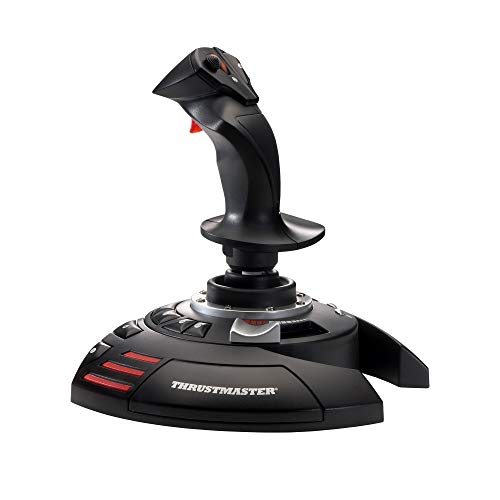
The T-Flight Stick X differs from the hand-configurable options by offering adjustable resistance, so players can tune the stick tension to their preference. It also has a twist rudder, detachable throttle, weighted base, 12 programmable buttons, and presets. The maker does not identify a left-hand-specific or ambidextrous layout, so left-handed buyers should verify that the grip and button placement feel usable for their dominant hand before choosing it. Its adjustable resistance is the main reason to consider it over a stick focused on ambidextrous setup.
Bottom line: Consider it if adjustable resistance matters and its layout fits your hand.
PXN 2113PRO
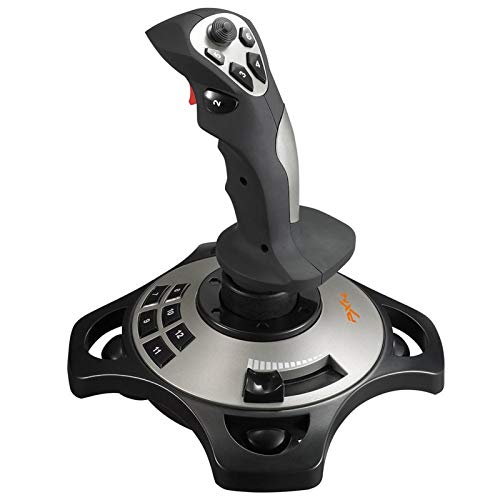
The PXN 2113PRO is a Windows-only alternative with a vibration function and throttle control, rather than a specified ambidextrous layout. Its compatibility covers Windows 7, 8, 10, and 11; Mac, Apple devices, consoles, and Switch are excluded. The manufacturer names several flight and combat games as compatible. Because the specifications do not establish left-hand adaptation, check that the control arrangement suits your dominant hand before ordering. This stick is most relevant when vibration and Windows compatibility matter more than a confirmed left-handed design.
Bottom line: Pick it only if its Windows support and vibration suit your setup and its layout fits.
How to choose a left-handed PC joystick
Start with hand adaptation: an ambidextrous stick or reversible grip is a clearer left-handed choice than a generic joystick. Check whether the controls you use most—trigger, hat switch, throttle, and buttons—fall naturally under your fingers when the stick is configured for your left hand. Axis count describes how many movement inputs a controller reads, while programmable buttons can map extra commands; neither number alone proves a comfortable left-handed layout.
For a quick decision, prioritize confirmed ambidextrous or swappable controls if hand fit is the primary concern, choose two sticks if you want separate hands on separate controls, and check platform support against your computer before buying. On a compact desk, consider the footprint: the dimensions range from about 6.5 to 13 inches long, and a dual-stick setup requires space for two bases.
Single stick or dual-stick setup
A single joystick keeps the control layout to one hand, while a dual-stick setup places a stick in each hand for separate inputs. Dual sticks are often used in space sims to divide movement and aiming, whereas a single stick with throttle and rudder controls is a common flight-sim arrangement. Button count should be weighed against access: a larger number helps only if the controls can be reached comfortably without changing grip.
The products here show the distinction clearly: one dual set has 32 programmable buttons across two sticks; single-stick alternatives range from 12 to 27 programmable buttons where a count is provided. Use this guide to match layout to the way you play.
| Setup | Best suited to | Tradeoff |
|---|---|---|
| Single stick | Flight sims and simpler desk layouts | Inputs stay on one stick and its companion controls |
| Dual sticks | Space sims with separate hand controls | Needs space for two bases |
Check PC and console compatibility
Platform support is a hard fit rule: a PC-only Windows stick will not serve a Mac or console setup unless that platform is explicitly supported. The PXN 2113PRO names Windows 7, 8, 10, and 11 and excludes Mac and consoles; the Turtle Beach VelocityOne supports PC and specified Xbox consoles. Check the operating system and console generation before choosing based on button layout.
USB connection alone does not establish compatibility with every game. Flight and space simulators can differ in how they recognize axes, hats, and programmable controls, so confirm the game supports the controller type and input mapping you need. If you plan to switch between platforms, choose an option whose supported systems include each one rather than assuming a PC-compatible stick also works on a console.
Positioning and safe setup
Place the base on a stable, level surface and keep the stick within easy reach so you can move it without stretching or striking nearby objects. Weighted bases help resist movement during control inputs, but weight alone does not guarantee the base will stay put on every desk surface. Leave clearance around the grip and throttle so the controls can travel freely.
Before a session, confirm the stick is firmly positioned and map critical controls where you can reach them without releasing your grip unexpectedly. Programmable buttons and rapid-fire functions can change how a command behaves, so avoid assigning a safety-critical action to a control you might trigger by accident. For left-handed use, configure removable components first, then check the trigger, hat, and throttle reach before settling on a layout.
Frequently Asked Questions
What makes a joystick suitable for left-handed PC use?
A reversible or ambidextrous grip is the clearest sign, especially when components can be moved for left-hand control. Also check whether the trigger, hat switch, and throttle remain reachable in that configuration.
Is a dual-stick controller better for space sims?
Dual sticks can suit space sims that use separate inputs for movement and aiming, with one stick in each hand. They take more desk space than a single stick, so measure for both bases before choosing that layout.
Do all PC joysticks work with every flight sim?
No; game and operating-system support can differ even when a stick connects over USB. Confirm that the specific simulator supports the controller inputs and platform you plan to use.
How many axes should a flight joystick have?
Four axes can cover common stick movements, including twist rudder on models that include it. A higher axis count can offer more control inputs, but choose based on the simulator’s mapping and the functions you will use.
Where should I place a flight stick on my desk?
Set the base on a level surface within relaxed reach, leaving room for the grip and throttle to move. Keep surrounding objects clear so a full control movement does not hit them.