
Seagate 20TB External Hard Drive: Models Compared

Seagate Expansion 20TB Desktop HDD is the straightforward Seagate 20TB external hard drive choice if you want desktop storage with a power adapter, USB 3.0, and drag-and-drop saving. Choose Seagate One Touch 20TB Desktop HDD instead if avoiding a wall outlet matters; it is described as bus-powered and USB-C compatible.
These external hard drives add storage over a cable rather than replacing an internal drive. The WD models are alternatives, while the 8TB and 14TB drives suit buyers who need less capacity.
We earn a commission if you buy through links on this page. As an Amazon Associate I earn from qualifying purchases. Products are compared on manufacturer specifications, not hands-on testing.
- Best overall: Seagate Expansion 20TB Desktop HDD – Pairs 20TB capacity with USB 3.0, a power adapter, and drag-and-drop saving.
- Best for outlet-free use: Seagate One Touch 20TB Desktop HDD – Its bus-powered USB-C connection requires no wall outlet, according to the maker.
- Best for Windows PCs: WD Elements Desktop 20TB – The 20TB WD drive is described as plug-and-play ready for Windows PCs.
| Product | Best for | Capacity | Connection | Dimensions (L × W × H) | Shop |
|---|---|---|---|---|---|
| Seagate Expansion 20TB Desktop HDD | Simple desktop storage | 20TB | USB 3.0 | 6.93 × 1.44 × 4.75 in. | Check Price on Amazon |
| Seagate One Touch 20TB Desktop HDD | No-outlet storage | 20TB | USB-C compatible | 8.58 × 8.35 × 3.03 in. | Check Price on Amazon |
| WD Elements Desktop 20TB | Windows PC storage | 20TB | USB 3.0 | 5.31 × 1.89 × 6.53 in. | Check Price on Amazon |
| Seagate Expansion 8TB Desktop HDD | Lower capacity | 8TB | USB 3.0 | 8.58 × 8.40 × 3.15 in. | Check Price on Amazon |
| WD Elements Desktop 14TB | Midrange capacity | 14TB | USB 3.0 | 5.31 × 1.89 × 6.53 in. | Check Price on Amazon |
Seagate 20TB External Hard Drives and Alternatives
Compare capacity, connection, and setup to find the drive that matches your computer and storage needs.
Seagate Expansion 20TB Desktop HDD
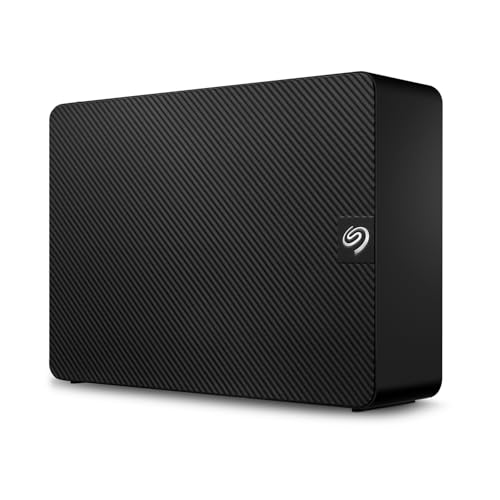
Seagate Expansion 20TB Desktop HDD is the direct-fit pick for buyers who want a conventional desktop drive with a power adapter and USB cable. It supports drag-and-drop file saving and automatic recognition on Windows and Mac computers; using it with Time Machine requires reformatting. Seagate says Rescue Data Recovery Services and a limited warranty are included. This setup makes sense for a desk where an outlet is available and plug-in power is acceptable. The main limitation is that it is not the outlet-free option, so buyers who need to work without a wall outlet should consider Seagate One Touch 20TB Desktop HDD.
Bottom line: Choose this if you want a plug-in desktop drive with 20TB capacity and simple file saving.
Seagate One Touch 20TB Desktop HDD

Seagate One Touch 20TB Desktop HDD stands apart from the other 20TB drives here because the maker describes it as bus-powered, with no wall outlet required, and USB-C compatible. Its compatibility covers most Windows and macOS computers, and it includes Rescue Data Recovery Services and a two-year limited warranty. The one-port, one-cord setup may suit a desk or workspace where reducing power-cable clutter matters. “Compatible with most” does not guarantee a match for every computer, so verify that your computer has a compatible USB-C connection before choosing it.
Bottom line: Pick this if outlet-free operation and USB-C compatibility are priorities.
WD Elements Desktop 20TB

WD Elements Desktop 20TB is the non-Seagate 20TB alternative, with a Windows PC plug-and-play setup and USB 3.0 transfers. It is aimed at buyers adding capacity to a Windows computer rather than seeking a Seagate drive. WD says Mac use requires reformatting, so it is a less direct choice for someone moving the drive between Windows and macOS without changing its format. The maker also describes it as high-capacity add-on storage. Its platform setup is the main tradeoff compared with the Seagate Expansion, which supports automatic recognition on Windows and Mac.
Bottom line: Choose it for a Windows PC if you are open to a non-Seagate alternative.
Seagate Expansion 8TB Desktop HDD
Seagate Expansion 8TB Desktop HDD shares the Expansion line’s USB 3.0 connection and drag-and-drop saving, but offers 8TB rather than the 20TB capacity in the search. The maker says it automatically recognizes Windows and Mac computers; using it with Time Machine requires reformatting. It is a reasonable fit when a buyer wants the familiar desktop-drive workflow but has no need for 20TB. The capacity is the key limitation for large libraries or backup sets that may outgrow 8TB, where one of the 20TB options is the closer match.
Bottom line: Pick this if you want the Expansion workflow but need less than 20TB.
WD Elements Desktop 14TB

WD Elements Desktop 14TB gives buyers a middle capacity between the 8TB Seagate and 20TB desktop options, with 14TB and USB 3.0. WD describes it as plug-and-play ready for Windows PCs and high-capacity add-on storage. This is an alternative for a personal storage setup that does not need 20TB but would outgrow an 8TB drive. The plug-and-play setup is for Windows PCs; buyers planning Mac use should confirm the drive’s format requirements before ordering, since the 20TB WD model requires reformatting for macOS.
Bottom line: Choose it if 14TB suits your storage needs better than 8TB or 20TB.
How to Choose a Seagate 20TB External Hard Drive
Start with the power connection: Seagate Expansion 20TB Desktop HDD uses a power adapter, while the maker describes Seagate One Touch 20TB Desktop HDD as bus-powered and requiring no wall outlet. Both are 20TB Seagate drives, so the deciding difference is how you plan to connect and power the drive. USB 3.0 has a theoretical signaling rate of 5 Gbps, but actual file transfers depend on the drive, computer, cable, and workload. For large backups, allow time for an initial copy and keep a second copy of important files on another device or storage location; one external drive is a single point of failure. A practical rule: if you cannot use a wall outlet at the drive’s location, favor the bus-powered option, after checking USB-C compatibility.
What 20TB Means for Usable Storage
A marketed 20TB drive holds 20 trillion bytes using decimal units, which operating systems may display as roughly 18.2 TiB. That difference comes from how decimal terabytes and binary tebibytes are counted, not from a drive losing files. Leave working room for file-system overhead and future additions rather than filling the drive completely. Capacity also depends on the files: video archives and system backups can consume space much faster than documents. For a buyer choosing between the 8TB, 14TB, and 20TB options, estimate the current library plus planned growth; choose 20TB if the collection is already near 8TB or is expected to expand beyond 14TB.
Desktop HDDs, Formats, and Computer Compatibility
Desktop external hard drives connect to a computer by USB and use a file system to organize data. Windows and macOS can read common formats such as exFAT, but reformatting erases existing data and some drive setups may arrive with a different format. Make a copy of any files already on a drive before reformatting. The Seagate Expansion product notes call out reformatting for Time Machine use, and the WD products specify reformatting for Mac use. Check the operating system and intended backup software before setup; a drive that works for ordinary file storage may still need a format change for a particular backup workflow.
External Hard Drive Care and Backup Safety
Keep a desktop hard drive on a stable, dry surface with airflow around its case, and avoid moving it while it is actively transferring files. A mechanical hard disk contains moving parts, so a drop or abrupt jolt can damage the drive or interrupt work. Use the computer’s safe-eject function before disconnecting the cable to reduce the chance of an unfinished write. For important files, follow the 3-2-1 backup rule: keep three copies, on two kinds of storage, with one copy off-site. A rescue service or limited warranty is not the same as a current backup, so preserve a separate copy of irreplaceable data.
Frequently Asked Questions
Will a 20TB drive show exactly 20TB in Windows?
No; a decimal 20TB drive may appear as roughly 18.2 TiB because operating systems can display capacity using binary units. File-system overhead can reduce the available space further.
Can I use an external hard drive with Mac and Windows?
Yes, a cross-platform format such as exFAT is commonly readable by both modern Windows and macOS systems. Reformatting erases data, so copy files elsewhere first and check requirements for backup software such as Time Machine.
How long does a 20TB hard drive backup take?
A full 20TB transfer takes at least about 11 hours even at a sustained 500 MB/s, and real transfers can take longer. Many small files, slower source drives, and USB limits can extend the time substantially.
Should I leave an external desktop drive running?
For a large initial backup, continuous operation avoids repeated startup and shutdown, but eject the drive safely before disconnecting it. Keep the drive ventilated and avoid moving it while it is transferring data.
Is one 20TB external drive enough for important backups?
No single drive is a safe sole copy of irreplaceable files; hardware failure, loss, or damage can make its contents unavailable. Keep at least one additional copy, preferably in a separate location.