
Intel NUC With No Operating System: 5 Models Compared

For an Intel NUC with no operating system, choose ASUS NUC 14 Essential Slim Kit, Intel N355: its product name explicitly identifies it as a no-OS slim kit with an Intel N355 CPU. The other options either include Windows or have different component requirements, so choose them only if their included software and hardware match your setup.
A barebones mini PC is a small desktop that may require you to install an operating system and, depending on the configuration, add memory or storage.
We earn a commission if you buy through links on this page. As an Amazon Associate I earn from qualifying purchases. Products are compared on manufacturer specifications, not hands-on testing.
- Best overall: ASUS NUC 14 Essential Slim Kit, Intel N355 – Its Intel N355 processor, three-display support, and no-operating-system configuration are identified.
- Best for a component build: Intel NUC 8 Mainstream Kit, Core i3 – It specifies a Core i3-8109U, support for up to 32GB DDR4, and M.2 plus 2.5-inch drive options.
- Best for a configured system: ASUS NUC 14 Pro Tall, Core Ultra 7 155H – It includes a Core Ultra 7 155H, 32GB DDR5 memory, a 1TB NVMe SSD, and Windows 11 Pro.
| Product | Best for | Processor | Display support | Operating system | Shop |
|---|---|---|---|---|---|
| ASUS NUC 14 Essential Slim Kit, Intel N355 | No-OS setup | Intel N355 | Three displays | — | Check Price on Amazon |
| Intel NUC 8 Mainstream Kit, Core i3 | Drive flexibility | Core i3-8109U | — | Windows 10 | Check Price on Amazon |
| ASUS NUC 14 Pro Tall, Core Ultra 7 155H | Configured performance | Core Ultra 7 155H | — | Windows 11 Pro | Check Price on Amazon |
| ASUS NUC 13 Pro, Core i5-13420H | Everyday tasks | Core i5-13420H | 4K | WinOS | Check Price on Amazon |
| ASUS NUC 13 Pro, Core i5-1340P | Quad-display setup | Core i5-1340P | Quad display | Windows 11 Pro | Check Price on Amazon |
Intel NUC mini PCs and kits
Check the operating system and included components first; the five options range from a no-OS kit to configured Windows systems.
ASUS NUC 14 Essential Slim Kit, Intel N355

Unlike the Windows-configured alternatives, this slim kit explicitly comes with no operating system, making it the direct match for a buyer planning a custom OS installation. Its Intel N355 CPU and integrated graphics are identified in the product name, and the features call out support for three displays, easy access for upgrades, and connectivity options. The product is described as suitable for light office and embedded applications.
Bottom line: Pick this if installing your own operating system is the priority.
Intel NUC 8 Mainstream Kit, Core i3
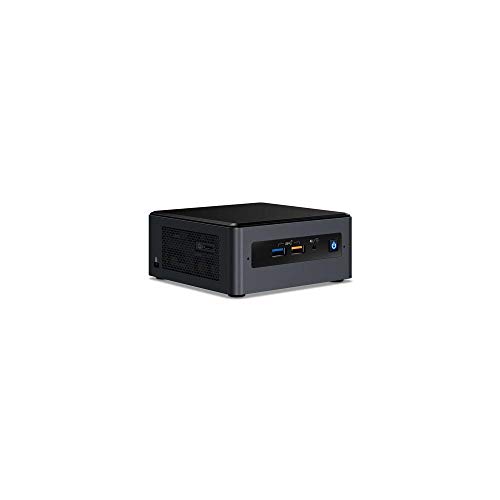
This older-generation kit stands out for offering both an M.2 slot and a 2.5-inch drive bay, rather than arriving as a fully configured mini PC. It uses an 8th-generation Core i3-8109U processor with Intel Iris Plus Graphics 655 and supports dual-channel DDR4-2400 SODIMMs up to 32GB. The specifications identify Windows 10, so it is not a match for someone who specifically wants a no-OS computer. Its add-components-needed wording makes it better suited to a build where drive and memory choices matter.
Bottom line: Choose this for a kit with both M.2 and 2.5-inch storage options.
ASUS NUC 14 Pro Tall, Core Ultra 7 155H

This option is the configured alternative, arriving with Windows 11 Pro, 32GB DDR5 memory, and a 1TB PCIe Gen 4 NVMe SSD rather than leaving the operating system choice to the buyer. Its 14th-generation Intel Core Ultra 7 155H processor and Intel Arc Graphics distinguish it from the simpler N355 and Core i3 systems. The product features also call out Thunderbolt 4, toolless chassis access, and an included VESA mount. Its preinstalled Windows setup makes it the wrong fit if your requirement is specifically a NUC without an operating system.
Bottom line: Pick this if you want a powerful configured Windows system, not a no-OS kit.
ASUS NUC 13 Pro, Core i5-13420H

This NUC 13 Pro supplies a middle-ground hardware configuration: a 13th-generation Core i5-13420H processor, 16GB DDR4 memory, and a 512GB M.2 NVMe SSD. The features describe a hybrid 8-core, 12-thread chip with Intel UHD Graphics and support for Wi-Fi 6E, Bluetooth 5.3, and 4K output. Choose this only if its operating system arrangement works for you; it is not the direct no-OS match.
Bottom line: Consider this for the 16GB/512GB configuration if a no-OS setup is not essential.
ASUS NUC 13 Pro, Core i5-1340P

This NUC 13 Pro pairs a Core i5-1340P with 16GB DDR4 memory and a 512GB PCIe SSD, and the product name specifies Windows 11 Pro. Its features identify Intel Iris Xe Graphics and call out support for 8K/4K quad display, setting it apart for a multi-display desk rather than a barebones OS install. The memory is described as dual-channel SODIMM and upgradeable to 64GB. Because Windows is included, this configuration does not satisfy a requirement for a computer delivered without an operating system.
Bottom line: Choose this if quad-display support matters more than receiving a no-OS system.
How to choose an Intel NUC with no operating system
Start by confirming the operating system is explicitly absent, then check whether the kit includes memory and storage. A barebones kit can save you from paying for a preinstalled OS you do not want, but it may also require separate RAM, a drive, and installation media. Among these options, only ASUS NUC 14 Essential Slim Kit, Intel N355 explicitly says no operating system; the configured NUC 13 and NUC 14 systems name Windows editions or WinOS. If your goal is to reuse a Windows license or install Linux, verify the components you need before buying. For a working system on arrival, an installed OS and included RAM and storage are more convenient, but they do not match a strict no-OS requirement.
What to check before installing an operating system
Match the installer to the processor architecture and confirm that the system firmware can boot your installation media. Most modern desktop operating system installers are provided on USB drives; a 16GB or larger USB drive is a practical target for many current installers, though the OS maker’s requirements take precedence. Confirm that a storage drive is present and recognized before beginning setup, since an OS cannot be installed to a missing target drive. For kits without confirmed memory or storage, check those items before ordering. Keep a second computer available to download installation media and drivers if the mini PC arrives without a usable OS.
Mini PC memory and storage choices
Memory and storage are separate parts of the decision: RAM supports active programs, while the SSD holds the operating system and files. The NUC options here include configurations from 16GB DDR4 to 32GB DDR5, while the no-OS kit does not identify a memory amount. For ordinary office use, 16GB is a practical starting point; heavier creative work and virtual machines benefit from more memory, subject to the system’s supported type and maximum. NVMe SSDs use the M.2 form factor and connect over PCIe, while a 2.5-inch drive occupies a separate bay. Check the exact supported memory generation and drive form factor before buying parts.
| Buyer need | Configuration cue | Choice in this group |
|---|---|---|
| Install your own OS | Explicit no-OS wording | ASUS NUC 14 Essential Slim Kit, Intel N355 |
| Keep two drive formats available | M.2 slot plus 2.5-inch bay | Intel NUC 8 Mainstream Kit, Core i3 |
| Ready-to-use Windows setup | OS, RAM, and SSD included | ASUS NUC 14 Pro Tall, Core Ultra 7 155H or ASUS NUC 13 Pro, Core i5-1340P |
Installing an operating system safely
Use the operating system’s official installation media and back up any drive that may contain files before repartitioning it. Installation can erase existing partitions, and selecting the wrong disk is a common cause of data loss. For a fresh install, connect a monitor, keyboard, and wired network when possible; wireless network drivers may not be available until after setup. Firmware settings such as Secure Boot affect which installers can start, so use the operating system’s supported boot method rather than changing security settings casually. After installation, add chipset, graphics, and wireless drivers appropriate to the exact NUC model, then install security updates before using the computer for sensitive work.
Frequently Asked Questions
Can I install Linux on an Intel NUC with no OS?
Yes, a no-OS NUC can be used for Linux if the chosen distribution supports its processor and hardware. Prepare a bootable USB installer and check wireless and graphics support for the exact model before you begin.
Do no-OS mini PCs include memory and storage?
Not necessarily; no-OS describes the software setup, not whether RAM or a drive is included. Verify both components separately, because an installer needs a working storage drive and compatible memory.
What size USB drive do I need for an OS installer?
A 16GB USB drive is a practical target for many current desktop OS installers. Some installers require more space, so use the OS maker’s requirement and expect the drive to be erased when prepared.
Will a no-OS Intel NUC boot straight to the desktop?
No, a system without an operating system cannot load a desktop environment until one is installed. It may open firmware setup or show a boot-device message, which is normal when no bootable drive is available.
Can I install Windows on a NUC without an operating system?
Yes, provided the NUC has compatible memory and a storage drive and you have Windows installation media and a valid license. A separate computer can be used to prepare the installer USB.