
Best Stylus for Yoga 7i: 4 Pens Compared by Fit

The LAZARITE M Pen is the best fit for most Yoga 7i owners here because its compatibility list explicitly names Yoga 7i and it offers palm rejection with 4,096 pressure levels. Choose another pen if you want built-in USB-C charging or a particular Yoga 7i generation is not covered by its compatibility information.
Active styluses use a digitizer protocol supported by the laptop, so a matching Yoga name alone does not guarantee compatibility across every generation.
We earn a commission if you buy through links on this page. As an Amazon Associate I earn from qualifying purchases. Products are compared on manufacturer specifications, not hands-on testing.
- Best overall: LAZARITE M Pen – Explicitly names Yoga 7i compatibility and includes palm rejection and 4,096 pressure levels.
- Best for USB-C charging: Active Stylus for Yoga 7i/9i – Names Yoga 7i/9i compatibility and has a rechargeable battery with a 20-hour runtime.
- Best for pressure-sensitive drawing: Lenovo Yoga Pen 2 – Offers up to 8,192 pressure levels and tilt detection, but is described for Yoga 2-in-1 PCs generally.
| Product | Best for | Charging | Pressure levels | Fit named | Shop |
|---|---|---|---|---|---|
| LAZARITE M Pen | Yoga 7i compatibility | AAAA battery | 4,096 | Yoga 7i | Check Price on Amazon |
| Active Stylus for Yoga 7i/9i | Rechargeable 7i option | USB-C rechargeable | — | Yoga 7i/9i | Check Price on Amazon |
| Lenovo Yoga Pen | Multi-protocol devices | USB-C rechargeable | — | Yoga (unspecified models) | Check Price on Amazon |
| Lenovo Yoga Pen 2 | Tilt-sensitive drawing | USB-C rechargeable | 8,192 | Yoga 2-in-1 PCs | Check Price on Amazon |
Styluses for Yoga 7i
Start with pens that name Yoga 7i explicitly, then verify the exact laptop generation before choosing a broader Yoga-compatible model.
LAZARITE M Pen

The LAZARITE M Pen is one of two choices here that explicitly names Yoga 7i compatibility. It uses an AAAA battery, supports 4,096 pressure levels and includes palm rejection, which lets you rest a hand on the screen while writing. Its battery life is up to 1,000 hours, and the pen measures 5.51 inches long. This is a practical match for handwriting or pressure-sensitive sketching if you prefer a replaceable battery over charging. The important limitation is model fit: check that your specific Yoga 7i generation is among the compatible models before buying.
Bottom line: Choose this if your Yoga 7i generation is covered and you prefer an AAAA-powered pen.
Active Stylus for Yoga 7i/9i
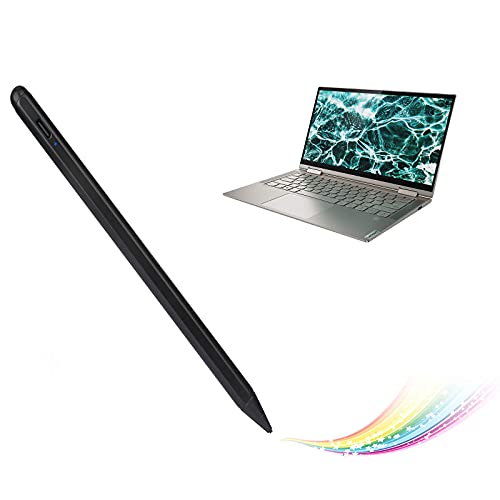
The Active Stylus for Yoga 7i/9i is the explicitly compatible pick for someone who wants a rechargeable pen rather than a replaceable AAAA battery. Its 140 mAh lithium-polymer battery is charged over USB-C, and the maker says a full charge supports 20 hours of continuous use. A 1.5 mm nib is intended for more focused touch input than a finger, making this a straightforward option for notes and basic sketching. Charging time is stated as 8 hours, a meaningful tradeoff for people who need frequent long sessions. Verify compatibility with your particular 7i model before relying on it.
Bottom line: Choose this if you want USB-C charging and your exact Yoga 7i model is compatible.
Lenovo Yoga Pen

The Lenovo Yoga Pen differs from the two explicitly Yoga 7i-compatible options by emphasizing multi-protocol support: WGP, MPP 2.0/2.6, USI 2.0 and AES 2.0/1.0. It recharges by USB-C, has a magnetic attachment and uses a replaceable nib. Those broad protocol options may suit owners comparing several Lenovo device families, including Yoga, ThinkPad and ThinkBook. Confirm protocol compatibility for your laptop before choosing it.
Bottom line: Choose this if your device supports one of its protocols and you want a replaceable nib.
Lenovo Yoga Pen 2

The Lenovo Yoga Pen 2 is the drawing-focused alternative, with AES 3.0, up to 8,192 pressure levels and tilt detection. Its USB-C rechargeable battery and included magnetic pen case provide a different storage and charging setup from the AAAA-powered LAZARITE option. The feature set is aimed at shading, varied brush strokes and precise note-taking, so it may appeal to illustrators who use a compatible Yoga 2-in-1. Its fit is stated for Lenovo Yoga 2-in-1 PCs rather than a particular Yoga 7i generation. Check your laptop’s supported pen protocol before treating it as a Yoga 7i match.
Bottom line: Choose this for tilt-aware drawing only after confirming your specific 7i supports it.
How to choose a Yoga 7i stylus
Choose a Yoga 7i stylus by confirming the laptop generation and pen protocol before comparing pressure sensitivity or charging. Active pens rely on a digitizer system such as AES, MPP, USI or WGP; a pen that supports one family does not automatically work with another. Yoga 7i is a model family, and specifications can vary across generations, so match the pen against the full laptop model number rather than the 7i name alone. A useful decision rule is to favor a pen that names your exact Yoga generation when you cannot confirm its protocol. Then choose based on use: ordinary handwriting does not require as many pressure levels as pressure-sensitive drawing, while USB-C charging avoids keeping a spare disposable battery.
Pressure levels describe how many input steps a compatible application can use; they do not guarantee a particular drawing feel by themselves.
Compatibility and pen protocols
Protocol compatibility is the first fit check because active styluses communicate through supported pen hardware, not just the touchscreen. AES, MPP, USI and WGP are distinct protocol families, and a multi-protocol pen still must support the standard implemented by the laptop. Product naming such as “Yoga” is broader than “Yoga 7i,” so treat family-level compatibility as a reason to verify, not as proof for every 7i generation. Check the full model identifier and protocol in Lenovo’s device specifications or support documentation before ordering. If the exact model is absent from a pen’s compatibility list, do not assume that a similar Yoga screen or hinge design means the pen will pair.
The explicitly Yoga 7i-named options are the safer starting point here; a Yoga-family model can still be right if the protocol matches.
Pressure sensitivity, tilt and everyday writing
Pressure sensitivity matters most when drawing software maps pen force to line width or opacity; note-taking can work well without thousands of pressure steps. Tilt detection lets supported apps vary a brush stroke as the pen angle changes, which is useful for shading but not essential for ordinary handwriting. This means a higher pressure figure is not automatically the better choice for every Yoga 7i owner. For simple annotations and notes, prioritize reliable model fit, palm rejection and a comfortable charging routine. For illustration, favor a compatible pen with pressure response and tilt support, and confirm the drawing app recognizes those inputs.
Resting a palm on the display is comfortable only when the pen and device support palm rejection together; do not assume every stylus provides it.
Charging and safe stylus use
Battery format changes upkeep: an AAAA-powered pen needs a replacement cell, while a rechargeable pen needs periodic charging. A runtime is not a guarantee for every workload, since continuous drawing and standby patterns differ. Keep the nib clean and replace a worn or damaged tip to avoid rough screen contact; use only a compatible replacement nib rather than a sharp improvised substitute. Store magnetic pens or cases as designed, and avoid pressing hard enough to flex or scratch the display. For a laptop used in class or meetings, select a charging approach you can maintain and keep a spare compatible battery or charging cable as appropriate.
Frequently Asked Questions
Will any Lenovo Yoga stylus work with a Yoga 7i?
No, the stylus protocol and laptop generation must match. Confirm your full Yoga 7i model identifier and supported pen standard before choosing a Yoga-family pen.
Do I need 8,192 pressure levels for taking notes?
No, high pressure counts matter more for drawing apps that map pen force to strokes. For handwriting, prioritize confirmed compatibility and palm rejection instead.
What does tilt detection do on a stylus?
Tilt detection lets compatible apps respond to the angle of the pen, often changing a brush mark for shading. It matters more for illustration than for basic typed annotations or handwriting.
How often should I replace a stylus nib?
Replace a nib when it is visibly worn, damaged or starts to feel rough against the screen; there is no single interval that fits every user. Use a compatible tip and avoid continuing to write with a cracked nib.
Can I use a rechargeable stylus while it is charging?
Charging behavior depends on the particular pen, and the products here do not establish that they support writing while plugged in. Plan to charge ahead of a long session rather than assume pass-through use.