
Hi8 Tape to Digital: 4 Transfer Bundles Compared

For most people digitizing Hi8 alongside other 8mm formats, Tech Collector 8mm/Hi8/Digital8 Bundle is the best fit because it supports 8mm, Hi8, and Digital8 playback and includes a USB adapter. Choose another bundle if you want the Powerplay microSD recorder or a simpler Hi8/8mm setup instead.
We earn a commission if you buy through links on this page. As an Amazon Associate I earn from qualifying purchases. Products are compared on manufacturer specifications, not hands-on testing.
- Best overall: Tech Collector 8mm/Hi8/Digital8 Bundle – Supports playback and transfer for 8mm, Hi8, and Digital8 tapes.
- Best for microSD recording: Powerplay ImmersionRC Hi8 Bundle – The bundle name specifies a Powerplay microSD Recorder.
- Best for a basic setup: 8mm Video8/Hi8 Camcorder Bundle – Pairs an 8mm/Hi8 camcorder with a USB capture device.
| Product | Best for | Tape formats | Transfer method | Included extras | Shop |
|---|---|---|---|---|---|
| Tech Collector 8mm/Hi8/Digital8 Bundle | Multiple tape formats | 8mm, Hi8, Digital8 | USB to computer or DVD | Battery, AV cables, 8mm tape | Check Price on Amazon |
| Powerplay ImmersionRC Hi8 Bundle | microSD recorder | 8mm, Hi8 | USB to computer; microSD recorder in name | Blank Hi8 tape | Check Price on Amazon |
| 8mm Video8/Hi8 Camcorder Bundle | Hi8 and 8mm | 8mm, Hi8 | USB to computer | Blank 8mm tape | Check Price on Amazon |
| Tech Collector 8mm/Hi8/Digital8 Converter Bundle | Blank tape included | 8mm, Hi8, Digital8 | USB to computer or DVD | Battery, AV cables, blank 8mm tape | Check Price on Amazon |
Hi8 Tape to Digital Bundles
Compare the supported tape formats and capture routes before choosing a setup for your tapes.
Tech Collector 8mm/Hi8/Digital8 Bundle

For a collection that includes more than Hi8, this bundle supports playback and transfer of 8mm, Hi8, and Digital8 tapes. Its USB capture adapter transfers tapes to computer files, and the bundle also describes DVD burning as an option. A battery and AV cables are included for transfer or TV playback, along with an 8mm tape. This is the most versatile format match here, but it is not the right choice if your priority is a microSD recording device; confirm that your computer can accept the adapter before choosing it.
Bottom line: Choose this if you need one bundle for 8mm, Hi8, and Digital8 tapes.
Powerplay ImmersionRC Hi8 Bundle
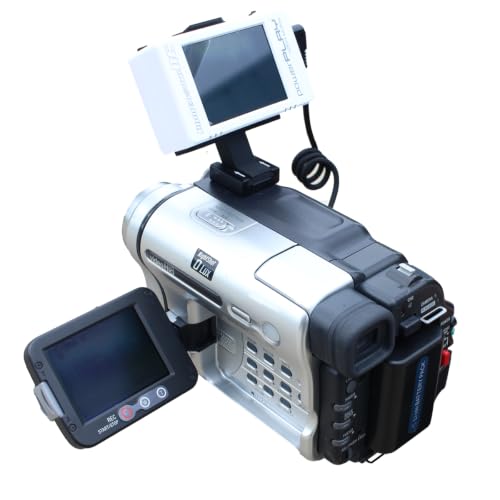
The Powerplay ImmersionRC bundle is the only option here whose name specifies a microSD recorder, while its features also describe USB capture to a computer. It is intended for playback and transfer of 8mm and Hi8 tapes and includes a blank Hi8 tape. That combination suits someone who wants a Hi8-focused camcorder bundle with a recorder component. The transfer path is not a promise of a particular file format or computer compatibility, so confirm those requirements if either will determine how you archive the finished video.
Bottom line: Choose this if a microSD recorder is central to your setup.
8mm Video8/Hi8 Camcorder Bundle

This camcorder-and-USB bundle covers 8mm and Hi8 playback and transfer without adding Digital8 to its tape formats. It includes a blank 8mm tape and is also described for recording vintage-style footage. The capture route goes to a computer through a USB capture device. It suits a collection limited to 8mm and Hi8, but buyers with Digital8 tapes should choose a bundle that explicitly names that format. Check your computer’s connection compatibility before committing to a capture workflow.
Bottom line: Choose this for a straightforward 8mm and Hi8 transfer setup.
Tech Collector 8mm/Hi8/Digital8 Converter Bundle

This Tech Collector bundle combines support for 8mm, Hi8, and Digital8 with a blank 8mm tape, battery, and AV cables. Like the other multi-format Tech Collector option, it describes USB transfer to computer files or DVD burning, plus AV playback on a TV. Its distinguishing included tape is 8mm rather than a generic tape mention. It is a fit for buyers wanting the three-format coverage and the included tape; the bundle does not specify a direct microSD recording path, so choose another option if that is essential.
Bottom line: Choose this if three-format support and a blank 8mm tape matter.
How Hi8 tape digitizing works
Hi8 tape digitizing plays the analog recording through a compatible camcorder or deck, then captures its audio and video through an analog-to-digital device. The capture is real time: a 60-minute tape takes about 60 minutes to play and record, before any setup or file handling. The device needs a playback source as well as a capture path; a converter box alone cannot play a tape. Once captured, keep an untouched master file and make smaller copies for sharing, since later compression can discard image or sound data.
Many Hi8 camcorders offer analog AV connections, and some equipment uses S-video, which carries picture information separately from composite video. Match the player’s output to the capture device’s input; the connection type determines what cables you need. If transferring family or archival footage, capture in sequence and label each file with tape identity and recording order so clips remain organized.
Choose by tape format and transfer route
Choose a bundle that explicitly supports the format printed on each tape: 8mm, Hi8, and Digital8 are related 8mm-family formats, but a player’s compatibility should not be assumed from its shape alone. A bundle naming all three formats is the safer match for a mixed collection. For Hi8-only tapes, an 8mm/Hi8 bundle may be sufficient if Hi8 playback is explicitly supported.
The transfer route also matters. USB capture sends the playback signal to a computer, while AV cables can connect compatible equipment to a TV; a recorder with memory-card storage is a different workflow. Before ordering, confirm your computer and capture adapter can connect. The table gives a practical format-to-choice rule.
| Your tapes or goal | Choose |
|---|---|
| Hi8 and 8mm | A bundle that explicitly supports both |
| Hi8, 8mm, and Digital8 | A bundle naming all three formats |
| Direct memory-card workflow | A bundle that explicitly includes a card recorder |
Plan capture time and file storage
Allow roughly one hour of capture time for each hour of tape because analog playback and recording happen at normal playback speed. Longer tapes therefore need longer uninterrupted sessions, and a full capture can be interrupted if the computer sleeps or the recorder runs out of storage. Make sure the capture device and destination have room before starting, then spot-check the beginning, middle, and end of a file for picture and sound.
Keep an original capture before editing or compressing. Digital copies are easier to duplicate than fragile analog tapes, but a single drive is not a complete archive; keep a second copy on a separate storage device. Label files consistently with tape number and date only when the date is known, rather than guessing from the footage.
Connections and common transfer mistakes
Match output and input connectors before connecting anything: composite video uses a yellow RCA plug with separate red and white audio plugs, while S-video uses a round multi-pin connector and still needs a separate audio connection. A capture device must accept the signal coming from the camcorder or deck. An adapter that only converts video formats cannot substitute for a Hi8 playback machine.
Keep the camcorder steady and use its playback mode, not camera-record mode, during transfer. Avoid unplugging cables or shutting down the computer mid-capture, and confirm the resulting file plays with sound before moving on to the next tape. Since the bundles do not establish computer operating-system compatibility, confirm that requirement for your specific setup before choosing.
Frequently Asked Questions
How long does it take to digitize a Hi8 tape?
A 60-minute Hi8 tape takes about 60 minutes to capture because the tape must play in real time. Add setup and file-checking time for each session.
Can any 8mm camcorder play Hi8 tapes?
No; use a camcorder or deck that explicitly supports Hi8 playback. 8mm-family tape formats are not automatically interchangeable just because they share a physical form.
Do I need a computer to transfer Hi8 tapes?
A computer is needed for a USB-to-computer capture route, but some standalone recorders capture to removable storage instead. Check which destination the particular setup supports before starting.
What cables connect a Hi8 camcorder to capture equipment?
Composite connections usually use yellow video and red/white audio RCA plugs, while S-video carries video separately and still needs audio cables. The player’s output and capture device’s input must match.
Should I keep the original capture file?
Yes; retain an unedited master before trimming or compressing the video. Keep a second copy on separate storage so one device failure does not erase the only digital copy.