
SanDisk Extreme Pro USB 3.2 512GB Drives Compared

For most people, SanDisk Extreme PRO Dual Drive 512GB is the better match because it has both USB-C and USB-A connectors, while SanDisk Extreme PRO USB-C 512GB has USB-C only; both advertise up to 1,000MB/s read and 900MB/s write speeds. Choose SanDisk Extreme PRO USB-C 512GB if you need a single USB-C drive, or SanDisk Ultra USB-A 512GB if your devices use USB-A and your transfers do not need the Extreme PRO speed class.
We earn a commission if you buy through links on this page. As an Amazon Associate I earn from qualifying purchases. Products are compared on manufacturer specifications, not hands-on testing.
- Best overall: SanDisk Extreme PRO Dual Drive 512GB – The dual USB-C and USB-A connectors work across more port types.
- Best for USB-C only: SanDisk Extreme PRO USB-C 512GB – A single USB-C connector suits devices without USB-A ports.
- Best for basic transfers: SanDisk Ultra USB-A 512GB – USB-A connectivity and up to 130MB/s read speed suit less demanding file transfers.
| Product | Best for | Connectors | Read speed | Write speed | Shop |
|---|---|---|---|---|---|
| SanDisk Extreme PRO Dual Drive 512GB | More port types | USB-C, USB-A | Up to 1,000MB/s | Up to 900MB/s | Check Price on Amazon |
| SanDisk Extreme PRO USB-C 512GB | USB-C devices | USB-C | Up to 1,000MB/s | Up to 900MB/s | Check Price on Amazon |
| SanDisk Ultra USB-A 512GB | Slower transfers | USB-A | Up to 130MB/s | — | Check Price on Amazon |
SanDisk Extreme PRO USB 3.2 512GB drives
Compare the Extreme PRO options by connector type and advertised transfer speeds, plus a slower USB-A alternative.
SanDisk Extreme PRO Dual Drive 512GB

SanDisk Extreme PRO Dual Drive 512GB stands apart with both USB-C and USB-A plugs, unlike SanDisk Extreme PRO USB-C 512GB’s USB-C-only design. SanDisk says it reaches up to 1,000MB/s read and 900MB/s write speeds, and the drive has a metal body. Its encryption technology is another stated feature for buyers handling sensitive files. Choose it when you move data between newer USB-C devices and computers with USB-A ports. The limitation is that the speed figures are maximums, not a guarantee for every host; the device’s port and workload affect actual transfer rates.
Bottom line: Pick this if you need one drive for USB-C and USB-A ports.
SanDisk Extreme PRO USB-C 512GB

SanDisk Extreme PRO USB-C 512GB is the single-connector Extreme PRO option: its universal USB Type-C plug connects to compatible laptops, computers, and tablets. SanDisk says it can reach up to 1,000MB/s read and 900MB/s write speeds. The feature set also includes Memory Zone app auto-backup and RescuePRO Deluxe recovery software. This suits a buyer whose devices all have USB-C and who wants the backup tools. Unlike SanDisk Extreme PRO Dual Drive 512GB, it does not offer USB-A connectivity, so it is a less flexible pick for older computers with only USB-A ports.
Bottom line: Choose this for USB-C-only devices and the included backup utilities.
SanDisk Ultra USB-A 512GB
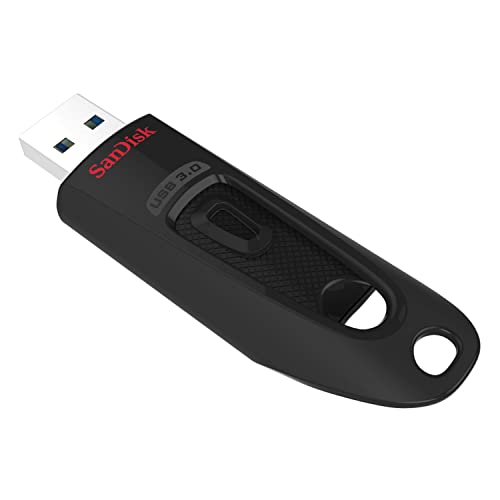
SanDisk Ultra USB-A 512GB is a USB-A Ultra drive rather than an Extreme PRO model, and its advertised read speed tops out at 130MB/s, far below the up-to-1,000MB/s read class of SanDisk Extreme PRO USB-C 512GB and SanDisk Extreme PRO Dual Drive 512GB. It is backward compatible with USB 2.0 and has a retractable design, with password protection and encryption listed as features. Consider it for routine file storage on USB-A computers when peak transfer speed is not the priority. It is a poor fit for sustained large-file work where the faster Extreme PRO options’ advertised speeds matter.
Bottom line: Pick this for basic USB-A storage when maximum transfer speed is not important.
Choosing between USB-C and dual connectors
The connector decides compatibility before speed does: USB-C drives fit USB-C ports, while a dual USB-C and USB-A drive can connect to either port type. A USB-C plug will not fit a USB-A port without an adapter, and USB-A plugs do not fit USB-C ports. USB 3.2 Gen 2 has a 10Gbps signaling rate, but device performance also depends on the host port, controller, and file size. For regular transfers of large video files, choose a drive rated for the higher transfer class and use a compatible high-speed port. For moving files between devices with different connector types, choose dual connectors rather than relying on adapters.
How to read flash drive speed claims
Advertised read and write speeds are maximums under favorable conditions, not guaranteed everyday rates. Large sequential files generally transfer faster than many small files because flash storage must handle extra file-system operations for each item. A USB 3.x drive plugged into a USB 2.0 port can be limited by that older connection; USB 2.0 signaling tops out at 480Mbps before overhead. For work involving repeated large transfers, connect directly to a compatible high-speed port and leave time for writes to finish before unplugging. Eject the drive through the operating system so pending writes are not interrupted and files are less likely to be corrupted.
Capacity and safe file handling
A 512GB drive provides ample room for documents and media, but usable space is lower than the printed capacity because some storage supports formatting and file-system data. Keep a second copy of important files: a flash drive is portable storage, not a backup strategy by itself. Use encryption or password protection for sensitive files, and remember that encryption cannot recover a forgotten password. Before disconnecting a drive during a transfer, wait for the copy operation to finish and use the system’s eject command. Avoid removing a drive while its activity indicator is active, if it has one, because interrupted writes can damage files.
Frequently Asked Questions
Will a USB-C flash drive work in a USB-A port?
A USB-C plug does not fit directly into a USB-A port. Use a compatible adapter or select a drive with both connector types when moving files between both port styles.
Does USB 3.2 Gen 2 guarantee 1,000MB/s transfers?
No; 1,000MB/s is an advertised maximum, not a guaranteed transfer rate. A 10Gbps USB 3.2 Gen 2 connection, host controller, and file workload all affect real-world speed.
Why do many small files copy more slowly?
Many small files usually transfer more slowly than one large file because the drive and computer handle file-system operations for each item. Grouping files into an archive can reduce that overhead, though creating the archive takes time.
How should I protect files on a flash drive?
Keep a second copy of important files on separate storage, since one portable drive can be lost or fail. For sensitive files, encryption helps restrict access, but store the password somewhere safe because a forgotten password may block access.