
Seagate One Touch Hub 8TB Desktop HDD Compared

The Seagate One Touch Hub 8TB suits users who want an 8TB desktop drive with front USB-C and USB 3.0 ports for device connections. Choose the standard One Touch instead if bus-powered operation and a single-cable setup matter more; choose the Expansion for simple file storage or FireCuda for customizable RGB lighting.
We earn a commission if you buy through links on this page. As an Amazon Associate I earn from qualifying purchases. Products are compared on manufacturer specifications, not hands-on testing.
- Best overall: Seagate One Touch Hub 8TB (Renewed) – Front USB-C and USB 3.0 ports add convenient device connections to its 8TB storage.
- Best for bus-powered use: Seagate One Touch 8TB – The standard One Touch is described as USB-C bus-powered, with no wall outlet required.
- Best for simple backup: Seagate Expansion 8TB Desktop – The Expansion supports drag-and-drop saving and automatic recognition of Windows and Mac computers.
| Product | Best for | Front ports | Power/setup | Shop |
|---|---|---|---|---|
| Seagate One Touch Hub 8TB (Renewed) | Hub connections | USB-C, USB 3.0 | Windows and Mac compatible | Check Price on Amazon |
| Seagate One Touch 8TB | Bus-powered setup | — | USB-C, bus-powered | Check Price on Amazon |
| Seagate Expansion 8TB Desktop | Straightforward backup | — | Power adapter, plug-and-play | Check Price on Amazon |
| Seagate FireCuda Gaming Hub 8TB | Gaming setup | USB-C, USB-A | USB 3.2 | Check Price on Amazon |
Seagate One Touch Hub 8TB desktop HDD alternatives
Compare how these 8TB desktop drives handle peripherals, power, backup, and gaming features.
Seagate One Touch Hub 8TB (Renewed)
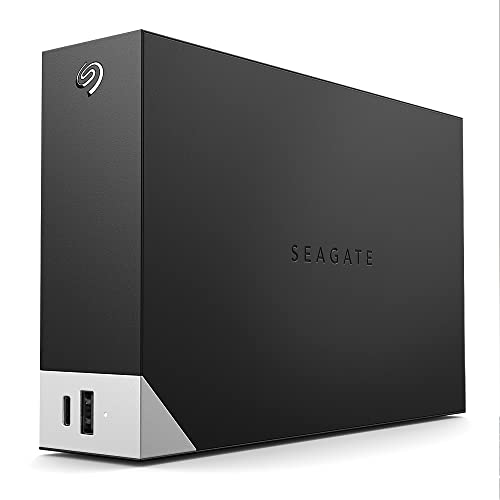
The One Touch Hub separates itself with front-facing USB-C and USB 3.0 ports, including device charging when the computer is off. It combines those connections with 8TB of storage and out-of-the-box compatibility with Windows and Mac computers, making it a fit for a desk setup where peripherals need to stay accessible. Its limitation is that the features do not identify a bus-powered design, unlike the standard One Touch; buyers who need to avoid a wall outlet should compare that model instead.
Bottom line: Choose this if front-accessible device ports matter as much as storage.
Seagate One Touch 8TB

The standard One Touch differs from the Hub by emphasizing a bus-powered USB-C connection rather than front-facing peripheral ports. Its 8TB capacity and one-cord setup suit users seeking a large drive without a wall outlet, with Rescue Data Recovery Services and a two-year limited warranty included. The trade-off is the lack of listed front USB hub connections, so choose another model if you want easy access to device ports or charging from the drive.
Bottom line: Pick this for 8TB storage in a bus-powered, one-cable setup.
Seagate Expansion 8TB Desktop
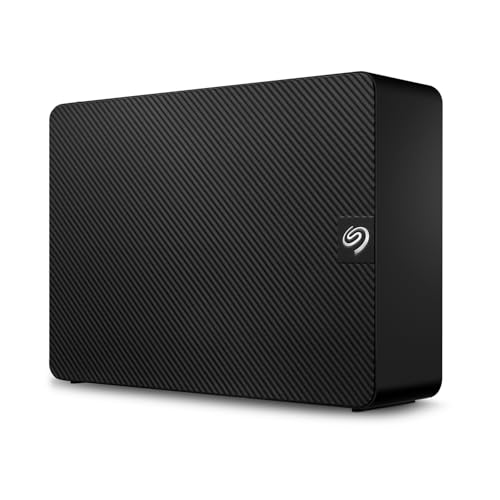
The Expansion focuses on straightforward backup rather than a front USB hub or gaming lighting. It uses USB 3.0 for file transfers and supports drag-and-drop saving; automatic recognition works with Windows and Mac, though Time Machine requires reformatting. A power adapter is part of setup, so it is not the choice for someone avoiding a wall outlet. Its appeal is uncomplicated file storage, while buyers wanting front-facing device connections should look to the Hub.
Bottom line: Choose this for basic desktop backup and drag-and-drop saving.
Seagate FireCuda Gaming Hub 8TB
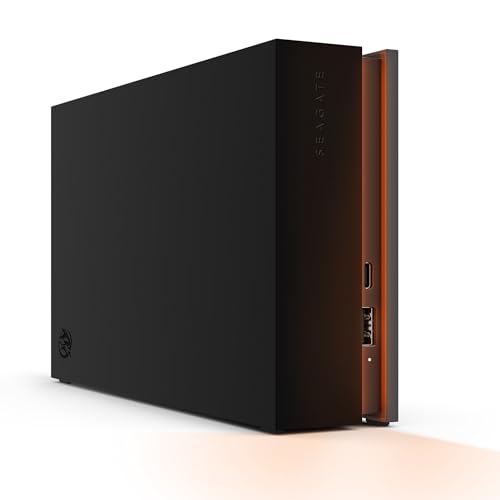
The FireCuda Gaming Hub adds customizable RGB lighting and forward-facing USB-C and USB-A ports, features that distinguish it from the storage-focused Expansion. Its 8TB capacity is aimed at a gaming library, and the maker also notes Rescue Data Recovery Services and a one-year limited warranty.
Bottom line: Pick this to combine 8TB storage with RGB lighting and front ports.
How to choose an 8TB desktop external hard drive
Choose by connection and use, not capacity alone: these four drives each have 8TB, but their features target different desk setups. A USB hub adds accessible peripheral connections; a basic desktop drive emphasizes file storage and backup; gaming models may add lighting. USB 3.0 has a theoretical maximum signaling rate of 5 Gbit/s, while USB 3.2 Gen 1 uses the same 5 Gbit/s rate; real transfers are slower and depend on the drive, files, and host connection. For a setup with at least two devices to plug in at the drive, prioritize front ports; for a desk without a spare outlet, choose a model explicitly described as bus-powered.
Desktop HDDs use spinning magnetic disks, so they are generally better suited to stationary storage than frequent drops or rough travel. Keep the drive on a stable, ventilated surface and avoid moving it while active.
USB hub ports, bus power, and desktop setup
Front ports and bus power solve different problems: front-facing ports make accessory connections easier, while bus power can remove the need for a separate wall outlet. The One Touch Hub has front USB-C and USB 3.0 ports; its features say they can connect and recharge devices even when the computer is off. The standard One Touch is described as USB-C bus-powered. Do not assume a USB hub port powers every device: high-draw accessories can exceed the port’s available power, and charging behavior may depend on the host and device.
Allow a desktop drive stable placement and avoid disconnecting it during writes. Before unplugging, use the operating system’s eject command so pending writes can finish; interrupting a transfer can corrupt files.
Desktop hard drive options by primary need
The useful distinction among these 8TB options is the intended setup: hub convenience, outlet-free connection, uncomplicated backup, or gaming accessories. The chart maps each use to the feature that supports it; verify the needed connection type against your computer before choosing.
| Primary need | Drive type | Deciding feature |
|---|---|---|
| Connect nearby peripherals | Hub drive | Front USB-C and USB 3.0 |
| Avoid wall outlet | Bus-powered drive | USB-C bus power |
| Basic file backup | Desktop storage drive | Drag-and-drop saving |
| Gaming desk setup | Gaming hub drive | RGB lighting and front ports |
USB 3.0 and USB 3.2 Gen 1 are not automatically faster in actual use than the mechanical drive can sustain; a label’s link rate is not a promise of file-copy speed. If your computer has only USB-A, confirm that the cable or adapter arrangement supports the drive’s connection.
Backup and safe handling for desktop HDDs
An external hard drive is not a complete backup if it is the only copy: maintain a second copy on a separate drive or another storage system. A 3-2-1 approach means keeping three copies of important data, on two types of storage, with one copy off-site. For irreplaceable files, an external drive can be one part of that plan, not the entire plan.
Hard drives are vulnerable to shocks while spinning, so keep a desktop unit stationary and disconnect it before relocating it. For an archive that sits unused, reconnect periodically and check that files remain readable; RAID or a single external HDD is not a substitute for an independent backup.
Frequently Asked Questions
Can an 8TB external hard drive store 8TB of files?
An 8TB drive has 8 trillion bytes of nominal capacity, but a computer may display a smaller number because operating systems often count in tebibytes. Formatting also uses some space, so usable capacity will be below the nominal figure.
Does a USB 3.0 hard drive work with USB 2.0?
USB 3.0 devices are generally backward compatible with USB 2.0 when the connectors and cable fit, but transfers run at USB 2.0’s lower signaling rate of up to 480 Mbit/s. The slower connection can substantially extend large backups.
Should an external hard drive stay plugged in?
A desktop hard drive can remain connected for regular backup, but eject it before disconnecting and avoid moving it while active. Keep a second independent copy of important files because one drive can fail.
Can a USB hub on an external drive charge a phone?
A powered USB port may charge a phone, but charging speed and whether charging continues when the computer is off depend on the drive and device. The One Touch Hub’s features specifically say its front ports can recharge devices with the computer off.
How often should I back up files to an external HDD?
For files that change daily, back up at least daily; for less frequently changed files, a weekly schedule may be adequate. Keep a second copy separate from the desktop drive so a drive failure does not erase the only backup.