
USB Cassette Tape Converter Options Compared by Workflow

For the most flexible transfer workflow, choose SEMIER Cassette Converter because it can convert tapes to MP3 on an SD card or send audio to a computer over USB. Choose DigitNow USB Cassette Converter or Reshow USB Cassette Converter instead if you want a simpler computer-based setup; SEMIER Cassette Converter is limited to Type I tapes and does not support Type IV or metal tapes.
We earn a commission if you buy through links on this page. As an Amazon Associate I earn from qualifying purchases. Products are compared on manufacturer specifications, not hands-on testing.
- Best overall: SEMIER Cassette Converter – Supports MP3 conversion to an included SD card as well as USB capture with Audacity.
- Best for simple USB capture: DigitNow USB Cassette Converter – Connects to a computer by USB and includes Audacity software for MP3 conversion.
- Best for headphone playback: Reshow USB Cassette Converter – Combines USB conversion with a standard 3.5 mm headphone connection.
| Product | Best for | Transfer options | Playback connection | Shop |
|---|---|---|---|---|
| SEMIER Cassette Converter | Flexible transfers | USB or SD card | Speaker; headphone jack | Check Price on Amazon |
| DigitNow USB Cassette Converter | Basic USB capture | USB to computer | 3.5 mm headphone jack | Check Price on Amazon |
| Reshow USB Cassette Converter | Headphone listening | USB to computer | 3.5 mm headphone jack | Check Price on Amazon |
USB Cassette Tape Converters
Compare the transfer workflow and playback connections before choosing a cassette converter.
SEMIER Cassette Converter

SEMIER Cassette Converter stands apart by offering two ways to make MP3 files: save them to the included SD card or connect by USB and use Audacity. The device also plays SD card music and has a built-in speaker, headphone jack and microphone for recording. It suits buyers who want a computer-free SD card option alongside computer capture. The main limitation is tape compatibility: it supports Type I tapes, not Type IV or metal tapes, so confirm your tapes are Type I before choosing it.
Bottom line: Choose this if you want both SD-card and computer-based conversion and use Type I tapes.
DigitNow USB Cassette Converter
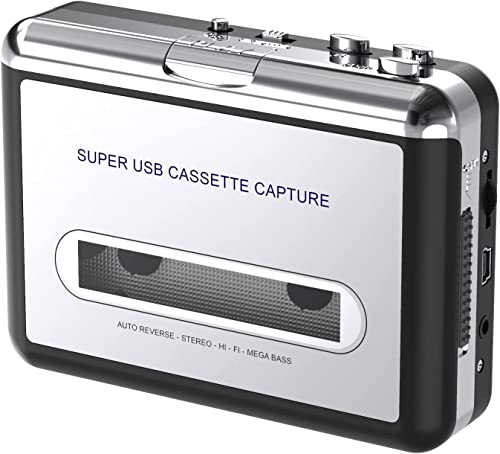
DigitNow USB Cassette Converter is a straightforward computer-capture option, with USB connection and Audacity software for turning cassette audio into MP3 files. A 3.5 mm jack and included earphones also let you listen during portable playback, and the unit can run on built-in battery or USB power. It suits someone who plans to work with a computer rather than save files directly to removable storage. Its compatibility is older operating systems—Windows XP, Vista and Windows 7, plus Mac versions older than 10.5—so check operating-system compatibility before buying.
Bottom line: Pick this for USB-to-computer capture if its older operating-system compatibility fits your setup.
Reshow USB Cassette Converter

Reshow USB Cassette Converter combines USB cassette conversion with use as a standard portable cassette player, and its 3.5 mm connection works with standard headphones. The product features describe converting tapes to MP3 by USB for use with a laptop or computer, alongside ordinary tape playback. This is a reasonable fit if you want both digitizing and headphone listening without the added SD-card workflow of SEMIER Cassette Converter. The maker gives a compact 5-by-1.2-inch footprint, but do not establish an SD-card transfer option; choose it for computer conversion rather than standalone card recording.
Bottom line: Choose this for computer conversion paired with standard headphone playback.
How USB cassette conversion works
A USB cassette converter sends tape audio to a computer, where capture software can save it as a digital audio file. A USB connection is not the same as direct file storage: computer-based models need compatible recording software and an operating system that can recognize the device. Some converters can also save MP3 files to an SD card, avoiding a computer during conversion. For computer capture, check the software and operating-system requirements before choosing; for stand-alone conversion, select a model with an SD-card recording path.
Cassette audio is recorded in real time, so a 60-minute tape takes about 60 minutes to capture per side, before editing or file export. Keep the tape’s side sequence in mind when naming files, and listen for the beginning and end of each transfer to catch silence or cut-off audio.
Choosing a transfer workflow
Choose a USB-to-computer converter if you want to manage recordings and export files on a computer; choose SD-card recording if you want to transfer without a computer. The workflow is the main difference between USB capture and stand-alone conversion, not the cassette format itself. DigitNow USB Cassette Converter and Reshow USB Cassette Converter focus on USB computer capture, while SEMIER Cassette Converter supports both USB capture and SD-card conversion.
| Need | Choose |
|---|---|
| Computer-based capture | USB connection with recording software |
| Conversion without a computer | SD-card recording |
| Both transfer paths | USB plus SD-card recording |
USB ports and software compatibility matter: a physical connector does not guarantee the computer can capture audio. Confirm the operating system and included or required software before starting a long transfer.
Cassette tape compatibility and condition
Tape type matters when a converter names supported cassette formulations. Type I is ferric tape; Type IV refers to metal tape, and the two are not interchangeable for compatibility claims. SEMIER Cassette Converter explicitly supports Type I and excludes Type IV and metal tapes, so owners of those tapes should choose a converter with explicit support for their formulation.
Old tapes can have brittle shells, loose tape or degraded magnetic coating. Inspect a cassette before playback, and stop if the tape binds or makes unusual mechanical sounds; forcing a damaged tape can worsen damage to both tape and player. For a tape that is valuable or fragile, make a clean playback copy first rather than repeatedly rewinding and replaying it.
Preparing and checking MP3 transfers
Capture a short test segment before digitizing a full tape. Check that both stereo channels record, the volume is not clipping, and the file plays back from beginning to end; a distorted test usually means the recording level needs adjustment. Record each side as a separate file when you want to preserve the original sequence, then use clear names that include the tape and side.
Many MP3 workflows let you choose a bitrate, which trades file size against audio data retained. A common general-purpose setting is 128 to 192 kbps for stereo MP3; higher bitrates use more storage and cannot restore sound absent from the tape. Keep an untouched capture copy before trimming gaps or applying noise reduction, since processing can remove wanted high-frequency audio along with hiss.
Frequently Asked Questions
How long does it take to convert a cassette tape?
A 60-minute cassette side takes about 60 minutes to capture in real time. Allow additional time for the other side, file naming and playback checks.
Can a USB cassette converter work without a computer?
Only a converter with a separate storage path, such as SD-card recording, can convert without a computer. USB-only capture depends on compatible computer software.
What cassette type should I check before converting?
Check whether the tape is Type I, Type II or Type IV before recording. SEMIER Cassette Converter supports Type I only and excludes Type IV and metal tapes.
What MP3 bitrate is suitable for cassette transfers?
A common general-purpose stereo MP3 range is 128 to 192 kbps. Higher bitrates increase file size but cannot recreate audio detail missing from the original tape.
Should I clean a cassette before playing it?
Inspect the cassette for loose tape, shell damage or binding before playback, and do not force a tape that sticks. A damaged tape can worsen with repeated playback, so preserve fragile tapes with a careful first transfer.