
2 Computers 1 Monitor Switch: KVMs Compared

HDMI 2-Port KVM Switch suits most people who need to switch one HDMI monitor, keyboard, and mouse between two computers, with support for up to 4K at 60Hz.
We earn a commission if you buy through links on this page. As an Amazon Associate I earn from qualifying purchases. Products are compared on manufacturer specifications, not hands-on testing.
- Best overall: HDMI 2-Port KVM Switch – Combines two-computer, one-monitor KVM switching with keyboard and mouse sharing and 4K at 60Hz support.
- Best for USB-C peripherals: Hearvo S7232H USB 3.0 KVM – Includes three USB-A ports and one USB-C port for shared peripherals.
- Best for printer sharing: TIGKTING USB 3.0 HDMI KVM – Supports sharing a printer and includes a desktop controller and two USB cables.
| Product | Best for | Dimensions | Shop |
|---|---|---|---|
| HDMI 2-Port KVM Switch | Simple desk switching | 3.86 × 2.36 × 0.63 in | Check Price on Amazon |
| Hearvo S7232H USB 3.0 KVM | USB-C peripherals | 5 × 2.4 × 0.8 in | Check Price on Amazon |
| TIGKTING USB 3.0 HDMI KVM | Printer sharing | 5.91 × 2.56 × 0.87 in | Check Price on Amazon |
2 Computers 1 Monitor KVM Switches
Compare the KVM options by video support, available peripheral connections, and physical size.
HDMI 2-Port KVM Switch

HDMI 2-Port KVM Switch is the straightforward choice for sharing one HDMI monitor, keyboard, and mouse between two computers. The maker says it supports resolutions up to 4K at 60Hz, and its wired extension controller provides a way to switch without reaching for the main unit. Its compact body measures about 3.86 × 2.36 × 0.63 inches. This model suits a desk setup with HDMI-equipped computers and monitor; the maker cautions that adapters or conversion cables can cause unstable video or connection problems, so it is a poor fit when either device lacks a native HDMI port.
Bottom line: Pick this if you want basic two-computer switching and your devices connect directly by HDMI.
Hearvo S7232H USB 3.0 KVM
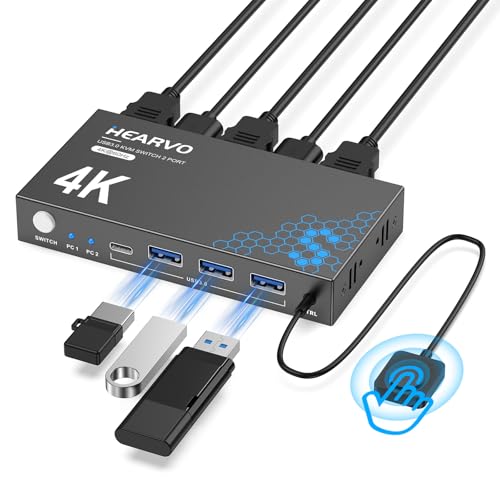
Hearvo S7232H USB 3.0 KVM stands out for its four peripheral ports: three USB-A and one USB-C, alongside HDMI switching for two computers and one monitor. The maker says its USB 3.0 connections transfer data at up to 5Gbps and that the switch supports 4K at 60Hz. The 5 × 2.4 × 0.8-inch housing is a better match for desks where a drive or other USB device needs to share access, not just a keyboard and mouse. Check that each computer has the required HDMI and USB connections; this is not a solution for a display-only setup that needs no shared peripherals.
Bottom line: Choose this when a mix of USB-A and USB-C peripherals must be shared.
TIGKTING USB 3.0 HDMI KVM

TIGKTING USB 3.0 HDMI KVM is aimed at a two-computer desk that shares a printer as well as a monitor, keyboard, and mouse. The maker says the HDMI output supports 4K at 60Hz; a desktop controller and two USB cables are included. Its approximately 5.91 × 2.56 × 0.87-inch body is larger than HDMI 2-Port KVM Switch, which may matter when desk space is tight. This is the better fit when the included controller and printer-sharing use case are useful, but the specifications do not establish a particular count or type of additional USB ports, so do not choose it based on an assumed port layout.
Bottom line: Choose this when printer sharing and a wired desktop controller suit your setup.
How to choose a 2 computers 1 monitor switch
A KVM switch is the right type when you want to share both a display and USB controls between computers; an HDMI switch alone changes video sources. First count the devices you need to share, then check the connections on every computer and the monitor. For 4K at 60Hz, the entire video path—computer output, switch, cables, and display—must support that mode; one unsupported component can limit the result. USB 3.0 has a theoretical signaling rate of 5Gbps, but peripherals and host connections also affect actual transfer rates. Choose a model with enough appropriate USB ports for the keyboard, mouse, and other shared equipment, and favor native HDMI connections when possible.
HDMI and USB compatibility
Two separate connection paths matter on a KVM: HDMI carries the picture, while USB connects shared peripherals to the computers. A monitor with HDMI alone does not make the USB sharing path unnecessary if you expect to control both computers with one keyboard and mouse. Confirm that each computer has a compatible HDMI output and a USB connection for the switch; adapters can add compatibility and signal variables. HDMI 2.0 is the common baseline for 4K at 60Hz, though the source, display, and cables must also support the desired signal. A resolution label on a switch cannot overcome a computer or monitor that lacks that capability.
Match USB ports to shared equipment
Count every device that needs to move between computers before choosing a KVM. A keyboard and mouse use two connections, while a printer or external drive adds another; USB-A and USB-C are different connector shapes and may require different ports or a suitable cable. USB 3.0 supports signaling up to 5Gbps, while a connected device can run at a lower rate if it uses an older USB generation. This table helps separate the included KVM choices by their purpose and connections.
| Need | Relevant option |
|---|---|
| Keyboard and mouse switching | HDMI 2-Port KVM Switch |
| Mix of USB-A and USB-C ports | Hearvo S7232H USB 3.0 KVM |
| Printer sharing with desktop controller | TIGKTING USB 3.0 HDMI KVM |
Common setup mistakes with KVM switches
The most common mismatch is buying an HDMI switch when the goal is shared keyboard and mouse control; HDMI switching does not itself switch USB peripherals. Another mistake is expecting 4K at 60Hz when any part of the video chain is limited to a lower mode. Keep the cable path direct where possible, and avoid assuming a conversion adapter will preserve stable video. Also distinguish a USB hub from a KVM: a hub adds ports for one computer, while a KVM routes connected peripherals between computer hosts. Before setup, identify which cable goes to each computer and which connects to the monitor, then verify that each peripheral is connected to the KVM rather than only one computer.
Frequently Asked Questions
What do I need for 4K at 60Hz through a KVM?
The computer output, KVM, HDMI cables, and monitor all need to support 4K at 60Hz. If any part supports a lower mode, the full connection may be limited to that capability.
Can one KVM work with a laptop and desktop?
Yes, if both computers provide compatible HDMI video and USB connections for shared peripherals. Check port types before connecting, since an adapter can introduce signal or compatibility issues.
How many USB ports do shared devices need?
Count each peripheral that must switch between computers: a keyboard and mouse take two connections, and a printer or drive needs another. Also match the port type, such as USB-A or USB-C, to the peripheral cable.
Will a KVM let two computers use one monitor at once?
These two-computer, one-monitor KVMs switch control between computers rather than displaying both computer outputs simultaneously. For simultaneous views, a monitor with picture-by-picture or a separate multi-viewer is needed.