
DisplayPort Splitters for 2 Monitors: 5 Compared

For a Windows setup that needs two extended 4K displays at 60Hz, DisplayPort Splitter, Dual 4K60 spells out both the dual-screen resolution and OS limits. Choose another option if you need Mac extended desktops, a hub-compatible connection, or a different resolution ceiling; these capabilities vary by model.
We earn a commission if you buy through links on this page. As an Amazon Associate I earn from qualifying purchases. Products are compared on manufacturer specifications, not hands-on testing.
- Best overall: DisplayPort Splitter, Dual 4K60 – Specifies dual 4K at 60Hz and supports extended mode on Windows.
- Best for dual 4K output: DP1.4 Splitter, Dual 4K60 – States simultaneous 4K at 60Hz output on both DisplayPort ports.
- Best for powered setups: XPTSFDU Dual DisplayPort Splitter – Requires its USB-C power port to be connected to an outlet during use.
| Product | Best for | Dual-display resolution | Extended mode support | Shop |
|---|---|---|---|---|
| DisplayPort Splitter, Dual 4K60 | Windows extended mode | 4K at 60Hz | Windows; Mac mirror only | Check Price on Amazon |
| DP1.4 Splitter, Dual 4K60 | NVIDIA or AMD PCs | 4K at 60Hz each | — | Check Price on Amazon |
| OREI 8K DisplayPort Splitter | 8K single display | 4K at 60Hz dual; 8K at 30Hz | Windows extended; mirror modes | Check Price on Amazon |
| DisplayPort MST Hub, 4K120 | High-refresh display | Up to 4K at 120Hz | — | Check Price on Amazon |
| XPTSFDU Dual DisplayPort Splitter | Powered Windows setup | Up to 4K at 120Hz | Windows only | Check Price on Amazon |
DisplayPort Splitters for 2 Monitors
Compare the output limits and compatibility before choosing a splitter for your computer and displays.
DisplayPort Splitter, Dual 4K60
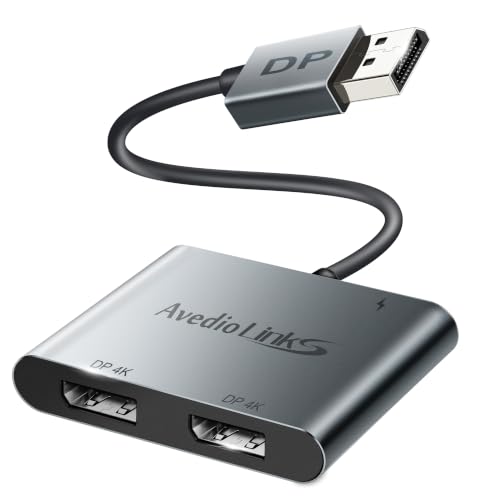
Among these options, this model gives the clearest dual-screen resolution limit: 4K at 60Hz on two displays. The maker also says it supports extended and mirrored modes on Windows, while Mac supports mirroring only; a DP 1.2-or-higher cable is specified for dual display. It can also support a single display at up to 4K at 120Hz or 144Hz with a DP 1.4-or-higher cable, using only one output port. It suits Windows users who need an explicit dual-screen target, but not Mac users seeking two separate desktops.
Bottom line: Pick this for a Windows dual-display setup targeting 4K at 60Hz per screen.
DP1.4 Splitter, Dual 4K60

Unlike options that emphasize a single-screen maximum, this adapter specifies simultaneous 4K at 60Hz on both DisplayPort outputs. The maker requires a computer DP output that supports DP 1.4 and says the adapter does not work with hubs, docking stations, or KVM devices. Its single-screen maximum is also given as 8K at 30Hz or 4K at 120Hz. This is a fit for a direct PC-to-monitor connection when both screens need 4K at 60Hz; skip it if your video source is routed through a dock or KVM.
Bottom line: Choose this for direct DP 1.4 connections and two 4K60 displays.
OREI 8K DisplayPort Splitter

This OREI splitter distinguishes its two-screen mode from its higher single-screen ceiling: it supports dual 4K at 60Hz or one display at 8K at 30Hz. The maker identifies Windows as the operating system for extended mode and also lists mirror modes. That makes it relevant if you want a 8K single-display option alongside dual-screen use. The limitation is that its extended-mode support is Windows-only, so buyers who need an extended Mac desktop should choose a different type of setup.
Bottom line: Pick this when you want dual 4K60 or a single-display 8K mode.
DisplayPort MST Hub, 4K120

This MST hub advertises a maximum of 4K at 120Hz, making its resolution ceiling the distinguishing spec among these options. It is a one-input, two-output DisplayPort splitter intended to mirror or extend to two DisplayPort monitors. The maker says the source must have a DisplayPort output and excludes docking stations, USB hubs, and KVM switches. It may suit a direct DisplayPort setup prioritizing the advertised refresh-rate ceiling, but the maker does not establish the resolution available when both screens are active, so confirm that limit if dual-screen resolution is decisive.
Bottom line: Consider this for a direct DisplayPort setup where the 4K120 ceiling matters.
XPTSFDU Dual DisplayPort Splitter

This splitter is explicitly limited to Windows for extended or mirrored use, and its maker requires connecting the product’s USB-C power port to an outlet during operation. It is designed to send one DisplayPort source to two DisplayPort monitors, with a maximum of 4K at 120Hz. The maker also notes that Mac cannot extend to two different monitors. This is a fit for a Windows user who can provide the required power connection; it is a poor match for Mac extended desktops or setups without an outlet available.
Bottom line: Choose this for Windows when you can connect its USB-C power port to an outlet.
How to choose a DisplayPort splitter for 2 monitors
Start with the resolution and refresh rate you need on both displays at once, not a single-screen maximum. A claim of 4K at 120Hz for one display does not establish that two displays can each run at that rate; dual-output limits should be stated separately. Next, check whether the computer and splitter support DisplayPort Multi-Stream Transport (MST), the DisplayPort feature used to carry multiple display streams from one source. Confirm the operating system’s mode support as well: extended mode gives separate desktops, while mirror mode duplicates the same image. For two separate screens, choose a model that explicitly supports extended mode on your OS and names its dual-display resolution.
DisplayPort MST compatibility and cables
A DisplayPort MST hub needs a compatible source and display chain; the connector shape alone does not guarantee multiple independent screens. DisplayPort 1.2 introduced MST, and the cable or connection must support the bandwidth required by the selected resolution and refresh rate. Product specifications here call for DP 1.2-or-higher cable for one dual-display mode and DP 1.4-or-higher cable for a higher single-display mode, so match the cable to the mode rather than assuming one limit applies to all uses. Check that the computer has a DisplayPort output and that the splitter accepts a direct source connection. Some models exclude docks, USB hubs, or KVM switches.
Extended mode, mirror mode, and Mac limits
Extended mode creates separate desktop space across two monitors; mirror mode shows the same content on each. These modes are not interchangeable, so choose based on whether you need separate work areas or duplicate presentation screens. Several models explicitly limit Mac use to mirroring, and one specifies Windows-only operation. For a Mac with two different desktop images as a requirement, do not assume a DisplayPort splitter will provide that result; confirm the computer’s display-output capabilities and the adapter’s OS support before buying. A useful rule is to favor products that explicitly name your operating system and the mode you need rather than relying on a generic “dual monitor” label.
Resolution claims to compare before connecting
Read resolution claims as a mode table: one display, two displays, and extended versus mirrored operation can have different limits. The examples below capture only limits explicitly tied to a mode; a dash means that no mode-specific figure was supplied in these specifications.
| Use case | Stated limit | What to verify |
|---|---|---|
| Two displays, 4K | 4K at 60Hz on each output on some models | Dual output, not single-display maximum |
| One display, higher refresh | Up to 4K at 120Hz or 144Hz on some models | Required cable and single-output mode |
| Two separate desktops | Windows extended mode on supported models | Operating system compatibility |
When a dual-screen limit is essential but absent from a product’s modes, confirm the supported resolution before ordering. A high single-monitor figure is not a substitute for a dual-monitor specification.
Frequently Asked Questions
Does a DisplayPort splitter give each monitor a separate desktop?
Only when the splitter and computer support extended mode through MST. Mirror mode duplicates one image, so check the product’s OS-specific mode support if you need two independent desktops.
Can a DisplayPort splitter extend two monitors on a Mac?
Some models in this comparison support only mirroring on Mac, and another is specified for Windows only. Confirm Mac extended-mode support for the exact device before choosing it.
What cable do I need for dual 4K monitors?
The cable requirement depends on the splitter’s mode: one product specifies DP 1.2-or-higher for dual display and DP 1.4-or-higher for its single-display high-refresh mode. Match the cable version to the dual-output target.
Can I connect a DisplayPort splitter to a docking station?
Compatibility is model-specific: some options explicitly exclude docks, USB hubs, and KVM switches. If the splitter’s source would pass through one of those devices, confirm that exact connection is supported first.
Will one DisplayPort splitter support 4K at 120Hz on both screens?
A single-screen maximum does not establish the dual-screen limit. Look for a specification that explicitly says 4K at 120Hz per display in simultaneous dual-output mode; confirm the limit if it is not stated.