
AMD Radeon PRO WX 3200 4GB: Three Cards Compared

AMD Radeon PRO WX 3200 4GB is the straightforward choice if you want an AMD Radeon PRO WX 3200 4GB card and do not need specified output or bracket details to decide. Choose HP Radeon Pro WX 3200 4GB when four-monitor support and a PCIe 3.0 x16 interface are important, or BestParts Radeon PRO WX 3200 4GB if the included full-height and spare short brackets suit your case.
A low-profile graphics card is designed for compact cases, but bracket height and card clearance are separate fit checks; confirm the bracket and available slot space before ordering.
We earn a commission if you buy through links on this page. As an Amazon Associate I earn from qualifying purchases. Products are compared on manufacturer specifications, not hands-on testing.
- Best overall: HP Radeon Pro WX 3200 4GB – It specifies 4 GB GDDR5 memory, PCIe 3.0 x16, four Mini DisplayPort outputs, and support for four monitors.
- Best for direct model match: AMD Radeon PRO WX 3200 4GB – Its name directly matches the AMD Radeon PRO WX 3200 4GB search.
- Best for bracket options: BestParts Radeon PRO WX 3200 4GB – It includes a full-height bracket and a spare short bracket.
| Product | Best for | Bracket or display support | Shop |
|---|---|---|---|
| AMD Radeon PRO WX 3200 4GB | Basic model match | — | Check Price on Amazon |
| HP Radeon Pro WX 3200 4GB | Four-monitor setup | 4 Mini DisplayPort; 4 monitors | Check Price on Amazon |
| BestParts Radeon PRO WX 3200 4GB | Bracket flexibility | 4 monitors; full-height and short brackets | Check Price on Amazon |
AMD Radeon PRO WX 3200 4GB cards
Compare the exact-model cards by the fit details that are provided for each one.
AMD Radeon PRO WX 3200 4GB

AMD Radeon PRO WX 3200 4GB is the direct match for the WX 3200 4GB search, with no output count or bracket configuration to use as a deciding factor. The name identifies its memory capacity, while its package dimensions are 10 × 10 × 5 cm. This option suits buyers who have already confirmed case and display compatibility and want the named model rather than a substitute GPU. Its limitation is the lack of a specified interface, output arrangement, or bracket in the specifications, so it is a weaker fit when those details determine compatibility.
Bottom line: Choose it when the model and memory match your needs and you have independently confirmed physical and display fit.
HP Radeon Pro WX 3200 4GB

HP Radeon Pro WX 3200 4GB stands apart with explicit connection and display details: PCIe 3.0 x16, four Mini DisplayPort outputs, and support for four monitors. Its low-profile designation makes it a candidate for compact workstation cases, where the case’s slot height and card clearance still need to match. This card suits a multi-display setup that uses Mini DisplayPort connections or compatible adapters. The tradeoff is that the output type may require adapters for monitors with different inputs; check connector compatibility and required display resolution before choosing it.
Bottom line: Pick it for a four-display workstation when the Mini DisplayPort outputs and case fit are right.
BestParts Radeon PRO WX 3200 4GB
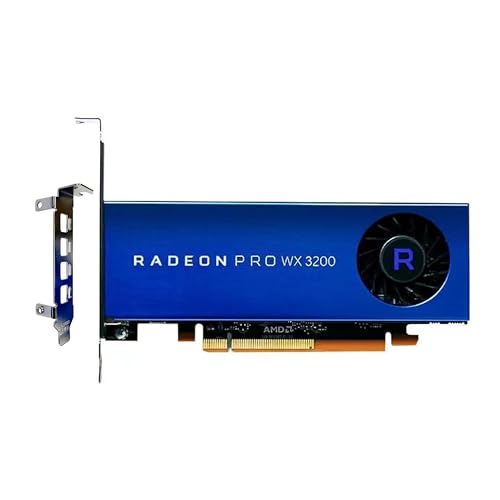
BestParts Radeon PRO WX 3200 4GB differs through its bracket package: it comes with a full-height bracket plus a spare short bracket, along with support for four monitors. That combination can help when a workstation build requires one of those bracket heights, but the card’s physical dimensions and connector types still need to match the case and displays. The card is identified as a WX 3200 with 4GB GDDR5, making it an exact model match. Its limitation is that the interface and display connector type are not identified here, so buyers who need a specific port should verify compatibility before ordering.
Bottom line: Choose it when the included bracket options match your case and four-monitor support is useful.
How to choose a WX 3200 4GB card
Choose by the connection and fit facts that matter to your workstation, not by the shared model name alone. PCIe x16 cards use a long expansion slot; PCIe 3.0 cards can generally operate in later-generation PCIe x16 slots, although the system uses the capabilities of its components. A case must also have room for the card’s length and the correct bracket height. For display use, compare the card’s physical ports with the monitor inputs and any adapters required. If you need four screens, select a card whose specifications explicitly support four monitors, then confirm each screen’s resolution and refresh-rate requirements against the card and adapter limits.
Check case and bracket fit
Bracket height and card clearance are different measurements: a short bracket cannot make a long or thick card fit a constrained case. Measure the available slot height and the distance from the rear expansion slots to nearby obstructions before selecting a card. Low-profile cases commonly use shorter brackets, while many desktop cases use full-height brackets; some cards can be configured for either only when the right bracket is included. Among these exact-model choices, one explicitly identifies a low-profile design and another includes both full-height and short brackets. Confirm which bracket your case requires rather than assuming the card ships in the needed configuration.
Plan display connections and adapters
Match the graphics card’s output connector to each monitor’s input before building a multi-display workstation. Mini DisplayPort is a compact digital connector, and adapters may be needed when a display instead uses full-size DisplayPort, HDMI, or another input. An adapter does not guarantee every resolution or refresh rate: the card output, adapter, cable, and monitor all need to support the target mode. A four-monitor count identifies supported screen quantity, not the exact resolution each screen can run simultaneously. Make a connector-by-connector plan and verify resolution and refresh rate for each path, especially when the displays differ.
Understand PCIe and power requirements
PCIe x16 describes the card’s slot connection, while PCIe generation describes the link’s data rate; these are not the same specification. PCIe generations are generally backward compatible, but a card in an older slot can have less bandwidth than it would in a matching newer slot. Also check that the motherboard has an available full-length slot and that other installed cards do not block it. No power draw or auxiliary power connector is identified for every exact-model choice here, so verify those requirements against the card and workstation before installation; do not infer power needs from the 4GB memory capacity.
Frequently Asked Questions
Will a PCIe 3.0 x16 card fit a PCIe 4.0 x16 slot?
A PCIe 3.0 x16 card generally works in a PCIe 4.0 x16 slot because PCIe generations are backward compatible. The connection runs at the lower generation’s rate, and the motherboard must have a usable full-length slot.
Can four Mini DisplayPort outputs run four monitors?
Four Mini DisplayPort outputs can connect up to four monitors when the card supports that screen count. Each monitor’s resolution and refresh rate, plus any adapters or cables, must also support the intended display mode.
How do I tell whether a low-profile card fits my case?
Check the case’s required bracket height and available card length separately. Measure from the expansion-slot opening to nearby obstructions, since a short bracket does not reduce the card’s length.
Do Mini DisplayPort monitors need an adapter?
A monitor with a Mini DisplayPort input can connect with a compatible Mini DisplayPort cable; a monitor with a different input may need an adapter. Confirm the adapter supports the monitor’s resolution and refresh rate.