
Best SD Card for Samsung A53 5G: 4 Options Compared

Samsung EVO Plus 64GB microSDXC is the best fit for most Samsung A53 5G owners because its 64GB microSDXC format matches the phone’s expandable-storage slot and includes an adapter. Choose Samsung EVO Plus 64GB microSDXC 80MB/s if its 80MB/s transfer speed and Full HD use suit your needs; Galaxy A53 5G Replacement SIM Tray is a replacement tray, not a memory card.
The A53 5G supports microSDXC storage up to 1TB, so check that a card is microSDXC and no larger than that limit. Confirm fit before choosing SanDisk Extreme 128GB microSDXC Bundle, whose phone compatibility does not name the A53 5G.
We earn a commission if you buy through links on this page. As an Amazon Associate I earn from qualifying purchases. Products are compared on manufacturer specifications, not hands-on testing.
- Best overall: Samsung EVO Plus 64GB microSDXC – Its 64GB microSDXC format is within the A53 5G’s supported capacity, and an SD adapter is included.
- Best for Full HD: Samsung EVO Plus 64GB microSDXC 80MB/s – The maker lists Full HD recording support and transfer speeds up to 80MB/s.
- Best for tray replacement: Galaxy A53 5G Replacement SIM Tray – It is a replacement SIM tray with a microSD slot for the Galaxy A53 5G A536.
| Product | Best for | Capacity | Transfer speed | Included extra | Shop |
|---|---|---|---|---|---|
| Samsung EVO Plus 64GB microSDXC | Everyday storage | 64GB | Up to 160MB/s | SD adapter | Check Price on Amazon |
| Samsung EVO Plus 64GB microSDXC 80MB/s | Full HD recording | 64GB | Up to 80MB/s | SD adapter | Check Price on Amazon |
| SanDisk Extreme 128GB microSDXC Bundle | More card space | 128GB | Up to 190MB/s read; 90MB/s write | Card reader | Check Price on Amazon |
| Galaxy A53 5G Replacement SIM Tray | Damaged tray | — | — | Tray opener | Check Price on Amazon |
SD Cards for Samsung A53 5G
Compare card capacity, transfer speed, and fit before adding storage to the A53 5G.
Samsung EVO Plus 64GB microSDXC

Samsung EVO Plus 64GB microSDXC combines a 64GB microSDXC card with an SD adapter, making it a straightforward fit for adding storage to the Samsung A53 5G and moving files with a compatible SD slot. Samsung gives a maximum transfer speed of 160MB/s and identifies the card as UHS-I, C10, U3, V10, and A3. The capacity is well below the A53 5G’s 1TB ceiling, so it suits everyday photos, downloads, and other files rather than a large media archive. Its 64GB capacity is the main limitation for owners who need more room.
Bottom line: Choose this for a compatible 64GB card with an SD adapter and clearly stated speed ratings.
Samsung EVO Plus 64GB microSDXC 80MB/s
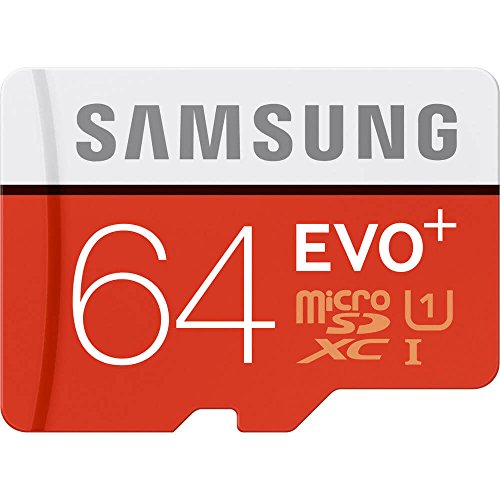
Samsung EVO Plus 64GB microSDXC 80MB/s is another 64GB Samsung microSDXC option, with a transfer speed up to 80MB/s and support for Full HD video recording. The maker also lists water, temperature, X-ray, and magnetic protection, useful considerations when a card may travel between devices. Its compatibility includes devices with microSDHC and microSDXC slots, which covers the A53 5G’s microSDXC format. Compared with Samsung EVO Plus 64GB microSDXC, its maximum transfer speed is lower and its feature set does not include the same named UHS speed ratings. Choose it when Full HD use and its protection claims are the priority.
Bottom line: Pick this if Full HD recording support and listed environmental protections matter more than a higher stated transfer speed.
SanDisk Extreme 128GB microSDXC Bundle

SanDisk Extreme 128GB microSDXC Bundle offers 128GB of microSDXC capacity, double the space of the 64GB options, plus a bundled card reader. SanDisk gives maximum read and write speeds of 190MB/s and 90MB/s and describes the card as suitable for 4K UHD video. Its Samsung phone compatibility names the A14 5G, A24, A34 5G, and A54 5G, but not the A53 5G, so confirm compatibility before choosing it for this phone. The faster speed and larger capacity may be useful, but the A53 fit is the key uncertainty.
Bottom line: Consider this for its 128GB capacity only after confirming it works with the A53 5G.
Galaxy A53 5G Replacement SIM Tray

Galaxy A53 5G Replacement SIM Tray is a replacement SIM tray for the Galaxy A53 5G A536, not an SD memory card. Its tray has a microSD card slot alongside the SIM holder, and the package includes a SIM tray opener. This is relevant if the phone’s original tray is broken or missing and you need the physical part that holds a memory card. The tray itself adds no storage, so it will not help someone looking to buy a microSD card. The product also cautions buyers to confirm their phone version, making model verification important before selecting this part.
Bottom line: Choose this only to replace a damaged or missing tray, not to add storage by itself.
How to choose a microSD card for the A53 5G
Choose a microSDXC card with capacity at or below the A53 5G’s 1TB limit. MicroSDHC cards top out at 32GB, while microSDXC covers larger capacities; check the card type as well as the number of gigabytes. For ordinary file storage, capacity is usually the deciding factor. For frequent large transfers, compare the maker’s read and write figures, but remember that card speeds are maximums and actual transfer rates depend on the phone, reader, and files. A card’s UHS bus rating and its speed class are separate markings; U3 and V30, for example, represent sustained video-write classes, not a promise of that speed in every device.
Matching card capacity to your use
Capacity needs rise with video resolution and how long files stay on the phone. A 64GB card can hold many photos and documents, while longer video recording or offline media collections use space much faster. The A53 5G’s 1TB maximum gives room to grow, but there is little benefit in buying more capacity than you can manage or back up. Use this guide to set a practical starting point, then choose a card that stays within the phone’s limit.
| Use | Capacity direction | Selection check |
|---|---|---|
| Photos and documents | 64GB can be a starting point | microSDXC format |
| Large offline media collection | Consider higher capacity | At most 1TB |
| Frequent large file transfers | Choose for transfer needs | Compare read and write speeds |
Speed classes and video use
Speed markings help narrow a card choice, but they describe different things. UHS-I identifies a bus interface; C10, U3, and V10 are speed-class labels, with V10 indicating a minimum sustained sequential write speed of 10MB/s under the class test. A card advertised at a high peak read speed may not sustain that rate while recording video. For 4K recording, look for a card with a video speed class appropriate to the camera’s requirement, and ensure that the device supports that class. Match the card to the recording mode rather than treating a headline transfer figure as a video guarantee.
Installing and caring for A53 5G storage
Power the phone down before removing or inserting its tray, and avoid forcing the tray if it does not slide smoothly. Keep the card’s contacts clean and dry, and use the phone’s storage settings to unmount or eject removable storage before physically removing it. A microSD card can be lost or damaged, so keep a separate backup of important photos and files. If the tray is damaged, replace the tray rather than trying to bend it back into shape; confirm the exact A53 5G model version before ordering a replacement part.
Frequently Asked Questions
Can the Samsung A53 5G use a 1TB microSD card?
Yes, the Samsung A53 5G supports microSD cards up to 1TB. Choose a microSDXC card for capacities above 32GB.
Does a faster microSD card make apps faster?
A faster card can reduce time spent copying files, but it does not guarantee faster app performance. App speed also depends on the phone and how the app uses storage.
What does U3 mean on a microSD card?
U3 is a UHS Speed Class marking for a minimum sustained sequential write speed of 30MB/s under its class conditions. It is different from the UHS-I bus label, which identifies the interface.
Should I format a new microSD card in my phone?
Formatting in the phone can prepare a compatible card for that device’s file system and storage settings. Back up any files first, because formatting erases the card.
Can I remove a microSD card while the phone is on?
Unmount or eject the card in storage settings before removal to reduce the risk of file corruption. Powering the phone down before removing its tray is the safer physical-removal habit.