
Capture Card for Mac: 5 Models Compared by Fit

Guermok USB-C/USB 3.0 Capture Card is the clearest fit for a Mac because its compatibility includes Mac OS and it captures up to 1080p at 60 fps. Choose USB-C 4K-Input Capture Card for the same Mac compatibility and 2K30 recording; the other options have no explicit Mac support in their specifications.
Capture cards take an HDMI source and send its video to a computer over USB for software such as OBS; they do not send video directly to a TV.
We earn a commission if you buy through links on this page. As an Amazon Associate I earn from qualifying purchases. Products are compared on manufacturer specifications, not hands-on testing.
- Best overall: Guermok USB-C/USB 3.0 Capture Card – Mac OS compatibility is explicit, with capture up to 1080p60.
- Best for 2K recording: USB-C 4K-Input Capture Card – Mac OS compatibility is explicit, with recording up to 2K30.
| Product | Best for | Mac compatibility | Maximum capture | Connection or passthrough | Shop |
|---|---|---|---|---|---|
| Guermok USB-C/USB 3.0 Capture Card | Mac 1080p capture | Mac OS listed | 1080p60; 2K30 | USB-C and USB 3.0 | Check Price on Amazon |
| USB-C 4K-Input Capture Card | Mac 2K recording | Mac OS listed | 2K30; 1080p60 | USB-C | Check Price on Amazon |
| Elgato 4K S | High-resolution capture | — | 4K60 | USB-C; passthrough specs | Check Price on Amazon |
| 4K HDMI Loop-Out Capture Card | HDMI passthrough | — | 1080p60; 2K30 | USB 3.0; 4K60 loop-out | Check Price on Amazon |
| Acer USB 3.0 HDMI Capture Card | Mic commentary | — | 1080p60 | USB Type-A and Type-C; 4K loop-out | Check Price on Amazon |
Capture Cards for Mac
Compare Mac compatibility first, then match the capture ceiling and connection type to your source and workflow.
Guermok USB-C/USB 3.0 Capture Card
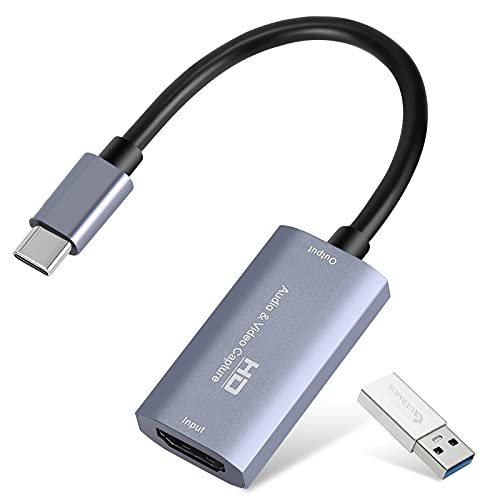
Guermok USB-C/USB 3.0 Capture Card is the straightforward Mac choice among these options because its compatibility names Mac OS and its USB connections include both USB-C and USB 3.0. It accepts HDMI input up to 4K30 and captures up to 1080p60 or 2K30, making it suitable for recording or streaming when those limits fit the workflow. The maker says capture software is required, and this device is not meant to cast directly to a monitor or TV. Choose another model if HDMI loop-out is essential; that feature is not among its capabilities.
Bottom line: Pick this when Mac OS compatibility and USB-C/USB 3.0 connections matter most.
USB-C 4K-Input Capture Card

USB-C 4K-Input Capture Card explicitly names Mac OS compatibility and records at up to 2K30 or 1080p60 from an HDMI input up to 4K30. Its USB-C form makes it a natural match for a Mac setup with a compatible USB-C port. The maker describes plug-and-play operation and dual-channel audio capture, but the key tradeoff is its 2K30 ceiling: it is not the choice for 4K recording or 60-fps capture above 1080p. Verify the needed port and capture resolution before settling on it.
Bottom line: Choose this for Mac-connected HDMI capture when 2K30 is sufficient.
Elgato 4K S

Elgato 4K S offers the highest capture ceiling here: 4K60, with passthrough up to 1440p120 or 1080p240 and HDR10 support. Its USB-C connection and support for major consoles make it suited to a high-resolution gaming workflow, but the compatibility does not explicitly name Mac, so confirm the software and macOS support you need before choosing it for that computer. The feature set also includes a 3.5 mm analog audio input for game chat or commentary. HDR tone mapping is specified for Windows, not Mac.
Bottom line: Consider it for 4K60 capture only after confirming Mac software support.
4K HDMI Loop-Out Capture Card

4K HDMI Loop-Out Capture Card stands apart with HDMI loop-out supporting 4K60, letting a source feed a display while the card captures over USB 3.0. Capture is up to 1080p60 or 2K30, so its 4K figure applies to input and loop-out rather than recorded video. It is a useful fit for a streaming setup that needs passthrough, but Mac compatibility is not explicitly named in the specifications. Confirm support for the Mac and capture software before relying on it for a Mac workflow.
Bottom line: Pick this when 4K60 HDMI loop-out is the priority and Mac support is confirmed.
Acer USB 3.0 HDMI Capture Card

Acer USB 3.0 HDMI Capture Card adds a 3.5 mm mic-in for voice commentary and has both USB Type-A and Type-C ports, unlike the capture cards whose specs focus on a single connection format. It accepts 4K HDMI with loop-out and captures at 1080p60 using YUY2, according to the maker. Those features suit a streaming setup that needs direct mic input, but its compatibility details do not explicitly name Mac. Check Mac and software compatibility before choosing it for that purpose.
Bottom line: Choose it for the built-in mic input if Mac compatibility is verified.
How to choose a capture card for Mac
Start with explicit Mac compatibility, then match capture resolution to the final recording rather than the HDMI input. A card can accept a 4K signal yet capture at 1080p60 or 2K30; those are different capabilities. USB 3.0 is common for high-resolution capture, while USB-C and USB-A describe connector shapes, not by themselves the data speed. macOS capture workflows typically use UVC-compatible devices with software such as OBS, but compatibility can depend on the operating-system version, app and device firmware. A practical rule: for a 60-fps recording, choose a model that states 1080p60 capture, not merely 4K input. Match your Mac’s available port or use a compatible adapter.
Capture resolution and HDMI loop-out
Capture resolution is the video sent to the computer; loop-out is a separate HDMI pass-through signal sent onward to a display. Choose a model with loop-out when you need to keep a TV or monitor connected while capturing, and confirm the supported refresh rate for the source. HDMI input can also be limited by protected content: HDCP-protected playback commonly cannot be captured by consumer capture cards. For gaming, disable protected-content playback only where legally and technically appropriate, and do not expect a capture card to bypass copy protection. Use the capture figure—not the input figure—to judge recording quality; a 4K input spec alone does not promise a 4K file.
| Need | Choose based on | Check |
|---|---|---|
| Mac recording | Explicit Mac compatibility | App and OS support |
| Smooth gameplay capture | 1080p60 capture capability | Source frame rate |
| Display passthrough | HDMI loop-out | Resolution and refresh rate |
Mac setup and common capture problems
Most capture setups need an HDMI source, a USB connection to the Mac, and capture software; the card does not function as a direct HDMI-to-TV adapter. Select the capture device as the video source in the app, then set the app’s resolution and frame rate within the card’s capture limits. If video drops or stutters, check that the card is connected to a suitable USB port and that the source and app use compatible formats; hubs can add another point of failure. Capture card latency is not the same as HDMI passthrough latency: monitoring through the software preview may lag, so use loop-out for real-time display when available.
Audio and compatibility checks
Audio may arrive over HDMI with the video, while a dedicated analog input can support a separate mic or commentary source. Decide whether the goal is game sound, voice, or both, and confirm that the capture app can select and mix the required inputs. A 3.5 mm jack may serve different purposes, so check its intended signal path before connecting a headset. Mac compatibility also covers more than a connector: confirm the capture app recognizes the device on your macOS version and that the Mac has a compatible port. For a Mac-specific purchase, the decision rule is simple: prefer an explicitly compatible model unless you can verify the exact device and software combination first.
Frequently Asked Questions
Can a capture card record 4K if it accepts 4K HDMI?
No; HDMI input resolution and computer capture resolution are separate limits. Check the maximum capture figure, since a card accepting 4K may record only 1080p or 2K.
Does a Mac need a capture card driver?
Not always; many capture devices use the UVC standard and are recognized by compatible capture software without a separate driver. Confirm the card’s compatibility with your macOS version and app, because plug-and-play behavior is device-specific.
Why is my capture card showing a black screen?
HDCP-protected video is a common cause because consumer capture devices generally cannot record protected playback. Also check that the source outputs a resolution and refresh rate supported by the card and that the correct input is selected.
Will USB-C make a capture card faster?
No; USB-C names the connector, not the data rate. Check whether the card and Mac port support the required USB generation, and use a compatible cable and port for high-resolution capture.
Can I play games through the Mac preview window?
You can monitor a capture feed in software, but the preview may introduce delay even when the HDMI passthrough signal is low latency. For responsive play, use HDMI loop-out to a display when the card supports the source’s resolution and refresh rate.