
Die Cut Machine Stickers: 5 Options Compared

For die cut machine stickers, the Liene PixCut S1 combines printing and cutting in one device, while Cricut Joy Xtra suits makers who want to use an inkjet printer and cut across many materials. Choose a different option if you want a compact vinyl-focused cutter or a kit with extra sticker paper.
We earn a commission if you buy through links on this page. As an Amazon Associate I earn from qualifying purchases. Products are compared on manufacturer specifications, not hands-on testing.
- Best overall: Liene PixCut S1 Starter Kit – Prints and cuts in one device, with 300 DPI dye-sublimation printing.
- Best for included paper: Liene PixCut S1 Inspire Kit – The kit includes 144 sheets of sticker paper and 36 photo sheets.
- Best for material variety: Cricut Joy Xtra – Works with 50+ materials and supports inkjet Print-Then-Cut.
| Product | Best for | Workflow | Included sticker supplies | Weight | Shop |
|---|---|---|---|---|---|
| Liene PixCut S1 Starter Kit | All-in-one stickers | Integrated print and cut | Starter kit | 6.2 lb | Check Price on Amazon |
| Liene PixCut S1 Inspire Kit | Paper included | Integrated print and cut | 180 sheets total | 6.4 lb | Check Price on Amazon |
| Cricut Joy Xtra | Material variety | Inkjet Print-Then-Cut | — | 0.55 lb* | Check Price on Amazon |
| Likcut S41 Vinyl Cutter | Wired or wireless | Print-then-cut cutter | — | 8.6 lb | Check Price on Amazon |
| Cricut Joy 2 Essential Bundle | Small projects | Inkjet-assisted stickers | Printable vinyl included | 2.0 lb | Check Price on Amazon |
Die Cut Machines for Stickers
Compare the printing workflow and included materials to find a machine suited to your sticker projects.
Liene PixCut S1 Starter Kit

The PixCut S1 is the all-in-one choice here: it prints and cuts in the same device rather than requiring a separate inkjet printer. Liene says its dye-sublimation printer produces 300 DPI output, and the app connects to a phone over Bluetooth for editing, printing and cutting. Its 11.0 × 7.7 × 4.1-inch body is suited to a small craft space. The starter kit is the main trade-off against the Inspire Kit, which includes a specified supply of paper; choose this version if you already have materials or want the device-first setup.
Bottom line: Pick this if you want printing and cutting in one compact unit.
Liene PixCut S1 Inspire Kit

The Inspire Kit shares the PixCut S1’s integrated dye-sublimation printing and cutting workflow, but its distinguishing advantage is the paper included: 36 photo sheets and 144 sticker sheets. That makes it a practical fit for someone starting sticker projects without assembling paper supplies separately. Liene specifies 300 DPI printing and app-based Bluetooth editing and cutting. At about 11.06 × 7.72 × 4.13 inches, it has nearly the same footprint as the Starter Kit; the extra paper does not change the machine’s core workflow, so existing paper owners may prefer the kit with fewer bundled supplies.
Bottom line: Choose this if the included 180 sheets match your planned projects.
Cricut Joy Xtra
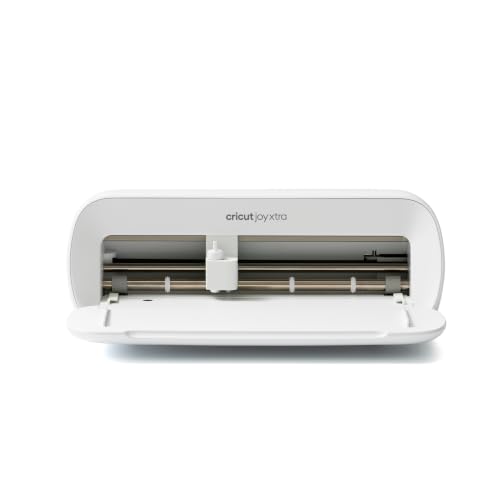
The Joy Xtra takes a different route: pair it with a compatible inkjet printer for full-color Print-Then-Cut stickers, while the cutter also handles more than 50 material types, including vinyl, iron-on and cardstock. The bundle includes a fine-point blade, pen, mini weeder and practice-cut materials, plus 30 bonus images in the Design Space app. It does not combine color printing and cutting in one machine, so it suits crafters who already have an inkjet printer and want one cutter for stickers and other projects. The weight converts to approximately 0.55 lb.
Bottom line: Pick this if you have an inkjet printer and want broader material use.
Likcut S41 Vinyl Cutter

The Likcut S41 stands apart with both wired and wireless connectivity, giving a choice of connection method during sticker-cutting projects. Its features also describe a 0.2 mm accuracy tolerance and an app workflow for creating and cutting designs. The machine is presented for vinyl, HTV, cardstock and custom stickers, but the features do not establish an integrated color printer; treat it as a cutter rather than an all-in-one printing machine. At about 8.6 lb, it is heavier than the PixCut models, a consideration if you plan to move it between work areas.
Bottom line: Choose this for a cutter with both wired and wireless connection options.
Cricut Joy 2 Essential Bundle

The Joy 2 is a compact cutter for everyday projects, and its 4.5-inch cutting width makes it a better match for smaller stickers, cards and labels than wide designs. Cricut says it works with a home inkjet printer to make full-color stickers; the machine itself is not an all-in-one color printer. This bundle adds Smart Vinyl, Smart Iron-On, cardstock, insert cards and printable vinyl, with supplies described for up to 65 projects. Its 2-pound weight and 16.3 × 8.75 × 7.25-inch dimensions give it a distinct storage-friendly role, though the narrow cutting width limits larger sticker layouts.
Bottom line: Pick this for smaller sticker projects and a bundle of starter materials.
How to choose a die cut machine for stickers
Choose first between a machine that prints and cuts itself and a cutter that pairs with an inkjet printer. All-in-one devices simplify the color-sticker workflow; Print-Then-Cut cutters offer a wider material role but add a separate printer and its setup. For designs wider than 4.5 inches, avoid a machine with that cutting width unless you are willing to split the artwork. Also consider whether you need vinyl or iron-on cutting, or mainly printed paper stickers. Sticker paper must match the printer’s feed and print process, and the cutter’s sensor or registration workflow must be able to locate the printed design.
Before making a choice, check the design dimensions and the width of the printable sheet, not just the machine footprint. A machine that handles a broad range of materials is not automatically the easiest route for full-color stickers.
Print-and-cut methods for sticker making
Print-Then-Cut uses a printer to add color, then a cutting machine reads registration marks and cuts around the printed artwork. An all-in-one sticker printer combines those steps in one device, while a standalone cutter can also cut unprinted vinyl shapes and labels. The method matters because a cutter is not itself a color printer. Inkjet printable vinyl is designed for inkjet printers; specialty media for other print technologies should be matched to that technology.
Use a simple workflow comparison to match the setup to your workspace.
| Workflow | What it needs | Best fit |
|---|---|---|
| Integrated print and cut | All-in-one machine and compatible paper | Fewer separate devices |
| Inkjet Print-Then-Cut | Inkjet printer, printable stock and cutter | Color stickers plus other cut materials |
| Cut-only vinyl workflow | Cutter and adhesive vinyl | Single-color decals and labels |
Sticker size, paper and finish
Sticker dimensions are limited by the printable sheet, the machine’s feed path and the cut-area width. A 4.5-inch cutting width is suited to small projects, while larger designs need a wider work area or an adjusted layout. Check the actual cut-area specification for a chosen machine before planning a full-sheet design; the maximum width can differ from the outside machine width. Printable paper also comes in matte and glossy finishes, and the paper coating affects how ink dries and how colors appear.
For stickers that will be handled often or exposed to moisture, an overlaminate can add a protective layer, but the finished stack is thicker and may require a different cut setting. Paper intended for indoor crafts should not be assumed waterproof or weatherproof.
Safe setup and clean sticker cuts
Keep fingers clear of moving blades and never reach into a cutter while it is operating. Use the machine’s specified mat or material path, keep scraps away from rollers and blades, and supervise children around craft cutters; these tools contain sharp components even when the machine is small. A clean cut depends on a sharp blade, a flat sheet and the correct material setting. If corners lift or the backing is cut through, reduce pressure or adjust the cut setting rather than forcing the sheet through.
Store loose blades with their protective caps and replace dull blades when cuts become ragged. Keep the print surface dry before cutting so ink or coating does not smear under the rollers.
Frequently Asked Questions
Can a die cut machine print full-color stickers?
Some setups print and cut in one device, while others require a separate printer. For Print-Then-Cut, use printable stock compatible with the printer, commonly inkjet printable vinyl with an inkjet printer.
What does Print-Then-Cut mean for stickers?
Print-Then-Cut means a printer first prints the artwork and a cutter then detects registration marks to cut its outline. Keep designs within the printer’s printable area and the cutter’s supported cut zone.
How wide should a sticker cutter be?
Choose a cutting width at least as wide as your largest planned sticker layout. A 4.5-inch width suits smaller designs; wider sheets require a cutter with a wider supported cut area.
Are printed craft stickers waterproof?
Do not assume ordinary printed sticker paper is waterproof. For stickers exposed to splashes or frequent handling, use compatible water-resistant media and consider a clear laminate, while checking that the thicker stack remains cuttable.
How do I get cleaner die cuts around stickers?
Use a flat sheet and the material setting intended for its paper or vinyl type. If the blade cuts through the backing or leaves ragged corners, adjust pressure or replace a dull blade; keep hands clear of the moving blade.