
KOORUI 34-Inch Ultrawide Curved Gaming Monitor 165Hz

For a KOORUI 34-inch ultrawide curved gaming monitor, the 200Hz KOORUI model is the closest match, with 3440 × 1440 resolution and a 1000R curve. Choose another model if you need a native 165Hz spec or a different port mix, since those requirements vary across the alternatives.
Ultrawide monitors use a 21:9 aspect ratio, giving a broader desktop than standard 16:9 screens.
We earn a commission if you buy through links on this page. As an Amazon Associate I earn from qualifying purchases. Products are compared on manufacturer specifications, not hands-on testing.
- Best overall: KOORUI 34-Inch 200Hz WQHD – It is the named KOORUI model and reaches 200Hz over DisplayPort 1.4.
- Best for 165Hz: LXZ 34-Inch 165Hz UWQHD – Its native refresh rate is 165Hz at 3440 × 1440.
- Best for HDMI 2.1: SANSUI 34-Inch 200Hz UWQHD – It has two HDMI 2.1 inputs, each supporting up to 200Hz.
| Product | Best for | Refresh rate | Curve | Shop |
|---|---|---|---|---|
| KOORUI 34-Inch 200Hz WQHD | KOORUI match | 200Hz via DP | 1000R | Check Price on Amazon |
| SANSUI 34-Inch 200Hz UWQHD | HDMI 2.1 setup | 200Hz via HDMI/DP | 1500R | Check Price on Amazon |
| LXZ 34-Inch 165Hz UWQHD | 165Hz preference | 165Hz | 1500R | Check Price on Amazon |
| Sceptre C345B-QUT168 34-Inch | Built-in speakers | Up to 180Hz | R1500 | Check Price on Amazon |
| Gawfolk 34-Inch 165Hz UWQHD | PIP/PBP use | 165Hz | 1500R | Check Price on Amazon |
KOORUI 34-inch ultrawide curved gaming monitors
Compare the matching KOORUI display with 34-inch alternatives by refresh ceiling, curve and connection needs.
KOORUI 34-Inch 200Hz WQHD

The KOORUI is the named model in this search, and its standout combination is a 1000R curve with a 200Hz maximum over DisplayPort 1.4. The 34-inch panel runs at 3440 × 1440 in a 21:9 format; its HDMI 2.0 inputs support up to 120Hz. Brand says it has 400-nit brightness, HDR400 and 95% DCI-P3 coverage. Tilt, height and swivel adjustment allow more positioning options than tilt-only alternatives. The refresh-rate difference by input matters: choose another model if you need 200Hz through HDMI rather than DisplayPort.
Bottom line: Pick this if you want the named KOORUI model and can use DisplayPort for its highest refresh rate.
SANSUI 34-Inch 200Hz UWQHD

The SANSUI differs from the KOORUI with HDMI 2.1 as well as DisplayPort 1.4, and both connection types support up to 200Hz. Its 34-inch UWQHD panel has a 1500R curve, 300-nit brightness and 97% DCI-P3 coverage. It also includes PBP and an AI crosshair feature; the stand tilts from -5° to 15°, rather than offering height and swivel adjustment. Brand says the monitor supports adaptive sync and VRR over HDMI 2.1. Choose it when HDMI 2.1 matters; the tilt-only stand is a limitation if you need height adjustment built in.
Bottom line: Pick this if your 200Hz setup depends on HDMI 2.1 rather than DisplayPort.
LXZ 34-Inch 165Hz UWQHD

The LXZ is the direct alternative for a 165Hz target: unlike the KOORUI, its refresh rate is 165Hz, with a 1500R curve and 3440 × 1440 resolution. Its VA panel has a 3500:1 contrast ratio and 120% sRGB coverage, and the feature summary names AMD FreeSync and G-Sync compatibility. PIP/PBP and 100 × 100 mm VESA compatibility add flexibility for multiple sources or an arm. The input types are HDMI and DisplayPort, but the maker does not give a per-port refresh ceiling, so confirm the port’s maximum refresh rate if that determines your setup.
Bottom line: Choose this if 165Hz is your target and PIP/PBP or VESA mounting matters.
Sceptre C345B-QUT168 34-Inch

The Sceptre separates itself with built-in speakers and two DisplayPort connections, while its refresh options reach up to 180Hz or 165Hz. The 34-inch WQHD display uses a 21:9 layout, R1500 curve and 99% sRGB coverage. Its 1ms MPRT specification is a motion-response measure, not the same as a 165Hz or 180Hz refresh rate. This is not a KOORUI model.
Bottom line: Pick this if integrated speakers and two DisplayPort inputs suit your desk.
Gawfolk 34-Inch 165Hz UWQHD
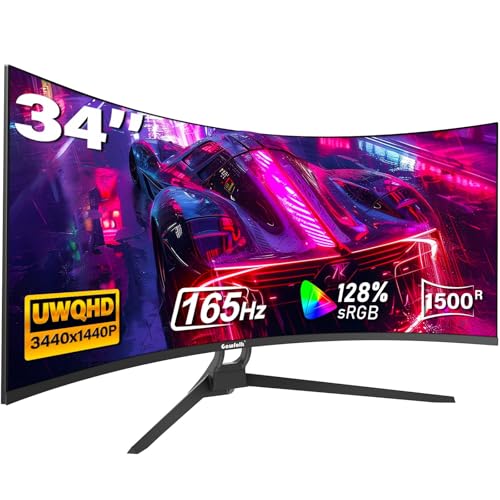
The Gawfolk pairs a native 165Hz figure with PIP/PBP, making it a different fit from the KOORUI’s 200Hz DisplayPort maximum. Its 34-inch 3440 × 1440 panel has a 1500R curve and 128% sRGB coverage. Brand says Adaptive Sync supports AMD FreeSync, and the feature summary gives a 1ms MPRT response figure. HDMI and DisplayPort are the named connections, with tilt adjustment. The maker does not break down port-specific refresh limits, so check that before buying if your computer only has HDMI or if 165Hz is essential through a particular input.
Bottom line: Choose this if you want a 165Hz ultrawide with PIP/PBP and tilt adjustment.
How to choose a 34-inch ultrawide gaming monitor
Start with resolution and refresh rate: these 34-inch models use 3440 × 1440, and their refresh figures range from 165Hz to 200Hz. A higher refresh ceiling only helps when the computer, connection and game can deliver enough frames; the graphics card and game settings affect that. Match the input to the target rate, since the KOORUI supports up to 200Hz through DisplayPort but up to 120Hz over HDMI 2.0, while the SANSUI lists up to 200Hz over HDMI 2.1 and DisplayPort. Choose 165Hz if that matches your intended use and system; do not assume a model’s headline refresh rate applies to every port.
What 1000R and 1500R curves mean
The curve number describes a circle’s radius in millimeters: 1000R is tighter than 1500R. At the same screen size, a tighter curve wraps farther around the viewer, but desk depth and viewing distance affect comfort and fit. A 34-inch 21:9 display is wider than a typical 16:9 screen, so measure the desk and confirm the stand’s footprint before choosing. The dimensions show widths around 31 to 32 inches for these models; stand depth and the amount of usable desk space can still decide whether the setup works. If you want more position adjustment, the KOORUI lists height and swivel as well as tilt, while the SANSUI specifies tilt adjustment.
Ports and refresh-rate compatibility
DisplayPort 1.4 is the route to 200Hz on the KOORUI, while its HDMI 2.0 inputs are specified for up to 120Hz. The SANSUI lists HDMI 2.1 and DisplayPort 1.4 inputs that each support up to 200Hz. That distinction can decide a purchase when a PC or console has limited outputs; check the monitor’s port-specific maximum and your device’s output capability before ordering. An HDMI 2.1 label alone does not guarantee every device will output 200Hz at 3440 × 1440. Adaptive-sync support also depends on the monitor, graphics card and connection, so verify compatibility when tear reduction is a requirement.
When ultrawide resolution and PIP/PBP help
A 21:9 3440 × 1440 screen provides a wider workspace than 16:9, which can help keep multiple windows side by side without placing a second display on the desk. PIP shows one source in a small inset; PBP divides the panel between sources, though each source receives only part of the screen. Several models here specify PIP/PBP or PBP, but a single computer can also use ordinary window snapping without those monitor features. Before relying on multiple inputs, check which connections can be active together and how each source scales to its half of the panel. These points matter most for a console-and-PC or two-computer desk, not a single-source setup.
Frequently Asked Questions
Does the KOORUI support 165Hz over HDMI?
The KOORUI feature summary specifies up to 120Hz over HDMI 2.0 and up to 200Hz over DisplayPort 1.4.
Is 1000R more curved than 1500R?
Yes, 1000R is the tighter curve because its radius is 1,000 mm rather than 1,500 mm. Desk depth and viewing distance still determine whether that shape feels comfortable.
What does 1ms MPRT mean on a monitor?
MPRT refers to moving-picture response time and is distinct from refresh rate. A 1ms MPRT specification does not mean the panel refreshes 1,000 times per second or guarantee that every mode uses that response figure.
Can a 3440 × 1440 monitor run games at 200Hz?
A monitor can accept a 200Hz signal only through a port and mode that support it, and the computer must also render enough frames. At 3440 × 1440, game settings and graphics hardware affect whether a game reaches 200 frames per second.
What is the difference between PIP and PBP on an ultrawide?
PIP places one video source in a smaller inset over another source, while PBP shows two sources in separate areas of the screen. In PBP, each source uses only part of the 21:9 panel, so the displayed workspace for each is narrower.