
Laptop Keyboard Letter Stickers: 4 Options Compared

For English laptop keyboard letter stickers, English Keyboard Stickers with Cleaning Kit is the closest match when you want familiar white-on-black letters plus tools for application and cleaning.
We earn a commission if you buy through links on this page. As an Amazon Associate I earn from qualifying purchases. Products are compared on manufacturer specifications, not hands-on testing.
- Best overall: English Keyboard Stickers with Cleaning Kit – Includes two English sticker sheets, tweezers, a brush and a microfiber cloth.
- Best for large print: Large-Print English Keyboard Stickers, 2 Pack – Its full-size English keyboard stickers are described as having big fonts.
| Product | Best for | Set contents | Sticker size (mm) | Letter style | Shop |
|---|---|---|---|---|---|
| English Keyboard Stickers with Cleaning Kit | Application tools | 2 sheets plus 3 tools | 10.9 × 13.0 mm | White on black | Check Price on Amazon |
| English Keyboard Stickers, 2 Pack | Easy removal | 2 sheets | — | White on black | Check Price on Amazon |
| English Keyboard Letter Stickers, 3 Pieces | Frosted PVC | 3 pieces | 11 × 13 mm | White on black | Check Price on Amazon |
| Large-Print English Keyboard Stickers, 2 Pack | Large lettering | 2 sheets | Full size | Large print | Check Price on Amazon |
Laptop keyboard letter stickers compared
Match each sticker set to the print size, visibility and application supplies you need.
English Keyboard Stickers with Cleaning Kit

English Keyboard Stickers with Cleaning Kit stands out by including tweezers, a keyboard cleaning brush and a microfiber cloth alongside two English sticker sheets. Each sticker measures 10.9 × 13.0 mm, and the white lettering on black backgrounds suits keys with faded English legends. The maker says the stickers are matte and fade-resistant. This set suits someone who wants tools for careful placement and surface cleaning in the same package. Its defined sticker size may not suit every keycap, so compare the dimensions with your keys before applying.
Bottom line: Choose this set if the included placement and cleaning tools are useful to you.
English Keyboard Stickers, 2 Pack
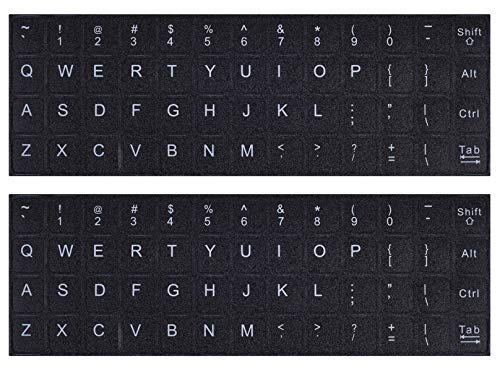
English Keyboard Stickers, 2 Pack is the option that specifically emphasizes removal without residue and cutouts with notches for the F and J keys. The two-pack uses white lettering on a black background and is intended for a range of computer keyboards, including laptops. The maker describes application and removal as easy. It fits buyers who may want to remove or reposition keyboard labels later, or who value the F and J key detail.
Bottom line: Pick this if residue-free removal and F/J notches are your priorities.
English Keyboard Letter Stickers, 3 Pieces
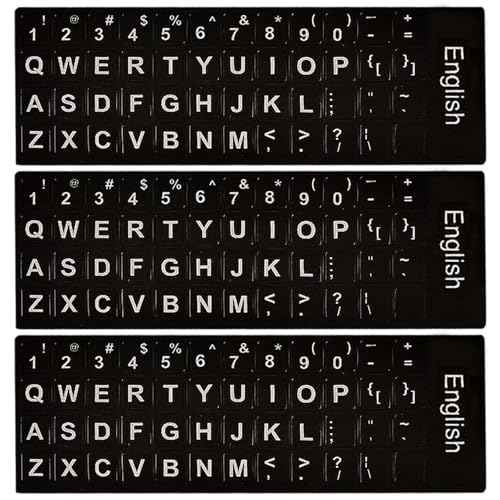
English Keyboard Letter Stickers, 3 Pieces is the three-piece option with frosted PVC-coated plastic rather than paper. The 11 × 13 mm stickers have enlarged white letters on black backgrounds, and the maker describes them as waterproof, tear-resistant and wear-resistant. A peel-and-stick format is intended to change faded keys or relabel them for English. This suits buyers who prefer a coated material and want three sheets. The product is an English-letter set, not a multi-symbol assortment, and the 11 × 13 mm dimensions should be compared with the key surfaces before use.
Bottom line: Pick this if frosted PVC and three sheets fit your needs.
Large-Print English Keyboard Stickers, 2 Pack

Large-Print English Keyboard Stickers, 2 Pack focuses on large-print English lettering in a two-piece set, distinguishing it from the other white-on-black alphabet options by its emphasis on big fonts and a full-size keyboard layout. The maker says the individual stickers include notches for F and J and can be applied or removed without residue. It suits someone who wants larger legends for language learning or easier recognition. The sticker dimensions are not given, so compare each label with the available key surface; large-print alone does not guarantee a fit on compact laptop keys.
Bottom line: Choose this if large English legends matter more than included tools or materials.
How to choose laptop keyboard letter stickers
Start with the keycap surface: sticker dimensions must fit inside each key without covering its edges or neighboring gaps. These options include measured stickers from 0.43 × 0.51 inches to 11 × 13 mm, while other sets describe only full-size or large-print formats. For reference, 1 inch equals 25.4 mm, so compare measurements in the same unit before buying. Next, decide whether you need only English letters or extra symbols, and whether tools, removable adhesive or a coated material matters. If your laptop has compact or unusually shaped keys, measure several key tops—including the narrow function row—rather than assuming a universal label will fit every key.
Sticker size and laptop key fit
Measure the flat top of a key, not the full keycap, and leave a visible margin around the label so it does not catch on adjacent keys. Sticker inlays of 11 × 13 mm and 12 × 14 mm differ by 1 mm in each dimension; that can matter on compact layouts. Laptop keyboards vary in key width, spacing and shape, especially around Enter, Shift and the function row. A typical full-size external keyboard has larger keys than many laptop keyboards, so a set intended for both may still need checking on a small laptop. With less than 1 mm of flat margin around a key top, choose smaller labels or avoid applying a sticker there.
Use this quick fit guide to compare measured labels with the key’s flat surface.
| Label size | Fit check | Common concern |
|---|---|---|
| 11 × 13 mm | Confirm at least that much flat top area | Edge overlap on compact keys |
| 12 × 14 mm | Confirm width and height separately | Function-row keys may be narrower |
| 0.43 × 0.51 in | Convert to millimeters before comparing | Assuming all keys are uniform |
Letter stickers versus symbol sets
English replacement sheets are the straightforward choice for faded or differently labeled alphabet keys, while a multi-symbol set can cover more than letters. The 194-piece set here includes two F1–F12 groups for Mac and PC and luminescent symbols; standard English sheets instead emphasize a familiar white-on-black letter format. A notch at F and J can help align those specific labels, but it does not determine the position of the rest of the sheet. Decide whether you need a full keyboard relabel or only replacement legends before choosing. A symbol-heavy set is useful when its extra characters match your intended keyboard layout, but it is not a direct substitute for a simple alphabet refresh.
Applying and caring for keyboard stickers
Clean and dry each key before applying a label so dust or skin oils do not sit under the adhesive. Press the sticker flat from one edge to limit bubbles, and keep liquid cleaners away from the keyboard; moisture can damage electronics even when a sticker material is described as waterproof. A brush or microfiber cloth helps remove loose debris before application, while tweezers can make small labels easier to position. Avoid placing stickers over key seams, vents or moving edges. The maker claims of fade resistance, wear resistance or removal without residue belong to individual products and do not guarantee identical performance on every key surface.
Frequently Asked Questions
Will keyboard stickers fit every laptop key?
No single size fits every laptop key. Measure the flat key top and compare both sticker width and height; compact function keys and shaped keys may not accept a full-size label.
How do I align stickers on F and J keys?
Use the small raised tactile bars on F and J as alignment cues, and center the sticker without covering the bars. Some sheets have notches made for those keys, but check that the notch orientation matches your keyboard.
Can keyboard stickers be removed without residue?
Some sticker sets are described by their makers as removable without residue, but results can vary with the key surface and how long a label stays in place. Test one inconspicuous key first if clean removal is important.
Are luminescent keyboard stickers visible in darkness?
Luminescent material needs exposure to light to glow, and brightness generally fades over time in darkness.
How should I clean keys before applying stickers?
Wipe key surfaces with a lightly damp cloth, then let them dry completely before applying labels. Keep liquid away from keyboard gaps, since laptop keyboards contain electronics directly beneath the keys.