
Olympus xD Card Reader: 4 Options Compared by Connection

For most people, 3-in-1 xD Reader with Lightning, USB-A, USB-C is the most versatile Olympus xD card reader because it combines Lightning, USB-A, and USB-C connectors with xD, SD, and TF card support. Choose a different reader if you only need USB-A for a computer, or prefer a dual-connector design.
An xD card reader adapts an Olympus xD-Picture Card for transfer to a compatible phone, tablet, or computer; confirm the device’s connector and file-system compatibility before ordering.
We earn a commission if you buy through links on this page. As an Amazon Associate I earn from qualifying purchases. Products are compared on manufacturer specifications, not hands-on testing.
- Best overall: 3-in-1 xD Reader with Lightning, USB-A, USB-C – Has Lightning, USB-A, and USB-C connectors and supports xD, SD, and TF cards.
- Best for USB-A computers: eTECH USB 2.0 xD Reader – A compact USB 2.0 reader dedicated to xD-Picture Cards.
- Best for dual-connector devices: Dual Lightning and USB-C xD Reader – Combines Lightning and USB-C connectors with xD, SD, and microSD support.
| Product | Best for | Connectors | Card formats | Shop |
|---|---|---|---|---|
| 3-in-1 xD Reader with Lightning, USB-A, USB-C | Broad device compatibility | Lightning, USB-A, USB-C | xD, SD, TF | Check Price on Amazon |
| eTECH USB 2.0 xD Reader | USB-A computer transfers | USB 1.1/2.0 | xD-Picture Card | Check Price on Amazon |
| Dual Lightning and USB-C xD Reader | Phone and tablet transfers | Lightning, USB-C | xD, SD, SDHC, microSD | Check Price on Amazon |
| 3-in-1 xD Reader with USB-C and Lightning | SDXC card support | USB-C, Lightning | xD, SDXC, SDHC, SD, microSD | Check Price on Amazon |
Olympus xD Card Readers
Compare connector choices and supported card formats to match your Olympus camera card to the device receiving its files.
3-in-1 xD Reader with Lightning, USB-A, USB-C
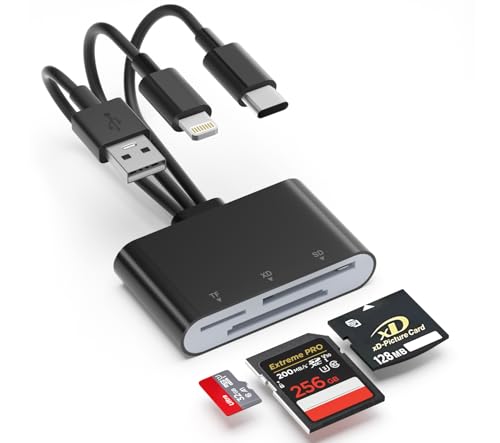
3-in-1 xD Reader with Lightning, USB-A, USB-C is the only option here with Lightning, USB-A, and USB-C in one reader, making it the broadest fit when transfers may go to phones, tablets, or computers. It supports xD, SD, and TF cards, and the maker says transfer speed reaches 480 Mbps. The maker also says it works plug-and-play without apps or drivers. Choose it if you need all three connector types; its feature set may be unnecessary if you transfer only to a USB-A computer.
Bottom line: Pick this if you want one reader for Lightning, USB-A, and USB-C devices.
eTECH USB 2.0 xD Reader
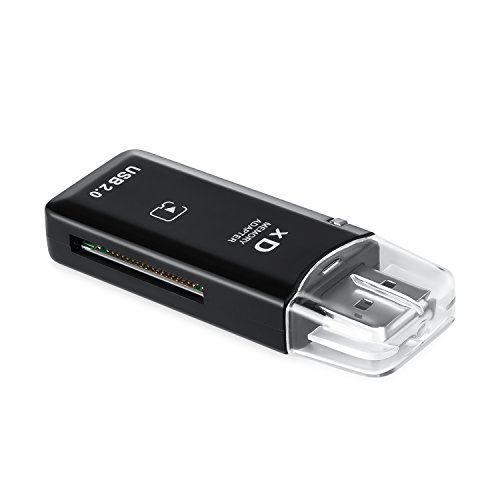
eTECH USB 2.0 xD Reader is the straightforward USB option, with USB 1.1 and 2.0 connectivity rather than multiple phone connectors. Its support covers the full series of xD-Picture Cards, and it has a power LED indicator. The maker specifies driver-free use for a range of older Windows and Mac operating systems. This model suits a computer-based transfer setup; it is not the choice for a direct Lightning or USB-C phone connection. Its dimensions are 4.6 by 2.7 by 0.1 inches.
Bottom line: Pick this for an xD-focused reader that connects through USB-A.
Dual Lightning and USB-C xD Reader

Dual Lightning and USB-C xD Reader pairs Lightning and USB-C in a built-in cable, but does not include USB-A among its connector types. It supports xD, SD, SDHC, and microSD cards, so it can serve as a shared reader for camera and other card formats. The maker describes compatibility with iPhone, iPad, MacBook, PC, and Android devices. Choose it when Lightning and USB-C are the important connections; check that your receiving device has one of those ports before choosing it over a USB-A model.
Bottom line: Pick this when your transfer devices use Lightning or USB-C.
3-in-1 xD Reader with USB-C and Lightning

3-in-1 xD Reader with USB-C and Lightning distinguishes itself with explicit SDXC and SDHC support alongside xD, SD, and microSD; its maker also gives a maximum capacity of 2TB. Its connectors are USB-C and Lightning, rather than the three connector types offered by 3-in-1 xD Reader with Lightning, USB-A, USB-C. The maker describes the reader as plug-and-play and names phones, tablets, and computers among compatible device categories. This is a useful match when SDXC support matters, but its connector set will not directly suit a USB-A-only device.
Bottom line: Pick this when explicit SDXC support and a 2TB maximum are priorities.
How to Choose an Olympus xD Card Reader
Choose an Olympus xD card reader by matching its connector to the device that will receive the files, then confirm its supported card formats. USB-A is common on many computers, while Lightning and USB-C serve different generations and types of mobile devices; a connector adapter does not itself guarantee file access. xD-Picture Cards are a legacy camera format, so a reader explicitly naming xD support matters more than a generic SD reader. For multi-device use, prefer a reader that lists each connector you need rather than assuming a cable or adapter is included. Card readers transfer files; they do not make an unsupported card format readable.
A useful decision rule: if your receiving device has only USB-A, choose a USB-A reader; if you transfer to both Lightning and USB-C devices, choose a model listing both.
Card Formats and Capacity Limits
Check the exact card family before transferring: SD, SDHC, SDXC, microSD/TF, and xD are distinct formats, even when one reader supports several. A camera card’s form factor and format must both match a reader slot; support for SD does not mean xD support. The four options vary in how specifically they name supported formats, with 3-in-1 xD Reader with USB-C and Lightning explicitly listing SDXC and a capacity maximum of 2TB, while eTECH USB 2.0 xD Reader says it supports the full xD-Picture Card series.
Use the camera or card’s format and capacity as a compatibility check, not just the card’s physical shape. A reader’s maximum capacity is relevant only when stated for that format; do not assume a 2TB figure applies to xD cards when the maker does not identify that relationship.
USB Speed and Transfer Expectations
USB 2.0 has a theoretical signaling rate of 480 megabits per second, but real file transfers are slower because of card speed, reader hardware, file sizes, and the receiving device. 3-in-1 xD Reader with Lightning, USB-A, USB-C carries a maker-claimed 480 Mbps figure; eTECH USB 2.0 xD Reader specifies USB 1.1 and USB 2.0 connectivity without a transfer-rate claim. Those figures are not directly comparable to a guaranteed copy speed.
Large photo batches can take longer than a few small files even when a reader uses a faster interface. Keep the original card intact until you have opened the transferred files on the destination device, and avoid disconnecting a reader while files are copying. This reduces the risk of an incomplete transfer being mistaken for a successful backup.
Safe Transfer and File Checks
Keep the xD card and reader dry, and do not force a card into a slot; a misaligned card or bent contact can damage the media. Before deleting camera files, open several transferred images and confirm the destination contains the expected files. A single copy is not a backup: keep a second copy on a separate storage device if the photos matter.
When a phone does not show the files, first check that its connector matches the reader, then check whether the operating system can browse the card’s file system. A reader’s plug-and-play claim does not guarantee that every phone app or file system will display every card. Disconnect only after transfers finish and the device has safely released external storage.
Frequently Asked Questions
Can an Olympus xD card work in an SD-only reader?
No, an SD-only slot does not become xD-compatible because both cards store camera files. Choose a reader that explicitly names xD-Picture Card support, and do not force the card into an SD slot.
Does an xD card reader need a separate driver?
Some readers are described as plug-and-play, while older computer setups may depend on operating-system support. eTECH USB 2.0 xD Reader specifies driver-free operation for named older Windows and Mac versions; confirm that the receiving device can browse the card before relying on a transfer.
Why does my phone not show files from an xD reader?
A phone needs both a matching connector and software that can browse the card’s file system. Check whether the reader’s Lightning or USB-C connector matches the phone, and open a file manager rather than assuming the camera gallery imports every card.
How should I preserve photos during a card transfer?
Keep the original card unchanged until the copied images open correctly on the destination device. For important photos, make a second copy on separate storage before reformatting or reusing the camera card.
What does 480 Mbps mean for photo transfers?
A 480 Mbps interface figure is a theoretical rate, not a promise of that copy speed. Card performance, reader hardware, device ports, and file sizes can all lower the actual transfer rate.