
ThinkPad Hybrid USB-C With USB-A Dock Compared

Lenovo ThinkPad Hybrid USB-C with USB-A Dock is the closest match to the ThinkPad Hybrid USB-C with USB-A dock because its model number and port set match the requested dock. Choose another option if the included accessories or bundled packaging matter more than the core dock; the other entries describe the same model with different bundles or presentation.
We earn a commission if you buy through links on this page. As an Amazon Associate I earn from qualifying purchases. Products are compared on manufacturer specifications, not hands-on testing.
- Best overall: Lenovo ThinkPad Hybrid USB-C with USB-A Dock – Its 40AF0135US model number and listed ports directly match the requested dock.
- Best for included cables: ThinkPad Hybrid Dock 40AF0135US 135W Bundle – The bundle specifies HDMI and DisplayPort cables alongside the dock and 135W adapter.
- Best for deployment features: ThinkPad Hybrid Dock 40AF0135US Starter Bundle – Its feature set includes PXE boot, Wake-on-LAN and MAC address pass-through.
| Product | Best for | USB ports | Display outputs | Included accessories | Shop |
|---|---|---|---|---|---|
| Lenovo ThinkPad Hybrid USB-C with USB-A Dock | Core dock | 3 USB 3.1 Gen 2 Type-A, 2 USB 2.0, 1 USB-C | 2 DisplayPort, 2 HDMI | — | Check Price on Amazon |
| Lenovo Docking Station 40AF0135US | Compact dimensions | 3 USB 3.1 Gen 2 Type-A, 2 USB 2.0, 1 USB-C | 2 DisplayPort, 2 HDMI | USB-C cable with Type-A | Check Price on Amazon |
| Genuine ThinkPad Hybrid Dock 40AF0135US | Replacement dock | 3 USB 3.1 Gen 2 Type-A, 2 USB 2.0, 1 USB-C | 2 DisplayPort, 2 HDMI | — | Check Price on Amazon |
| ThinkPad Hybrid Dock 40AF0135US 135W Bundle | Cable bundle | 3 USB 3.1 Gen 2 Type-A, 2 USB 2.0, 1 USB-C | 2 DisplayPort, 2 HDMI | 135W adapter, HDMI and DisplayPort cables | Check Price on Amazon |
| ThinkPad Hybrid Dock 40AF0135US Starter Bundle | IT deployment | 3 USB 3.2 Gen 2 Type-A, 2 USB 2.0, 1 USB-C | 2 DisplayPort 1.2, 2 HDMI | 135W adapter, HDMI cable | Check Price on Amazon |
ThinkPad Hybrid USB-C With USB-A Dock Options
The entries center on model 40AF0135US, so compare the documented port set and bundle contents rather than treating them as different dock designs.
Lenovo ThinkPad Hybrid USB-C with USB-A Dock
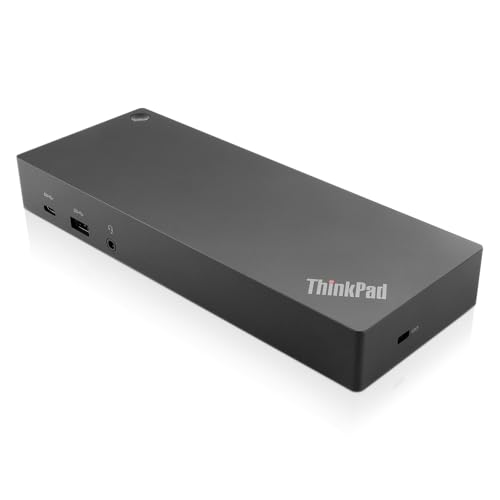
Lenovo ThinkPad Hybrid USB-C with USB-A Dock is the clearest match to the requested 40AF0135US dock, with its USB-A and USB-C port mix plus two DisplayPort and two HDMI outputs. The maker names compatibility with a range of older Lenovo models and non-Lenovo laptops, and includes Gigabit Ethernet and a stereo/mic combo port. USB-C’s shape alone does not guarantee video output from a laptop; confirm its USB-C video capability or the dock’s supported connection method before relying on external displays. This option suits buyers focused on the dock itself rather than a bundle of cables.
Bottom line: Pick this when the 40AF0135US dock and its ports are the priority.
Lenovo Docking Station 40AF0135US
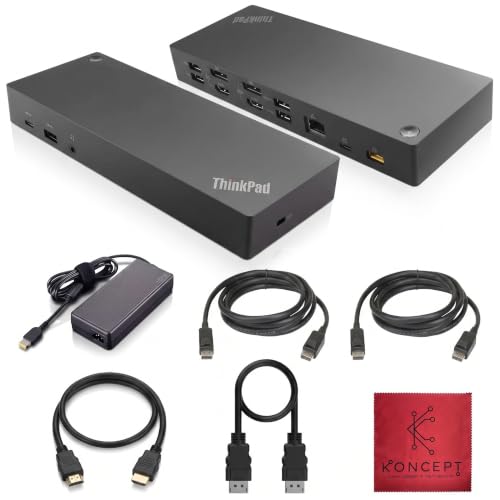
Lenovo Docking Station 40AF0135US stands out by giving physical dimensions: 8.27 by 3.15 by 1.18 inches, with a weight of 1.05 pounds. Its port configuration matches the Hybrid dock family, including three USB 3.1 Gen 2 Type-A ports, two USB 2.0 ports, one USB-C port, two DisplayPort outputs and two HDMI outputs. The included USB-C cable has a Type-A connector option, useful for laptop connections that lack USB-C. The entry does not identify a laptop compatibility list, so verify the exact laptop connection before choosing it over the explicitly named compatibility option.
Bottom line: Pick this if its dimensions and Type-A cable connection match your setup.
Genuine ThinkPad Hybrid Dock 40AF0135US

Genuine ThinkPad Hybrid Dock 40AF0135US is presented as a genuine replacement for the same 40AF0135US dock, rather than as a different port design. It shares the specified three USB 3.1 Gen 2 Type-A ports, two USB 2.0 ports, USB-C data port, Gigabit Ethernet, and four display outputs. The entry also gives the same named Lenovo and non-Lenovo compatibility range as Lenovo ThinkPad Hybrid USB-C with USB-A Dock. Its dimensions are larger than those of other entries, so do not use them as a reliable fit comparison for the dock itself; choose this option for the replacement designation and confirm the physical unit dimensions if desk space is tight.
Bottom line: Pick this when you specifically want the replacement described as genuine.
ThinkPad Hybrid Dock 40AF0135US 135W Bundle
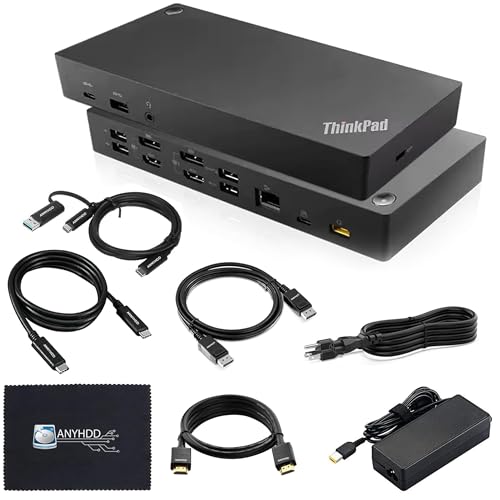
ThinkPad Hybrid Dock 40AF0135US 135W Bundle separates itself through its bundle: a 135W AC adapter, HDMI cable, DisplayPort cable, USB-C cable and cloth. It has the same four display outputs and USB port arrangement associated with the 40AF0135US dock, while the bundle notes compatibility with most Windows laptops and support for up to two 4K displays. The product text also calls it a Thunderbolt 4 dock, which conflicts with the named Hybrid USB-C dock model; treat the model number and verified laptop connection as the safer identifiers. This bundle suits someone who needs the included cables.
Bottom line: Pick this if the included HDMI and DisplayPort cables are useful to your setup.
ThinkPad Hybrid Dock 40AF0135US Starter Bundle

ThinkPad Hybrid Dock 40AF0135US Starter Bundle adds enterprise-network features to its description: PXE boot, Wake-on-LAN and MAC address pass-through, alongside Gigabit Ethernet. The entry specifies two 4K UHD display support and lists three USB 3.2 Gen 2 Type-A ports, two USB 2.0 ports and a USB-C port. It includes a 135W adapter and an HDMI cable bundle. These network functions matter only in a managed setup that supports them; confirm that your laptop and network configuration use the features before choosing this option. Its USB generation wording differs from other entries, so compare actual port needs rather than relying on naming alone.
Bottom line: Pick this for a managed Windows setup that needs the named network features.
How to choose a ThinkPad Hybrid dock
Start with the exact dock model and the laptop connection, then decide whether bundle contents or network features matter. USB-C describes a connector, not a guarantee of display output; a laptop’s USB-C port must support video, or the dock must use a supported driver-based display path. Check the laptop’s specifications for video over USB-C before planning monitor connections. For multi-monitor use, match the laptop’s output capability and the dock’s supported display modes to the monitors’ resolution and refresh rate; the number of sockets alone does not establish simultaneous display capability. The entries list four display connectors, but only some explicitly state dual 4K support. For an office-managed computer, PXE boot and Wake-on-LAN are useful only when enabled and supported by the IT environment.
Ports and bundle differences
The core port layout is similar across these entries, so the practical differences are mainly the documented add-ons and compatibility specifics. USB 3.1 Gen 2 is a 10 Gbps interface; USB 2.0 is much slower, so use the faster ports for storage or high-throughput peripherals and reserve USB 2.0 for low-bandwidth devices. Gigabit Ethernet supports a 1 Gbps link under suitable network conditions, while actual throughput depends on the network and connected devices. Use this comparison to distinguish the bundles without assuming that every cable or power accessory appears in every package.
| Need | What to prioritize |
|---|---|
| Basic dock match | 40AF0135US model and listed ports |
| Video cables included | HDMI and DisplayPort cables named in bundle |
| Managed network setup | PXE, Wake-on-LAN or MAC pass-through explicitly named |
Check laptop and display fit
Verify the laptop model and port capability before planning a dock setup; connector fit by itself does not establish compatibility. The compatibility list for the named dock includes several ThinkPad families and some Lenovo devices, but a model not on that list needs confirmation. DisplayPort 1.2 and HDMI versions can affect resolution and refresh rate, and the weakest link among laptop, dock, cable and monitor sets the usable mode. A dual-display claim is not interchangeable with a promise that every pair of monitors will run at 4K. Check each display’s resolution and refresh-rate target against the laptop and dock capabilities, especially when using adapters or mixed HDMI and DisplayPort connections.
USB dock setup and safety
Place the dock on a stable, ventilated surface and keep its power adapter and cable connections clear of pinching or liquid exposure. A dock’s ports distribute data and power, but they do not make every connected laptop or peripheral compatible. Match the adapter supplied for the specific dock rather than substituting a power supply based only on the plug shape or wattage. Use the always-on USB port only for devices that need charging while the dock is connected, and avoid treating USB charging as equivalent to laptop charging. Before depending on displays or wired network access for work, verify the setup with the exact laptop, displays and network policy in place.
Frequently Asked Questions
Does USB-C guarantee that a laptop can use dock monitors?
No; USB-C is a connector, and video support depends on the laptop’s port and the dock’s display method. Confirm video output support before relying on an external monitor.
How many monitors can the ThinkPad Hybrid dock connect?
The dock entries list two DisplayPort and two HDMI connectors, but four connectors do not automatically mean four simultaneous displays. Some bundle descriptions explicitly claim support for up to two 4K displays.
What does Gigabit Ethernet mean on this dock?
Gigabit Ethernet is a wired network link rated up to 1 Gbps. Actual speed depends on the router or switch, network service, cable and connected computer.
Can this dock work with a USB-A laptop?
The USB-A connection option is specifically named in the dock and one entry includes a USB-C cable with Type-A. Confirm the exact laptop compatibility and display method, since USB-A alone does not establish monitor support.
Which USB ports are best for external storage?
Use the USB 3.1 Gen 2 ports for storage devices that can take advantage of higher transfer rates; that interface is rated up to 10 Gbps. USB 2.0 is better suited to low-bandwidth peripherals.