
Thunderbolt Port to DisplayPort: 4 Cables Compared

UGREEN USB-C to DisplayPort 1.4, 6.6 ft suits most people seeking a Thunderbolt port to DisplayPort cable because it supports up to 8K at 60Hz and measures 6.6 feet. Choose acer USB-C to DisplayPort, 6.6 ft for 4K at 60Hz or Cable Matters USB-C to DisplayPort 1.4, 6 ft when the host’s DisplayPort 1.4 HBR3 and DSC support is confirmed.
These are one-way cables: they send video from a USB-C or Thunderbolt source to a DisplayPort display. A USB-C-shaped port alone does not guarantee video output.
We earn a commission if you buy through links on this page. As an Amazon Associate I earn from qualifying purchases. Products are compared on manufacturer specifications, not hands-on testing.
- Best overall: UGREEN USB-C to DisplayPort 1.4, 6.6 ft – Supports up to 8K at 60Hz and is 6.6 feet long.
- Best for color depth: Warrky USB-C to DisplayPort 1.4, 6 ft – The maker claims 16-bit color depth and HDCP 2.2 compliance.
- Best for 4K at 60Hz: acer USB-C to DisplayPort, 6.6 ft – Supports 4K at 60Hz and uses DP 1.2.
- Best for high refresh: Cable Matters USB-C to DisplayPort 1.4, 6 ft – Supports up to 4K at 240Hz when the host provides HBR3 and DSC.
| Product | Best for | Maximum resolution | Length | DisplayPort version | Shop |
|---|---|---|---|---|---|
| UGREEN USB-C to DisplayPort 1.4, 6.6 ft | High resolution | 8K at 60Hz | 6.6 ft | 1.4 | Check Price on Amazon |
| Warrky USB-C to DisplayPort 1.4, 6 ft | Color depth | 8K at 60Hz | 6 ft | 1.4 | Check Price on Amazon |
| acer USB-C to DisplayPort, 6.6 ft | 4K at 60Hz | 4K at 60Hz | 6.6 ft | 1.2 | Check Price on Amazon |
| Cable Matters USB-C to DisplayPort 1.4, 6 ft | Host-aware choice | 8K at 60Hz | 6 ft | 1.4 | Check Price on Amazon |
Thunderbolt Port to DisplayPort Cables
Compare maximum resolution, cable length, and the host requirements that can affect video output.
UGREEN USB-C to DisplayPort 1.4, 6.6 ft

UGREEN USB-C to DisplayPort 1.4, 6.6 ft combines an 8K-at-60Hz ceiling with a 6.6-foot cable, making it a flexible choice when the source and monitor can handle high-resolution output. The maker says it also supports 4K at 240Hz and 2K at 360Hz, plus MST for daisy-chaining multiple displays. This cable sends video in one direction only, from USB-C to DisplayPort, so it cannot connect a DisplayPort source to a USB-C monitor. Its highest modes also depend on compatible source and display hardware.
Bottom line: Pick it for a longer cable and high-resolution options, provided both devices support the mode you want.
Warrky USB-C to DisplayPort 1.4, 6 ft

Warrky USB-C to DisplayPort 1.4, 6 ft stands out for its claimed 16-bit color depth and HDCP 2.2 compliance, alongside support up to 8K at 60Hz. The maker also claims support for 4K at 240Hz or 144Hz and plug-and-play use with compatible devices. At 6 feet, it is slightly shorter than the 6.6-foot options here. This is a one-way cable from USB-C source to DisplayPort display, and the source must support video output over USB-C; a charging or data-capable USB-C port alone may not be enough.
Bottom line: Choose it if the claimed color-depth and HDCP features matter to your setup.
acer USB-C to DisplayPort, 6.6 ft
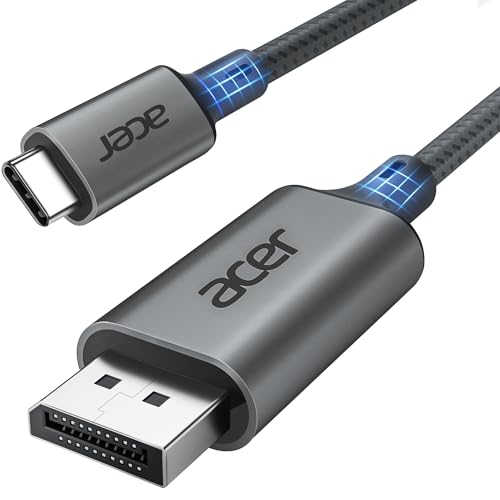
acer USB-C to DisplayPort, 6.6 ft is the 4K-at-60Hz option, with support for several lower-resolution refresh rates including 2K at up to 170Hz according to the maker. It uses DP 1.2 and the maker claims 21.6 Gbps bandwidth, FreeSync and G-Sync support, and HDCP 1.3 compatibility. The 6.6-foot length matches the longest cable in this group. Its resolution ceiling is lower than the 8K-capable options, so buyers targeting 8K or 4K at 240Hz should choose another cable and confirm their host’s video output support.
Bottom line: Pick it for 4K at 60Hz and a 6.6-foot cable rather than the highest refresh rates.
Cable Matters USB-C to DisplayPort 1.4, 6 ft

Cable Matters USB-C to DisplayPort 1.4, 6 ft makes its host requirement explicit: the maker says reaching 8K at 60Hz or 4K at 240Hz requires USB-C with DisplayPort 1.4 HBR3 and DSC output. It supports USB-C or Thunderbolt 4/5 computers and DisplayPort monitors, with a 6-foot cable. That compatibility condition matters more than the cable’s maximum mode if the computer cannot deliver the required signal. The maker also cautions against using it with portable USB-C monitors, so it is not the right fit for that display type.
Bottom line: Choose it when your computer’s HBR3 and DSC capability is confirmed.
How to Choose a Thunderbolt Port to DisplayPort Cable
Start by matching the source’s video output and the display’s input, then check resolution and refresh rate. USB-C describes the connector shape; video typically travels over DisplayPort Alt Mode or Thunderbolt, and not every USB-C port supports display output. Thunderbolt 3, 4, and 5 use USB-C connectors, but the actual display modes still depend on the computer, graphics hardware, and monitor.
For 8K at 60Hz or 4K at 240Hz, look for explicit host support for the required bandwidth and compression; Cable Matters USB-C to DisplayPort 1.4, 6 ft calls out DisplayPort 1.4 HBR3 plus DSC. If your setup targets 4K at 60Hz, acer USB-C to DisplayPort, 6.6 ft supports that mode. A cable’s maximum capability does not upgrade a weaker host or display.
Check Cable Direction and Port Fit
These cables carry video from a USB-C source to a DisplayPort display, not the reverse. The USB-C end belongs at a compatible laptop, tablet, or phone, and the DisplayPort end belongs at the monitor or projector. A DisplayPort-to-USB-C monitor connection needs a different solution; passive directional cables are not interchangeable just because both ends fit.
Also check whether the monitor has a full-size DisplayPort input and whether your device’s USB-C port supports video. Thunderbolt support is a useful clue, but adapter chains, docks, and multiple displays can change the available output modes. For daisy-chaining, the source and monitors must support MST; UGREEN USB-C to DisplayPort 1.4, 6.6 ft identifies MST support, but that alone does not guarantee every computer can drive multiple displays at a chosen resolution.
Resolution and Refresh Rate Differences
Choose the mode you actually need rather than assuming every advertised maximum works at once. The 8K-capable cables in this group advertise 8K at 60Hz and 4K at up to 240Hz, while acer USB-C to DisplayPort, 6.6 ft tops out at 4K at 60Hz. High refresh rates can require lower resolution or compatible compression, and the host’s output limits the result.
This table maps a target mode to a sensible starting point; verify that the source and monitor also support it.
| Target use | Starting cable choice | Condition |
|---|---|---|
| 4K at 60Hz | acer USB-C to DisplayPort, 6.6 ft | Host must support USB-C video output |
| 8K at 60Hz | UGREEN USB-C to DisplayPort 1.4, 6.6 ft, Warrky USB-C to DisplayPort 1.4, 6 ft, or Cable Matters USB-C to DisplayPort 1.4, 6 ft | Host and display must support the mode |
| 4K at 240Hz | UGREEN USB-C to DisplayPort 1.4, 6.6 ft, Warrky USB-C to DisplayPort 1.4, 6 ft, or Cable Matters USB-C to DisplayPort 1.4, 6 ft | Cable Matters USB-C to DisplayPort 1.4, 6 ft specifies HBR3 and DSC host output |
Common Connection Problems to Avoid
A blank display often comes from using the wrong port capability or cable direction, not a faulty resolution setting. Confirm that the USB-C port supports video, connect the USB-C end to the source, and select the DisplayPort input on the monitor. If a dock or adapter sits between the devices, test a direct connection where possible because each link can limit resolution or refresh rate.
For high refresh rates, use a display input and host output that both support the target mode; a monitor’s advertised maximum may apply only to a particular input. With less than 6 feet of routing distance, either 6-foot option may fit; for a longer reach, UGREEN USB-C to DisplayPort 1.4, 6.6 ft and acer USB-C to DisplayPort, 6.6 ft measure 6.6 feet. Avoid sharply bending the cable at either plug.
Frequently Asked Questions
Does every Thunderbolt port support DisplayPort output?
Thunderbolt ports support display output, but the usable resolution depends on the computer, graphics system, monitor, and connection path. USB-C ports without Thunderbolt need DisplayPort Alt Mode or another supported video-output method.
Can a USB-C to DisplayPort cable work in reverse?
No, these are one-way cables from a USB-C video source to a DisplayPort display. For a DisplayPort computer connected to a USB-C monitor, use a solution designed for that direction.
Will 8K at 60Hz work with any USB-C laptop?
No, the laptop must support the required video mode and bandwidth, and the monitor must accept 8K at 60Hz. For the cable that specifies the condition, Cable Matters USB-C to DisplayPort 1.4, 6 ft requires HBR3 and DSC output from the host.
Can I use one of these cables with a USB-C monitor?
These cables terminate in DisplayPort and are intended for a DisplayPort display, not a USB-C monitor. Cable Matters USB-C to DisplayPort 1.4, 6 ft specifically cautions against portable USB-C monitors; check connector type and direction before connecting.
What does a one-way display cable mean?
A one-way cable sends the signal from its designated source connector to its designated display connector. For these products, the source end is USB-C and the display end is DisplayPort.