
HDMI to Component Adapters: 3 Scalers Compared

HDMI to YPbPr Scaler with Cables is the best fit for most people connecting an HDMI source to a component display because it includes HDMI and component cables. Choose Musou HDMI to YPbPr Converter instead if its 1080p component output better matches your display; YPbPr to HDMI Converter converts in the opposite direction, from component to HDMI.
An HDMI-to-component adapter converts digital HDMI video into analog YPbPr video, often with separate left/right audio.
We earn a commission if you buy through links on this page. As an Amazon Associate I earn from qualifying purchases. Products are compared on manufacturer specifications, not hands-on testing.
- Best overall: HDMI to YPbPr Scaler with Cables – Includes HDMI and component cables, so fewer separate cables are needed.
- Best for resolution options: Musou HDMI to YPbPr Converter – Supports component output at 480p, 720p or 1080p.
- Best for component sources: YPbPr to HDMI Converter – Converts YPbPr video and left/right audio to HDMI, for the reverse connection.
| Product | Best for | Signal direction | Supported output | Shop |
|---|---|---|---|---|
| HDMI to YPbPr Scaler with Cables | Cable-ready setup | HDMI to YPbPr | 480i; other output unclear | Check Price on Amazon |
| Musou HDMI to YPbPr Converter | Resolution selection | HDMI to YPbPr | 480p, 720p, 1080p | Check Price on Amazon |
| YPbPr to HDMI Converter | Reverse conversion | YPbPr to HDMI | HDMI up to 1080p/60Hz | Check Price on Amazon |
HDMI to Component Adapters
Compare conversion direction, output options and included cables before choosing a scaler.
HDMI to YPbPr Scaler with Cables

HDMI to YPbPr Scaler with Cables stands out by including both an HDMI cable and a component cable, along with a USB power cable. It converts HDMI video to YPbPr component video and analog stereo audio, for sources such as Blu-ray players, game consoles, streaming sticks and PCs connected to a component display. The maker says component output supports 480i; the remaining output-resolution text is incomplete, so confirm that the scaler’s available output modes match your display before choosing it. The included cables suit a setup that needs both connections, but their lengths are 1 meter for HDMI and 0.8 meter for component.
Bottom line: Choose it if you want the key connection cables included and your display accepts its output mode.
Musou HDMI to YPbPr Converter

Musou HDMI to YPbPr Converter distinguishes itself with a component-output choice of 480p, 720p or 1080p, plus on-screen display for input and output resolutions. It converts HDMI input to analog YPbPr video and left/right audio, and supports HDMI input resolutions from 480i through 1080p. That range can help when the source and older display need a scaler to reconcile formats. The product does not include cables in the features, so account for a compatible HDMI cable and component connection separately. Its output is analog component, not composite video.
Bottom line: Choose it when you need selectable component output up to 1080p and can supply the cables.
YPbPr to HDMI Converter
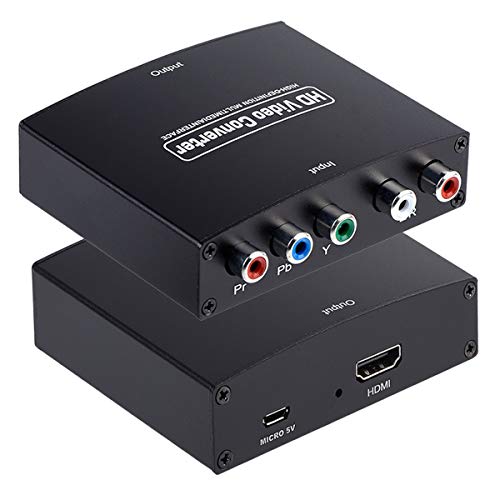
YPbPr to HDMI Converter is the reverse-direction option: it takes analog YPbPr component video and left/right audio and sends them to an HDMI display. Its supported component inputs include 480i/p, 576i/p, 720p and 1080i/p, with HDMI output up to 1080p/60Hz. That makes it relevant if the source is an older DVD player, satellite box or console and the screen has HDMI but no component input. It will not connect an HDMI source to a component-only display; conversion direction is fundamental, and this unit cannot be reversed.
Bottom line: Choose it only when your source outputs YPbPr and your display takes HDMI.
How to choose an HDMI to component adapter
Start by matching the direction printed on the converter: HDMI-to-YPbPr is for an HDMI source and component display, while YPbPr-to-HDMI is for the reverse. Component video carries picture over three RCA plugs—green Y, blue Pb and red Pr—while stereo audio usually uses separate white and red RCA plugs. HDMI carries digital video and audio in one connection, so a converter may need to split or recombine audio. Check the display’s supported resolution and scan format as well as the source’s output; 480i, 720p and 1080p are not interchangeable in every setup. If the display only accepts 480i, choose an output mode it accepts rather than assuming a higher resolution will work.
Component video and HDMI are different signals
Component YPbPr is analog video; HDMI is digital, so a passive cable alone cannot convert between them. A powered converter performs the signal conversion, and some models also scale resolution. Component plugs are color-coded green, blue and red for video, with white and red commonly used for left and right audio; the red audio plug is easy to confuse with the red video plug. Match labels, not color alone. A practical choice rule is to buy HDMI-to-component only when the display has YPbPr inputs and the source has HDMI output; if the display has HDMI and the source has YPbPr, choose the opposite direction.
Resolution and cable fit
Confirm the resolution and scan format accepted by the receiving display before selecting a converter mode. Standard component formats include 480i/480p, 576i/576p, 720p and 1080i; progressive and interlaced formats can behave differently on older screens. For long connections, analog component cables are more susceptible to interference than digital HDMI, so keep runs tidy and avoid routing them alongside power cords. Check which leads come with the converter and measure the distance between devices before setup; included cables may not reach a shelf or cabinet location. If the display manual gives a narrower supported format range, use that range to decide which scaler settings are appropriate.
Connection mistakes to avoid
The most common mistake is buying the correct connector shapes but the wrong conversion direction. Verify the source output and display input first, then match those endpoints to the converter’s input and output labels. A second mistake is treating component video as a five-plug connection with five video channels: three RCA connections carry video, while two more can carry stereo audio. Keep the audio leads connected if sound must reach the display or an audio system. Finally, do not assume that a converter’s maximum output resolution will work with every display; set a supported mode and check whether the television or monitor accepts that scan format.
Frequently Asked Questions
Can an HDMI to component adapter work in reverse?
No; a converter is directional because HDMI is digital and YPbPr component is analog. For a component-output source and HDMI display, use a YPbPr-to-HDMI converter instead.
Do component cables carry stereo audio too?
No; the green, blue and red YPbPr plugs carry video, while stereo audio typically uses separate white and red RCA plugs. Match the audio connections as well as the three video connections when sound is needed.
What resolution should I set for an older component TV?
Use a resolution and scan format the TV accepts, such as 480i or 480p on some older sets. Check the TV’s supported inputs before choosing a scaler mode, since a higher output like 1080p may not be accepted.
Does HDMI carry audio through a component converter?
HDMI includes digital audio, but component video uses separate analog audio connections. A converter that provides left/right audio output needs those RCA leads connected to the TV or audio system for sound.
How many RCA cables does component video use?
Component video uses three RCA connections for Y, Pb and Pr. Stereo audio commonly adds two more RCA leads, for five plugs total when picture and left/right sound are both connected.