
WOWNOVA 5-Inch Display: Models Compared by Fit

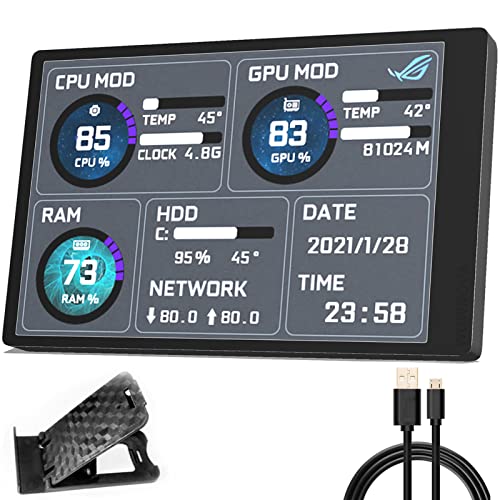
The WOWNOVA 5-inch Computer Temp Monitor is the closest match because it is a 5-inch USB panel made to show PC temperatures and usage data. Choose a different option if you need a touchscreen, an HDMI-connected display, or a larger panel for an extended desktop.
These products range from internal PC status screens to standalone secondary displays, so the connection and software determine which one fits your setup.
We earn a commission if you buy through links on this page. As an Amazon Associate I earn from qualifying purchases. Products are compared on manufacturer specifications, not hands-on testing.
- Best overall: WOWNOVA 5-Inch Computer Temp Monitor – A 5-inch USB status panel with PC data monitoring and customizable dynamic themes.
- Best for a smaller panel: WOWNOVA 3.5-Inch Computer Temp Monitor – A 3.5-inch IPS USB screen with a single-cable setup for PC monitoring.
- Best for touch input: ELECROW 5-Inch Touchscreen – A 5-inch 800×480 touchscreen that uses HDMI for video and USB for power.
| Product | Best for | Screen size | Resolution | Connection | Shop |
|---|---|---|---|---|---|
| WOWNOVA 5-Inch Computer Temp Monitor | PC status monitoring | 5 inches | — | USB-C | Check Price on Amazon |
| WOWNOVA 3.5-Inch Computer Temp Monitor | Compact PC readings | 3.5 inches | 320 × 480 | USB-C | Check Price on Amazon |
| WOWNOVA 12.3-Inch Universal PC Screen | Large PC display | 12.3 inches | 1920 × 720 | USB or 9-pin | Check Price on Amazon |
| ELECROW 5-Inch Touchscreen | Touchscreen projects | 5 inches | 800 × 480 | HDMI and USB | Check Price on Amazon |
| Waveshare 5-Inch USB Monitor | Theme customization | 5 inches | 800 × 480 | USB-C | Check Price on Amazon |
WOWNOVA 5-Inch Display Options and Alternatives
Compare the screen size, connection, and intended role to find the right display for a PC build or desk.
WOWNOVA 5-Inch Computer Temp Monitor

The WOWNOVA 5-inch Computer Temp Monitor is the only product here identified as a 5-inch WOWNOVA status panel. It uses the brand’s software as a secondary screen for system temperatures and usage, including CPU, GPU, RAM, FPS, and HDD data. Dynamic video themes can be customized, and a 16 GB flash card is included for media. The panel suits a PC build where system readings and themed visuals matter more than touch input or general HDMI video. Its role is specialized: it depends on the software rather than serving as a conventional HDMI monitor.
Bottom line: Pick this if you want a 5-inch WOWNOVA panel dedicated to PC readings and themes.
WOWNOVA 3.5-Inch Computer Temp Monitor
The WOWNOVA 3.5-inch Computer Temp Monitor is the smaller WOWNOVA alternative, with an IPS panel and a single USB-C cable for power and data. Its display area is 1.93 × 2.91 inches, and its overall dimensions are 2.17 × 3.35 inches. The English software displays CPU, GPU, RAM, and HDD data, making this a fit for tighter PC interiors or a smaller visual accent. It is not a 5-inch panel, and its 320 × 480 resolution is more limited than the touchscreen alternative’s 800 × 480.
Bottom line: Choose this when a smaller internal status screen matters more than a 5-inch panel.
WOWNOVA 12.3-Inch Universal PC Screen

The WOWNOVA 12.3-Inch Universal PC Screen is a much larger panel intended for PC stats, media, themes, or an extended desktop. Its IPS screen has 1920 × 720 resolution and 500 nits brightness, and it supports landscape or portrait rotation. A single USB or 9-pin cable carries power and data, avoiding HDMI and a GPU display port. This suits a chassis or desktop setup with room for a wide screen rather than a compact 5-inch display. Check the available mounting space: the screen measures 12.22 inches wide and 5.12 inches high.
Bottom line: Pick this for a wide PC screen when a compact panel would be too small.
ELECROW 5-Inch Touchscreen

The ELECROW 5-Inch Touchscreen matches the 5-inch size but differs from WOWNOVA’s PC-stat panel by adding five-point capacitive touch and HDMI video input. It has an 800 × 480 LCD, a 60 Hz refresh rate, and uses USB for power. Compatibility includes Raspberry Pi models, Banana Pi, Jetson Nano, and standard HDMI devices, so it fits projects that need direct touch interaction or a general secondary screen. The connection requires both HDMI and USB, unlike the single-cable USB status panels.
Bottom line: Choose this for a 5-inch HDMI screen with touch rather than PC-stat software.
Waveshare 5-Inch USB Monitor

The Waveshare 5-Inch USB Monitor is the closest alternative for a compact PC case screen, but it emphasizes customizable themes and music visualization rather than being a WOWNOVA product. The IPS panel has 800 × 480 resolution and a Type-C one-cable connection. Its software supports real-time visual editing, and the screen can show system data such as CPU, graphics, memory, storage, and network readings. An onboard microphone supports audio capture for its music spectrum theme. It suits buyers who value editable themes and music visualization; it is not the WOWNOVA model named in the search.
Bottom line: Pick this if editable themes and music visualization are more important than the WOWNOVA name.
How to Choose a Compact PC Display
Choose by what the screen must display and how it connects: system-stat panels use dedicated software, while HDMI displays accept a video signal from a compatible device. A single USB-C cable can simplify an internal PC installation, but it does not mean every such panel works as a conventional desktop monitor. An HDMI touchscreen needs a video connection and a separate USB power connection. For a case-mounted screen, measure the flat mounting area before choosing; a 12.22-inch-wide panel needs substantially more space than a 5-inch panel. For interactive projects, confirm the device supports the display’s input method and touch features. A status display is the better fit when the goal is always-visible PC readings rather than general-purpose video.
PC Status Panels Versus HDMI Screens
PC status panels and HDMI screens solve different display needs: status panels focus on system readings, while HDMI models act as video displays for compatible devices. USB status screens use their software to present PC information, and some support custom themes or audio visualizations. HDMI models receive video from a computer or single-board computer and may include touch input. A screen’s diagonal size alone does not tell you how much usable workspace it provides; resolution and aspect ratio also affect how text and windows fit. The comparison below summarizes the practical distinction.
| Display type | Connection pattern | Typical purpose |
|---|---|---|
| PC status panel | USB or USB-C | System readings and themes |
| HDMI touchscreen | HDMI video plus USB power | Interactive video display |
| Wide PC screen | USB or internal header | Stats, media, or extended desktop |
Measure the Mounting Space Before Installing
Measure the usable opening and cable path before selecting an internal screen; panel width and height matter more than diagonal size when fitting a case. A 5-inch display can still have an enclosure or bezel that changes the required opening. Leave room for connectors and cable bends, particularly where a USB header or HDMI cable must route behind the panel. The larger WOWNOVA screen measures 12.22 inches wide and 5.12 inches high, so it is a different class of fit from a compact status panel. Also confirm that the mounting surface is flat and that the screen will not interfere with fans, vents, or components. Avoid blocking airflow or placing wiring against moving fan blades.
Set Up a PC Temperature Display Safely
Use system-monitoring software to display temperatures and utilization, and make sure the software supports the operating system and hardware sensors you intend to read. CPU and GPU temperatures are separate readings; a single displayed number may not represent every component. Keep internal display cables clear of fans and sharp metal edges, and secure cables so they cannot enter a fan path during case movement. Monitoring screens do not control cooling by themselves: thermal limits and fan behavior remain governed by the PC’s hardware and settings. For a general-purpose screen, connect the video input and power as designed rather than assuming a USB status display will accept ordinary video.
Frequently Asked Questions
Can a USB PC status screen replace a regular monitor?
Not necessarily; a USB status panel may depend on dedicated software to show system readings and themes. Choose an HDMI display when you need a conventional video input for another device.
What resolution is enough for a 5-inch secondary screen?
An 800 × 480 panel is a practical choice for compact menus, stats, and project interfaces. At 5 inches, small text can still be difficult to read at a distance, so prioritize the content and viewing position.
How much space should I leave around an internal PC screen?
Measure the panel footprint and reserve clearance for the cable connector and bend before mounting. Keep the screen and wiring clear of fans, vents, and sharp case edges.
Can a PC temperature panel show GPU and CPU readings together?
Some status-panel software supports both CPU and GPU readings, along with usage data. Confirm the software detects the sensors on your system, since monitoring features depend on hardware and software compatibility.