
Convert 35mm Film to Digital: 5 Scanners Compared

For converting 35mm film to digital, Magnasonic FS71 All-in-One Film Scanner is the strongest fit for most people because it supports 35mm negatives and slides, saves JPEGs to an SD card, and has a 5-inch screen. Choose Digitpro Mobile 35mm Scanner instead if you want to use a smartphone camera, or DIGITNOW! 135 Film Negative Scanner if a compact 2.4-inch display and computer connection matter more.
We earn a commission if you buy through links on this page. As an Amazon Associate I earn from qualifying purchases. Products are compared on manufacturer specifications, not hands-on testing.
- Best overall: Magnasonic FS71 All-in-One Film Scanner – Supports 35mm film, scans to JPEG on an SD card, and includes a 5-inch display.
- Best for phone scanning: Digitpro Mobile 35mm Scanner – Uses a smartphone camera with a foldable portable setup for 35mm negatives and slides.
- Best for computer connection: DIGITNOW! 135 Film Negative Scanner – Offers USB 2.0 and a computer-saving option alongside SD-card scanning.
| Product | Best for | Supported formats | Display | Storage | Shop |
|---|---|---|---|---|---|
| Magnasonic FS71 All-in-One Film Scanner | Broad format support | 35mm, 110, 126, Super 8 | 5-inch LCD | SD card, up to 128GB | Check Price on Amazon |
| KODAK Slide N Scan 22MP | Built-in preview | 135, 110, 126 negatives; 50mm slides | 5-inch LCD | SD or SDHC card | Check Price on Amazon |
| DigitPro 22MP Film & Slide Scanner | Super 8 support | 35mm/135, 110, Super 8; 50mm slides | 5-inch LCD | Built-in 128MB; SD up to 64GB | Check Price on Amazon |
| DIGITNOW! 135 Film Negative Scanner | Computer connection | 35mm/135 film and slides | 2.4-inch TFT LCD | SDHC up to 32GB or computer | Check Price on Amazon |
| Digitpro Mobile 35mm Scanner | Smartphone scanning | 35mm negatives and slides | Smartphone camera | Smartphone-based | Check Price on Amazon |
35mm Film-to-Digital Scanners
Compare each option by its supported film formats, preview method, and file-storage approach.
Magnasonic FS71 All-in-One Film Scanner

Magnasonic FS71 All-in-One Film Scanner stands out for format breadth: it handles 35mm, 110, 126, and Super 8 film, plus 135, 126, and 110 slides. The 5-inch LCD lets you view scans on the unit, and HDMI output can send the display to a TV or monitor; HDMI cable and SD card are separate. Magnasonic says the scanner creates 24MP JPEG files and can work without a computer. It suits households digitizing several film formats, though buyers focused only on 35mm may prefer a simpler phone-based setup.
Bottom line: Choose it if you want one standalone scanner for several film formats and a large preview screen.
KODAK Slide N Scan 22MP
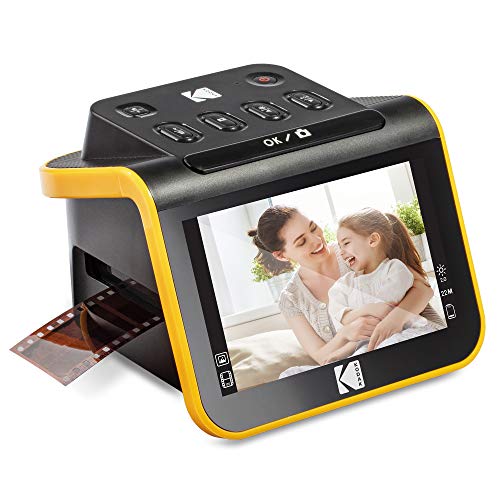
KODAK Slide N Scan 22MP pairs 135 negatives and 50mm slides with a 5-inch LCD gallery for previewing and editing before saving. Its quick-feeding tray and included adapters for 135, 110, and 126 film make it useful when the collection includes more than 35mm negatives. KODAK says files save as JPEGs directly to an SD card; the card is not included. This option suits people who want a large built-in screen, but the input description is broader than 35mm alone, so check that your specific film format is among the supported sizes.
Bottom line: Pick it for a large integrated preview and support for multiple negative formats.
DigitPro 22MP Film & Slide Scanner

DigitPro 22MP Film & Slide Scanner adds Super 8 support alongside 35mm/135 and 110 negatives, and it saves to either 128MB of built-in memory or an SD card. The 5-inch screen is intended for preview and playback, making the scanner suitable for people who want to work without relying on a computer. DigitPro says external cards can be up to 64GB and formatted FAT32 or exFAT. The built-in capacity is limited, so plan on an external card for a larger archive.
Bottom line: Choose it if Super 8 support and internal memory are useful to your workflow.
DIGITNOW! 135 Film Negative Scanner

DIGITNOW! 135 Film Negative Scanner offers both SD-card saving and a computer connection, unlike the larger-screen standalone options. It supports 35mm/135 film and slides, has an adjustable rapid slide feeder, and includes a 2.4-inch TFT LCD for on-device viewing. DIGITNOW! says its scanning resolution is 1800 dpi and identifies 5/10 megapixel options; it also supports SDHC cards up to 32GB. This is a practical fit when direct computer access is important, but its screen is substantially smaller than the 5-inch displays on several alternatives.
Bottom line: Pick it if you value a computer connection more than a large built-in display.
Digitpro Mobile 35mm Scanner

Digitpro Mobile 35mm Scanner takes a different approach from standalone scanners: it uses a smartphone camera to digitize 35mm color or black-and-white negatives and slides. Its foldable design is the key distinction for people who want a portable phone-based option rather than a dedicated scanner with its own screen or card slot. The product features describe scanning in seconds, but the captured result depends on the phone camera and the app or camera workflow used. It suits occasional scans and portability; choose a standalone model if you want an included LCD preview and direct SD-card saving.
Bottom line: Choose it for a compact phone-camera workflow rather than a dedicated scanner.
How 35mm film scanners create digital files
A film scanner illuminates a negative or slide and captures the image so it can be saved as a digital file. Dedicated scanners commonly show a preview on an LCD and save JPEGs to removable memory; smartphone digitizers instead rely on the phone camera. Negative film also has an orange mask, so conversion software or a scanner’s image controls must reverse the negative colors. For a collection of only a few frames, a phone-based unit may be enough; for repeated batches, a feeder and standalone controls can reduce handling.
Resolution numbers do not tell the whole story: focus, film flatness, dust, exposure, and color conversion affect usable results. Keep strips flat in their holders, remove loose dust with a clean blower or brush, and avoid touching the image area. For irreplaceable originals, keep the negatives even after digitizing because a scan is a copy, not a replacement archive.
Choosing a 35mm film-to-digital method
Choose by workflow first: phone-camera capture favors portability, while a standalone scanner can provide an integrated screen and direct card saving. A 5-inch display gives a larger preview area than a 2.4-inch display, but screen size alone does not determine image quality. Check whether the device accepts the precise material you own: 35mm negative strips, mounted slides, 110 film, and Super 8 are distinct formats.
The storage path is another measurable decision. If the scanner supports a 32GB card, that is the ceiling; where capacity is up to 128GB, it allows a larger card. Plan for an SD card when one is not included, and note whether the unit can transfer files directly to a computer. For many dozens of frames, prioritize a feeder and convenient file transfer; for occasional scans, a portable setup may be simpler.
| Need | Useful feature | Trade-off |
|---|---|---|
| On-device review | Built-in LCD | Screen size differs |
| Multiple film sizes | Adapters or broad format support | Confirm the exact format |
| Phone-based capture | Smartphone camera digitizer | Depends on phone workflow |
| Large archive | Removable SD storage | Check card capacity and inclusion |
Preparing negatives and slides for scanning
Clean handling matters because dust and fingerprints become visible in scans. Hold film by its edges, use a blower or the scanner’s included cleaning brush, and place each strip or slide fully into its holder. Keep the emulsion surface free of contact; scratches are permanent and can be harder to remove than loose dust. Handle slides by their mounts and avoid forcing a holder that does not match the format.
Before a long session, scan a single frame and inspect it at full size for orientation, color, and cropping. Organize the resulting files with roll or event names and frame numbers; consistent naming makes later retrieval easier. Store the original film in a cool, dry place away from direct sunlight, and keep a second copy of the digital files on separate storage rather than relying on one card.
Common mistakes when digitizing 35mm film
The most common mismatch is confusing 35mm film with other formats such as 110, 126, or Super 8. These formats need different holders or feed paths, so verify the format before starting a batch. Another mistake is buying a scanner based only on a megapixel figure: a sharp, clean, correctly exposed capture is more useful than a larger number with poor focus or dust.
Do not assume every scanner includes a memory card or cable; the card is expressly not included for several devices here, and HDMI is also separate on one model. Keep a few frames as a test set before digitizing an entire roll, and compare the scan orientation and edges against the original. For valuable film, avoid aggressive cleaning or chemical treatments that could damage the emulsion.
Frequently Asked Questions
Can a 35mm film scanner handle mounted slides?
Some models accept mounted slides, but the supported slide sizes differ from film-strip formats. Check the holder or adapter fit for the particular slide mount before scanning.
Do film scanners save photos without a computer?
Standalone models can save scans directly to an SD card, and some can operate without a computer. Confirm whether the required card is included and check the supported capacity; one option supports SDHC up to 32GB.
What does 1800 dpi mean for a film scan?
DPI describes sampling density, not guaranteed image sharpness or color accuracy. Dust, focus, film flatness, and exposure still affect the result, so inspect a sample scan before digitizing a full collection.
How should I clean 35mm negatives before scanning?
Hold each strip by its edges and remove loose dust with a clean blower or soft brush before loading it. Avoid wiping the image area, since scratches and fingerprints can be captured in the scan.
Can a phone digitizer replace a standalone scanner?
A phone-based digitizer can capture 35mm negatives and slides using the smartphone camera, which favors portability. A standalone scanner is a better fit when you want an integrated LCD preview or direct saving to removable memory.