
Laser Pointers for TV Screens: 4 Options Compared

For most TV-screen presentations, the Norwii N95s Norwii N95s Digital Pointer is the most direct fit because its digital pointer is designed for TV screens and adds spotlight and magnification functions. Choose a different model if you want both a physical and digital pointer, broader connection options, or a physical green laser.
A TV-screen pointer either overlays a digital marker through presentation software or uses a physical laser beam; the method determines what setup you need.
We earn a commission if you buy through links on this page. As an Amazon Associate I earn from qualifying purchases. Products are compared on manufacturer specifications, not hands-on testing.
- Best overall: Norwii N95s Digital Pointer – Its digital pointer is specifically designed for TV screens, with spotlight and magnification functions.
- Best for broad connectivity: Norwii N97s Digital Pointer – It offers Bluetooth and USB-A/USB-C connections and a claimed range of 328 feet.
- Best for dual pointing: Dual Physical and Digital Presenter – It combines a physical pointer with digital pointer, spotlight and magnifier functions.
- Best for a green beam: Logitech R800 Green Laser – Its maker says the green laser is visible on LCD and plasma displays.
| Product | Best for | Pointer method | Connection or range | Extra functions | Shop |
|---|---|---|---|---|---|
| Norwii N95s Digital Pointer | TV presentations | Digital | USB-A | Spotlight, magnifier, annotate | Check Price on Amazon |
| Norwii N97s Digital Pointer | Flexible connections | Digital | Bluetooth, USB-A/C; 328 ft | Spotlight, mouse-like controls | Check Price on Amazon |
| Dual Physical and Digital Presenter | Two pointing modes | Physical and digital | USB-A/C receiver | Digital laser, spotlight, magnifier | Check Price on Amazon |
| Logitech R800 Green Laser | Physical green beam | Physical green laser | Up to 100 ft | Timer, vibrating alerts | Check Price on Amazon |
Laser Pointers for TV Screens
Compare the pointing method first, then match the connection and presentation controls to your setup.
Norwii N95s Digital Pointer
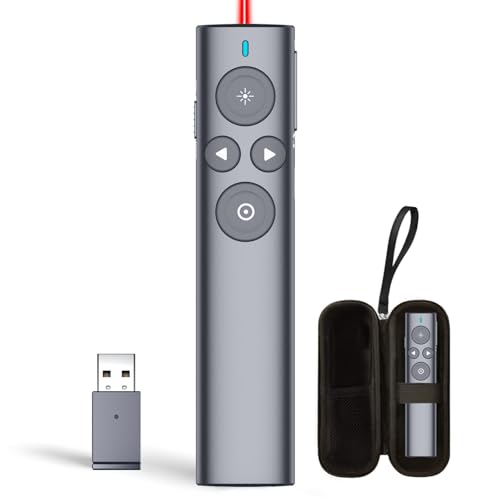
Unlike a physical laser, the Norwii N95s uses a digital pointer made for TV screens, plus spotlight, magnification and annotation functions. The maker says it works with TVs and projection screens when Norwii Presenter software is running. Its USB-A model includes 32 GB of built-in flash storage. This suits presenters who want to highlight screen content without relying on a beam. The tradeoff is software dependence: the digital pointer requires the software to stay running, so it is less suitable for a setup where you cannot run the app.
Bottom line: Choose it when a software-based pointer and added screen tools matter more than a physical beam.
Norwii N97s Digital Pointer
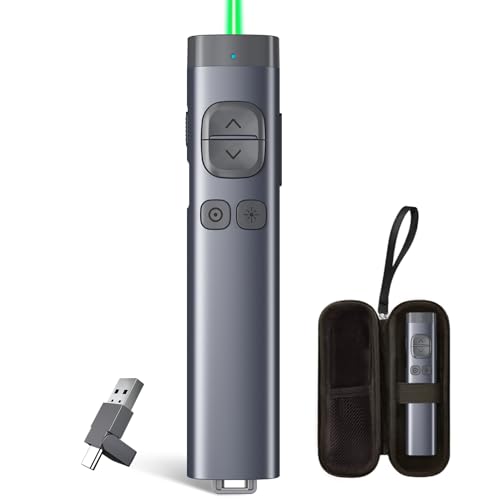
The Norwii N97s stands out for its 328-foot range and Bluetooth or USB-A/USB-C connections. Its digital pointer and spotlight work on any screen, according to the maker, and its mouse-like controls can click to play or pause videos and open links. The metal housing and silent button are useful when handling the remote during a talk. It suits presenters who switch between devices or control multimedia as well as slides. Its digital pointer relies on Norwii Presenter software, so confirm the software supports your operating system and presentation workflow.
Bottom line: Pick it for multi-device connections and a long stated range.
Dual Physical and Digital Presenter

This presenter is the only option here that pairs a physical pointer with digital pointing, giving you a choice of method for a traditional projection screen or an LCD/TV screen. The USB-A and USB-C receiver supports switching between those port types, and the digital laser, spotlight and magnifier functions require its software. That combination suits someone who presents on different display types and wants multiple highlighting tools. The limitation is that the advanced functions depend on installing and enabling the software, so it may not fit a locked-down computer.
Bottom line: Choose it if you want both physical and software-based pointing.
Logitech R800 Green Laser

The Logitech R800 uses a physical green laser rather than a software pointer; its maker says the beam is visible on LCD and plasma displays and in bright rooms. It has a claimed range of up to 100 feet, an LCD timer, silent vibrating alerts and slideshow controls. That makes it a fit for someone who wants a handheld remote with time cues and a physical beam. Unlike the digital models, it does not offer software-based spotlight or magnification functions, so choose another option if highlighting parts of TV content is the priority.
Bottom line: Pick it when a physical green beam and presentation timer suit your setup.
Choosing a digital or physical TV pointer
For a TV screen, choose a digital pointer when you want a marker rendered on the display, and choose a physical laser only when the product specifically says it works with your display. Digital pointers generally need compatible software running on the presentation device; that software requirement is a key setup difference, not a minor extra. Physical lasers send a beam toward the screen and do not need a screen overlay. A practical rule: if you cannot install or run presentation software on the connected device, choose a physical pointer whose maker identifies TV or LCD compatibility. Never aim a laser at anyone’s eyes, and check the device’s laser labeling and safety instructions before use.
Checking software and connection compatibility
Digital pointer features depend on both the remote and the computer or device driving the TV. Check the operating system and confirm the required presenter software can run before choosing a digital model; the N95s explicitly requires Norwii Presenter to remain running for its pointer. USB-A, USB-C and Bluetooth are not interchangeable on every device, so match the receiver or wireless method to an available port or pairing capability. For a session controlled from farther away, compare the operating ranges: range figures describe the maker’s claim and do not guarantee performance in every room. Keep the device and receiver within the range, and test the connection with the actual computer before presenting.
Using a laser pointer safely on a display
A physical laser beam can create an eye hazard, so never direct it toward a person, even briefly, and avoid pointing it at reflective surfaces that could redirect the beam. Keep the beam on the screen and use the remote’s slide controls when a beam is unnecessary. Digital pointers avoid projecting a laser beam, but they still require the compatible software and device to work. For a TV presentation, decide whether you need a physical beam or a software overlay before the event; switching methods at the last moment can fail if software permissions, USB ports or Bluetooth pairing are unavailable. Store and handle laser devices according to their safety labeling, and do not let children use a laser pointer unsupervised.
Frequently Asked Questions
Do laser pointers work on TV screens?
Some are intended for TV screens, but the pointing method matters. Choose a digital pointer designed for TV use or a physical laser whose maker identifies LCD or TV compatibility.
Does a digital pointer need presentation software?
Usually, yes: a digital pointer uses software on the connected device to show or control the marker. For example, the N95s requires Norwii Presenter to remain running for its digital pointer.
Can a green laser pointer show on an LCD screen?
Some products claim visibility on LCD screens; the Logitech R800 maker says its green beam is visible on LCD and plasma displays. Check the specific device’s display compatibility rather than assuming every laser will show clearly.
Are laser pointers safe to aim at people?
No; never aim a laser pointer at anyone’s eyes. Keep the beam on the screen, avoid reflective surfaces, and follow the device’s safety labeling.
What should I check before presenting with a digital pointer?
Confirm the operating system supports the required software and that you can keep it running during the presentation. Also verify that the computer has a compatible USB port or Bluetooth capability for the remote.