
USB-C Splitter for Charging and Monitor: 5 Compared

Anker 5-in-1 USB-C Hub suits most people who need a USB-C hub for one monitor and pass-through charging, with 4K HDMI and up to 85W pass-through power. Choose a dual-monitor USB-C adapter instead if you need two USB-C displays, but confirm your laptop’s video mode and operating system first.
We earn a commission if you buy through links on this page. As an Amazon Associate I earn from qualifying purchases. Products are compared on manufacturer specifications, not hands-on testing.
- Best overall: Anker 5-in-1 USB-C Hub – Combines 4K HDMI with up to 85W pass-through charging and extra USB data ports.
- Best for high-speed USB-C data: MOKiN 5-in-1 10Gbps Hub – Offers 10Gbps USB-C data ports and 4K at 60Hz output.
- Best for dual USB-C monitors: Selore Dual USB-C 4K Hub – Supports two USB-C displays at 4K and 60Hz when the laptop and monitors meet its requirements.
- Best for portable displays: Lemorele Dual USB-C Video Splitter – Designed for dual USB-C video output and names portable monitors and AR glasses as compatible uses.
| Product | Best for | Video output | Pass-through charging | Data ports | Shop |
|---|---|---|---|---|---|
| Anker 5-in-1 USB-C Hub | One HDMI monitor | 4K HDMI | Up to 85W | USB-C 5Gbps; 2 USB-A 5Gbps | Check Price on Amazon |
| MOKiN 5-in-1 10Gbps Hub | Fast USB-C transfers | 4K at 60Hz | 100W PD port | 3 USB-C 10Gbps | Check Price on Amazon |
| Selore Dual USB-C 4K Hub | Dual USB-C displays | Dual 4K at 60Hz | 100W PD port | 10Gbps data transfer | Check Price on Amazon |
| MOKiN Dual USB-C Monitor Hub | Windows dual screens | Dual 4K at 60Hz | 100W PD | USB 3.1 10Gbps | Check Price on Amazon |
| Lemorele Dual USB-C Video Splitter | Portable displays | Dual 4K at 60Hz | 100W PD | — | Check Price on Amazon |
USB-C splitters for charging and monitor use
Match the display output and power setup to your laptop before choosing a hub.
Anker 5-in-1 USB-C Hub

Anker 5-in-1 USB-C Hub is the straightforward pick for a single HDMI monitor, rather than two USB-C screens. The five connections include 4K HDMI, USB-C and USB-A data ports rated up to 5Gbps, and a USB-C PD-IN port for power. The maker says pass-through charging reaches 85W; a separate charger is required, and the PD-IN port is charging-only, not a data port. It suits someone who wants display output plus everyday peripherals through one hub. Its limit is the single HDMI display connection, so choose a dual-display adapter if you need two monitors.
Bottom line: Choose this for one HDMI display and up to 85W pass-through charging.
MOKiN 5-in-1 10Gbps Hub

MOKiN 5-in-1 10Gbps Hub stands out for its three 10Gbps USB-C ports alongside 4K-at-60Hz video output. Its USB4 DisplayPort connection handles the display, and a separate 100W Power Delivery port is intended for laptop charging. The maker specifies video compatibility with laptops whose USB-C supports full video functionality, Thunderbolt 3 or 4, or USB4. That makes the laptop port the key fit check before choosing it. This hub suits a setup with fast USB-C peripherals; it is not the dual-monitor choice in this group.
Bottom line: Pick this when 10Gbps USB-C peripheral connections matter most.
Selore Dual USB-C 4K Hub

Selore Dual USB-C 4K Hub is aimed at two USB-C monitors, with dual 4K-at-60Hz output through DP Alt Mode 1.4. The maker requires a USB4 or Thunderbolt 4 laptop port and USB-C Alt Mode-capable monitors, with a charger connected to the PD port for external displays. Windows MST and SST modes are supported, while macOS does not support MST, so the operating system can change how dual displays behave. The distinct advantage is dual USB-C video rather than a conventional HDMI connection. Verify the laptop, monitor, and OS combination before relying on extended desktop mode.
Bottom line: Choose this for a compatible laptop and two USB-C monitors.
MOKiN Dual USB-C Monitor Hub

MOKiN Dual USB-C Monitor Hub focuses on dual USB-C monitor output for USB4 or Thunderbolt 4 Windows laptops, with 4K at 60Hz on each display. The maker says its MST/SST dual-display modes are for Windows and that dual-monitor use is not compatible with macOS. Its 10Gbps USB 3.1 data transfer and 100W PD charging round out the multiport setup. This is the clearest fit when the computer is a supported Windows machine and the displays are USB-C. Mac users should choose a different configuration because the dual-display mode is explicitly excluded.
Bottom line: Pick this for dual 4K USB-C screens on a supported Windows laptop.
Lemorele Dual USB-C Video Splitter
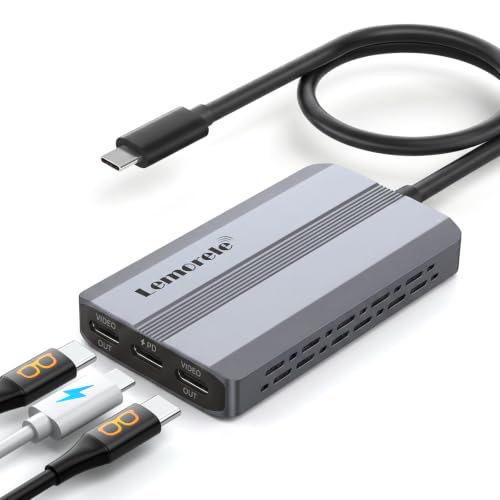
Lemorele Dual USB-C Video Splitter is the portable-display-focused option, with two USB-C video outputs and 100W PD charging. The maker names Steam Deck, Switch models, AR glasses, and portable monitors among intended device types, but video requires USB-C or Thunderbolt 3/4 with full DisplayPort Alt Mode. On Windows, the maker describes MST extended dual displays; Mac extended display is not supported. This makes it a more specific fit than a general-purpose hub. Avoid it if you need extended dual screens on a Mac, and check that the device’s USB-C port carries video rather than charging alone.
Bottom line: Choose this for compatible portable screens or AR glasses, not Mac extended dual displays.
How to choose a USB-C splitter for charging and monitor use
Start with the display connection your monitor needs: the hub’s port must match the monitor input, or you need a compatible cable or adapter. A hub’s USB-C plug alone does not guarantee video; the laptop port must support DisplayPort Alt Mode, USB4, or Thunderbolt video output. For one screen, decide between HDMI and USB-C output; for two, check the hub’s supported display mode and the computer’s operating system. Power delivery is separate from video: the charger feeds the hub’s PD input, and the hub passes power to the computer. If your laptop requires more power than the hub passes through, charging may be slower or insufficient under load.
USB-C video modes and dual-monitor limits
Dual-monitor hubs often use DisplayPort Multi-Stream Transport (MST) to send separate displays through one connection. Windows commonly supports MST extended displays, but macOS does not support MST for extending the desktop, so a dual-output hub may mirror screens or fail to provide the intended independent layout. USB4 and Thunderbolt can carry multiple display streams, but the hub and computer still need compatible modes. Choose an MST hub only when the computer’s OS supports the desired layout; for a Mac, verify support for the exact dock and display arrangement rather than assuming two video ports mean two extended desktops.
Charging wattage and display setup
Pass-through wattage is the maximum power routed through the hub, not necessarily the amount reaching the laptop: the hub itself uses some power. Use a wall charger that meets or exceeds the laptop’s normal USB-C charging requirement, and check that the hub’s PD input accepts that arrangement. A 100W PD label describes the port’s maximum, while the delivered power depends on the charger, hub, cable, and laptop negotiation. For dependable charging while driving a high-load laptop, prefer a hub whose pass-through capacity leaves headroom over the computer’s normal adapter rating. Remember that charging-only USB-C inputs cannot connect data accessories or carry monitor video.
USB-C monitor compatibility checks
Before ordering a USB-C video hub, confirm three parts of the chain: the laptop port supports video output, the monitor’s USB-C port accepts video input, and the cable supports the needed video mode. USB-C ports can support charging, data, video, or combinations, so connector shape alone is not enough. For dual USB-C monitors, verify whether the adapter requires USB4 or Thunderbolt 4 and whether it uses MST or SST. A source that lacks DisplayPort Alt Mode cannot send a monitor signal through an Alt Mode splitter. A charge-only port also cannot power a video connection simply because both use USB-C plugs.
Frequently Asked Questions
Will any USB-C port connect a monitor through a splitter?
No; the laptop port must support DisplayPort Alt Mode, USB4, or Thunderbolt video output. A charge-only USB-C port cannot send a monitor signal.
Can a USB-C splitter charge a laptop and show video at once?
Yes, a hub with video output and a separate Power Delivery input can support both functions. The charging setup needs a wall charger and compatible laptop, hub, and cable; pass-through wattage is a maximum, not a guarantee of full laptop power.
Can a dual-monitor USB-C hub extend displays on a Mac?
MST-based hubs do not provide extended dual displays on macOS. Check for a Mac-compatible display mode before choosing a dual-output adapter, since two ports alone do not establish independent screens.
What does DisplayPort Alt Mode mean for USB-C monitors?
DisplayPort Alt Mode lets a USB-C connection carry a DisplayPort video signal. Both the laptop’s port and the hub or monitor path must support the needed mode; a connector that only charges or transfers data cannot substitute.
Do two USB-C monitor outputs guarantee two separate screens?
No; separate extended screens depend on the laptop, operating system, adapter mode, and monitors. Windows MST support and macOS MST limitations can produce different results from the same style of hub.