
Floppy Disk to USB Converter Options Compared

For most Windows users, 3.5-Inch USB A/C Floppy Drive is a straightforward floppy disk to USB converter because it has USB Type A/C connectors and supports 3.5-inch disks up to 1.44 MB. Choose GODBPNYMU 3.5-Inch USB-C Floppy Drive instead if Mac or Linux support matters; CIpotZIZ 3.5-Inch USB A/C Floppy Drive is another Windows option with a thinner profile.
These external drives let a computer read and write files on floppy disks; they do not automatically turn a disk into a USB flash drive. You copy files between the disk and computer using the operating system.
We earn a commission if you buy through links on this page. As an Amazon Associate I earn from qualifying purchases. Products are compared on manufacturer specifications, not hands-on testing.
- Best overall: 3.5-Inch USB A/C Floppy Drive – USB Type A/C connectors and support for multiple Windows versions suit users transferring files from 3.5-inch disks.
- Best for Mac and Linux: GODBPNYMU 3.5-Inch USB-C Floppy Drive – Its operating-system compatibility includes Mac OS and Linux, alongside several Windows versions.
- Best for a slim profile: CIpotZIZ 3.5-Inch USB A/C Floppy Drive – At 0.63 inch thick, it is a slim USB A/C floppy drive for supported Windows systems.
| Product | Best for | Connector | Operating systems | Thickness | Shop |
|---|---|---|---|---|---|
| 3.5-Inch USB A/C Floppy Drive | Windows computers | USB Type A/C | Windows 11/10/8/7/2000/XP | 0.78 in | Check Price on Amazon |
| GODBPNYMU 3.5-Inch USB-C Floppy Drive | Mac and Linux | USB-C | Windows 11/10/8/XP, Mac OS, Linux | 0.63 in | Check Price on Amazon |
| CIpotZIZ 3.5-Inch USB A/C Floppy Drive | Slim Windows setup | USB A/C | Windows 11/10/8.1/7/2000/XP | 0.63 in | Check Price on Amazon |
Floppy Disk to USB Converter Drives
Compare the connector, computer compatibility and physical profile before choosing an external 3.5-inch floppy drive.
3.5-Inch USB A/C Floppy Drive
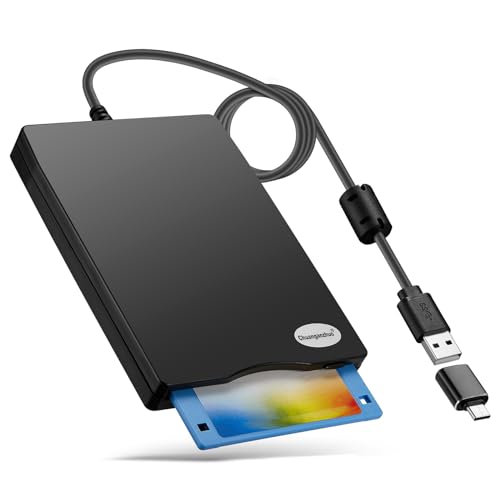
USB Type A/C connectivity is the main distinction of this external 3.5-inch drive, which is designed to read and write floppy disks on a compatible computer. The manufacturer says it is plug and play on Windows 11, 10, 8, 7, 2000 and XP, and says it is not compatible with Mac or Chrome. At 0.78 inch thick, it is a reasonable option when you need both connector styles and use Windows. The limitation is its narrower operating-system support, so Mac or Chrome users should consider another drive.
Bottom line: Pick this if you need USB Type A/C connectivity on a supported Windows computer.
GODBPNYMU 3.5-Inch USB-C Floppy Drive

Mac OS and Linux support distinguish this portable USB-C drive from the Windows-only options here. The manufacturer says compatible systems recognize it without an extra driver and advises connecting it directly to a computer’s native USB port rather than through a hub or docking station. That makes it a candidate for a computer with a suitable USB-C port and a need to access 3.5-inch disks. The direct-port caution matters if your setup relies on a dock; this product’s connector is USB-C.
Bottom line: Choose this when Mac or Linux compatibility is a priority and you have a direct USB-C port.
CIpotZIZ 3.5-Inch USB A/C Floppy Drive

A 0.63-inch-thick body makes this USB A/C external drive slimmer than 3.5-Inch USB A/C Floppy Drive, while its Windows support includes version 8.1. The manufacturer says the drive needs no extra driver and is powered through its USB connector. It is suited to Windows users who want a thinner 3.5-inch drive and either connector type. Mac users should look elsewhere: the manufacturer says this model supports Windows systems only. The compatibility range also does not include Windows 8, unlike 3.5-Inch USB A/C Floppy Drive.
Bottom line: Pick this for a slimmer external drive if your computer runs a supported Windows version.
How floppy disk to USB converters work
An external USB floppy drive lets a computer read or write files on a compatible disk; it does not convert the disk into a USB flash drive automatically. You transfer files through the computer’s file manager, then copy them to a flash drive or folder. A standard 3.5-inch high-density disk holds 1.44 MB, while a common double-density 3.5-inch disk holds 720 KB. That small capacity means a single disk can hold only a modest number of documents or low-resolution images. File transfer also does not guarantee old programs will run: physical access to the files and compatibility with the software that opens them are separate issues.
Check disk size and format before choosing
Match the drive to the disk’s physical size: a 3.5-inch USB drive is not made for 5.25-inch disks. Most 3.5-inch high-density disks use 1.44 MB capacity, but older double-density media commonly hold 720 KB. A disk’s format can also affect whether a computer can read its contents, even when the disk fits the drive. Before connecting hardware, identify whether the media is 3.5 or 5.25 inches and whether it is a standard floppy disk or another removable-media format. Do not force a disk into the drive; damaged media or a mismatched format can make retrieval harder.
Choose the right connector and operating system
Connector fit and operating-system support are the first compatibility checks for an external floppy drive. USB Type A ports are common on older computers and hubs, while USB-C ports are common on newer laptops; a drive’s connector must match an available port or a suitable adapter. The products here name different operating-system ranges, so confirm that the computer’s system is included rather than assuming every USB drive works with every computer. For example, a drive that names Windows support only is not an appropriate choice when Mac or Linux support is essential. A direct computer port can also matter: some drives advise against a hub or docking station because of power limits.
External USB drives versus floppy emulators
An external USB floppy drive connects a physical floppy disk to a computer, while an internal floppy emulator replaces a machine’s built-in floppy drive and uses a USB flash drive as its storage medium. The distinction decides which hardware to choose: use an external reader for retrieving files from existing diskettes, and consider an emulator only when replacing a compatible machine’s internal drive. Internal emulators may require a 34-pin floppy interface, 5 V power and a particular disk-image format; check those fit requirements before installation. A USB port on an external reader does not mean it can replace an internal drive, and an emulator is not a reader for physical floppy disks.
Frequently Asked Questions
How do I copy files from a floppy disk to USB?
Connect a compatible external floppy drive, insert the disk, then copy the files through your computer’s file manager to a USB flash drive or another folder. A standard 1.44 MB high-density floppy holds far less data than a modern USB flash drive, so check available disk space if copying many files.
Can a USB floppy drive read 5.25-inch disks?
No, a 3.5-inch drive is physically made for 3.5-inch diskettes, not 5.25-inch disks. Confirm the disk’s physical size before choosing a drive; those formats require different hardware.
Why will my computer not open an old floppy disk?
A disk may be damaged, formatted for a different system, or contain files that a current program cannot open. Try another known-readable disk to distinguish a drive connection issue from a problem with one disk, and remember that a 1.44 MB disk has limited capacity.
What does the write-protect tab do on a floppy?
On a 3.5-inch floppy, opening the small write-protect window generally prevents writing to the disk while still allowing reads. Check the tab before attempting to save or delete files; a protected disk may be readable but reject changes.