
Bluetooth Mouse No USB Receiver: 3 Models Compared

The Logitech M240 suits most people seeking a Bluetooth mouse without a USB receiver because it pairs over Bluetooth, has quiet clicks and a compact, ambidextrous shape. Choose Lenovo WL310 Bluetooth Silent Mouse for selectable DPI settings or wegear Sculpted Bluetooth Mouse for six buttons and a sculpted grip.
A Bluetooth mouse connects directly to a computer or tablet’s Bluetooth radio, so the host device needs Bluetooth support; a USB receiver is not needed for pairing.
We earn a commission if you buy through links on this page. As an Amazon Associate I earn from qualifying purchases. Products are compared on manufacturer specifications, not hands-on testing.
- Best overall: Logitech M240 Compact Silent Mouse – Bluetooth-only connectivity, quiet clicks and a compact shape make it a straightforward fit for portable use.
- Best for DPI options: Lenovo WL310 Bluetooth Silent Mouse – Switch among 1000, 1200 and 1600 DPI settings for different pointer-control preferences.
- Best for extra buttons: wegear Sculpted Bluetooth Mouse – Six buttons include forward and back controls for browser navigation.
| Product | Best for | Buttons | Battery life | Shop |
|---|---|---|---|---|
| Logitech M240 Compact Silent Mouse | Quiet travel use | 3 | Up to 18 months | Check Price on Amazon |
| Lenovo WL310 Bluetooth Silent Mouse | DPI adjustment | — | — | Check Price on Amazon |
| wegear Sculpted Bluetooth Mouse | Navigation buttons | 6 | Up to 18 months | Check Price on Amazon |
Bluetooth Mice Without a USB Receiver
These Bluetooth mice pair directly with a compatible host, with differences in controls, shape and pointer settings.
Logitech M240 Compact Silent Mouse
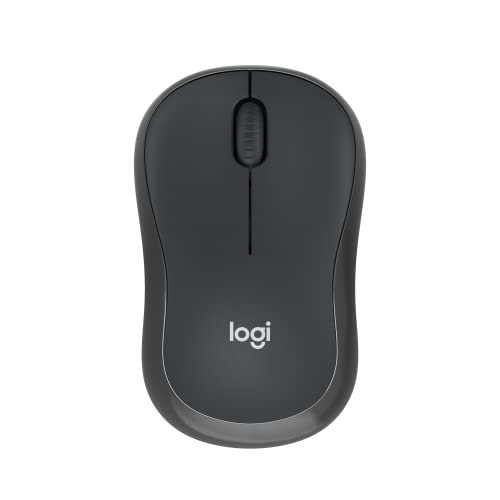
The Logitech M240 stands out for its compact, ambidextrous design and quiet clicks, making it a practical choice for shared spaces and travel. It connects through Bluetooth without requiring a USB receiver, and its three buttons are non-customizable. Logitech says its clicks have 90% reduced sound and its battery can last up to 18 months with auto-sleep enabled. The small form is useful when bag space matters, but people who want extra side buttons or adjustable pointer speed should consider another option.
Bottom line: Pick this for a compact, quiet mouse with simple controls.
Lenovo WL310 Bluetooth Silent Mouse

The Lenovo WL310 differs from the simpler compact options by offering three selectable DPI settings: 1000, 1200 and 1600. It uses Bluetooth 5.0 and does not require a USB receiver, with compatibility for Windows, Mac and Chromebook. Its grey, portable shape is pitched for extended laptop or desktop use, and the silent clicks suit quiet work areas. The source provides no button count or battery duration, so choose this model for DPI adjustment rather than for a particular button layout or battery-life target.
Bottom line: Choose this when switching among three DPI settings matters.
wegear Sculpted Bluetooth Mouse

The wegear mouse separates itself with six buttons, including forward and back controls intended for browser navigation. It has a medium, sculpted grip and Bluetooth 5.0 pairing with Microsoft Swift Pair; the product name also claims an 18-month battery life. Its silent left, right and scroll-wheel buttons may suit shared workspaces, while the multiple controls can help people who regularly navigate between pages.
Bottom line: Pick this if forward and back buttons are useful to your workflow.
How to Choose a Bluetooth Mouse Without a Receiver
Start by confirming the computer or tablet has Bluetooth built in; a Bluetooth mouse pairs to the host radio rather than a USB dongle. A mouse’s DPI describes how far the pointer moves relative to physical movement: higher DPI moves farther on screen for the same hand motion, while lower DPI allows finer movement. For general desktop use, many people start around 800 to 1600 DPI, then adjust to screen size and preference. Choose adjustable DPI when you switch between detailed work and broad screen movement. For quiet rooms, look for specific silent-click claims, and prioritize button count only if you use side controls for recurring tasks.
Bluetooth Pairing and Host Compatibility
A Bluetooth mouse without a receiver still needs a compatible Bluetooth host; receiver-free does not mean it works with every computer. Pairing usually starts by putting the mouse into pairing mode and selecting it in the operating system’s Bluetooth settings. Most Bluetooth mice use the standard Human Interface Device profile for pointer and button input, but operating-system versions and device policies can affect pairing. Check that Bluetooth is enabled and that the host supports mouse input over Bluetooth before choosing. If the computer has no Bluetooth radio, a receiver-free mouse cannot connect wirelessly unless Bluetooth is added separately.
Mouse Shape, Hand Fit, and Button Layout
Mouse fit depends on hand size, grip style and whether the shape accommodates the left or right hand. A compact mouse is easier to pack but may feel cramped during long sessions for users with larger hands; an ergonomic or sculpted shell can fill more of the palm. Ambidextrous shapes generally suit either hand, while contoured designs are often hand-specific. Button count also changes the workflow: a basic three-button layout covers pointing, clicking and scrolling, while side buttons can support browser back and forward commands. If you use a left hand, verify that side controls are reachable without changing your grip.
Understanding DPI and Battery Claims
DPI is a sensitivity measure, not a measure of tracking accuracy or sensor quality. A setting of 1600 DPI moves the pointer farther per inch of mouse travel than 1000 DPI, although display resolution and operating-system pointer speed also affect the result. Battery duration depends on usage, power-saving behavior and battery type, so treat multi-month duration as a maker’s estimate rather than a guaranteed interval. Auto-sleep can reduce idle power use, but a mouse may need a click or movement to wake. Choose an adjustable-DPI model if you need distinct pointer-speed options, and check the battery type before buying if replacement convenience matters.
Frequently Asked Questions
Does a Bluetooth mouse need a USB receiver?
No, a Bluetooth mouse can pair directly with a computer that has Bluetooth support. A host without Bluetooth cannot connect to it wirelessly without adding Bluetooth capability.
How do I pair a Bluetooth mouse with a laptop?
Turn on the mouse’s pairing mode, then select it in the laptop’s Bluetooth settings. Keep the mouse near the laptop during setup, and make sure Bluetooth is enabled on the laptop.
What DPI should I use for everyday computer work?
A common starting range for everyday pointer use is about 800 to 1600 DPI. Higher DPI moves the pointer farther with the same hand motion, so screen size and personal control preference matter.
Are silent mouse clicks completely silent?
Silent-click labels generally mean reduced click sound, not zero sound. Mechanical movement can still be audible, so a quiet office may require choosing the lowest-noise setting or working farther from others.
Can I use a Bluetooth mouse with a tablet?
Many tablets support Bluetooth mouse input, but compatibility depends on the tablet’s operating system and Bluetooth support. Confirm that the tablet accepts a Bluetooth mouse before choosing a receiver-free model.