
Compressed Air to Clean Computer Keyboard: 3 Picks

For most keyboard cleaning, Staples Compressed Air Duster, 10 oz is the straightforward choice because its 10-ounce can and precision nozzle are suited to directing airflow into tight gaps. Choose iDuster Canned Air, 3.5 oz, 2-Pack if you prefer two smaller cans, or Office Depot Cleaning Duster, 10 oz, 3-Pack if you want a three-can pack; canned duster uses pressurized propellant rather than ordinary room air.
We earn a commission if you buy through links on this page. As an Amazon Associate I earn from qualifying purchases. Products are compared on manufacturer specifications, not hands-on testing.
- Best overall: Staples Compressed Air Duster, 10 oz – A 10-ounce can with a precision nozzle for reaching keyboard gaps.
- Best for two smaller cans: iDuster Canned Air, 3.5 oz, 2-Pack – The pack includes two 3.5-ounce cans.
- Best for a multipack: Office Depot Cleaning Duster, 10 oz, 3-Pack – The pack contains three 10-ounce cans.
| Product | Best for | Can size | Pack count | Weight | Shop |
|---|---|---|---|---|---|
| Staples Compressed Air Duster, 10 oz | Everyday keyboard cleaning | 10 oz | 1 can | 0.8 lb | Check Price on Amazon |
| iDuster Canned Air, 3.5 oz, 2-Pack | Smaller paired cans | 3.5 oz | 2 cans | 0.22 lb | Check Price on Amazon |
| Office Depot Cleaning Duster, 10 oz, 3-Pack | Three-can supply | 10 oz | 3 cans | 0.63 lb | Check Price on Amazon |
| Staples Compressed Air Duster, 10 oz, 2-Pack | Two full-size cans | 10 oz | 2 cans | 1.7 lb | Check Price on Amazon |
Compressed Air to Clean Computer Keyboards
Compare can size, pack count and nozzle features to match a duster to your keyboard-cleaning routine.
Staples Compressed Air Duster, 10 oz
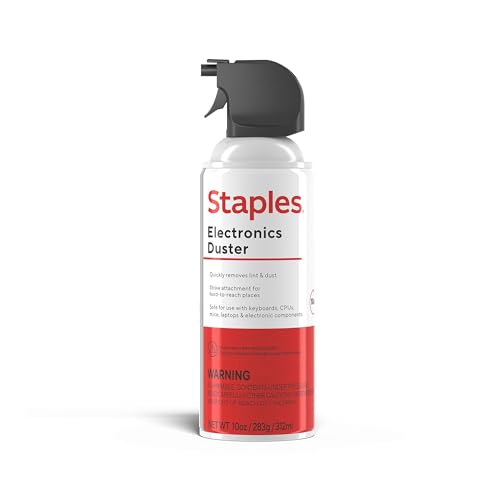
For a single-can option with a precision nozzle, this Staples duster is aimed at keyboards and other electronics. Its 10-ounce can is paired with controlled airflow intended to reach tight spaces, vents and ports, and the product features say it contains a bitterant to discourage inhalant misuse. It also names laptops, printers and gaming consoles as uses. Choose it if keyboard gaps are the main target and a single can suits your needs. The limitation is pack size: buyers who want spares in one purchase may prefer a multipack.
Bottom line: Pick this if you want one 10-ounce can with a precision nozzle.
iDuster Canned Air, 3.5 oz, 2-Pack

Two 3.5-ounce cans distinguish this iDuster pack from the single- and 10-ounce-can options. The product features describe a non-abrasive spray for keyboards, mice and screens, plus a bittering agent and an ozone-friendly formula. Its compact can size may suit a drawer or a small cleaning kit, while the pair provides a second can without choosing a larger can size. The trade-off is capacity per can: each holds less than the 10-ounce options, so frequent cleaning may make a larger can more convenient.
Bottom line: Choose this if you want two compact cans for occasional cleaning.
Office Depot Cleaning Duster, 10 oz, 3-Pack
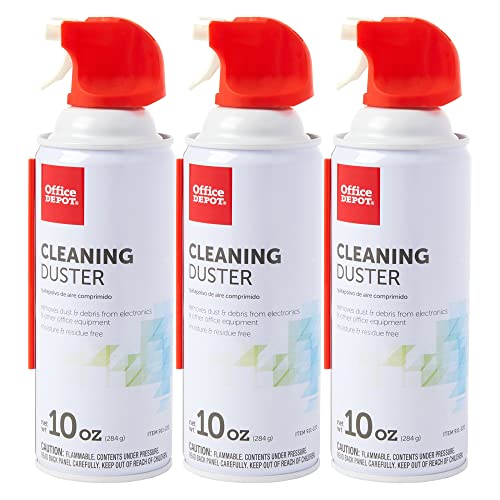
A three-can pack sets this Office Depot duster apart for buyers who want several 10-ounce cans together. The product features say the compressed gas removes dust, dirt and lint from hard-to-reach places, and describe the formula as moisture-free for equipment cleaning. A bitterant is included as an added safety measure. This is a fit for cleaning more than one device or keeping multiple cans available. Its pack contains more cans than the single-can option, which may be unnecessary if you only clean one keyboard occasionally.
Bottom line: Pick this if you want three 10-ounce cans on hand.
Staples Compressed Air Duster, 10 oz, 2-Pack

This Staples option pairs two 10-ounce cans, unlike the single-can version or the smaller 3.5-ounce pair. The product features describe controlled airflow from an easy-to-use nozzle for tight spaces, vents and ports, and name keyboards, computers and office equipment as intended uses. It also contains a bitterant to discourage inhalant misuse. Choose this pack if you want the same can size as the single-can Staples product but prefer a spare. The main limitation is that its two-can format is less compact than a pair of smaller cans.
Bottom line: Choose this if you prefer two full-size cans with precision nozzles.
How to use compressed air on a keyboard
Use short, controlled bursts rather than a continuous spray, and keep the keyboard unplugged or powered off while cleaning. Hold the can upright and follow its label: many canned dusters use liquefied propellant, and tipping or prolonged spraying can release cold liquid that may injure skin or leave residue. Keep the nozzle a few inches from the keys and direct dust out toward an open edge instead of deeper under the keycaps. A soft brush can loosen debris first; canned air is for dislodging loose dust, not removing sticky spills. Do not shake or invert a can unless its label explicitly permits it.
Choosing a can size and pack
Choose by cleaning frequency and how many devices you maintain: a single 10-ounce can covers an occasional keyboard-cleaning need, while multipacks provide additional cans. Can size is not the only consideration; the nozzle and controlled airflow matter when cleaning narrow key gaps. The 3.5-ounce paired cans are smaller per can than the 10-ounce options, so they favor compact storage over capacity per can. This guide compares cans and pack counts, not the actual amount of propellant delivered during use. Check the label for handling directions and any device-specific warnings before cleaning a keyboard.
Compressed duster versus other keyboard cleaning methods
Compressed duster is useful for loose crumbs and dust in gaps, while a soft brush can sweep debris from key surfaces without propellant. A microfiber cloth lightly dampened with an electronics-safe cleaner can address grime on the key tops, but liquid should never be sprayed directly onto a keyboard. Switch off and disconnect the keyboard before cleaning, and allow any damp surface to dry fully before reconnecting. For sticky liquid spills, airflow alone will not remove residue; avoid forcing debris farther beneath keys. A removable-keycap keyboard may allow deeper cleaning, but key removal is model-specific and can break clips if done incorrectly.
Keyboard cleaning mistakes to avoid
The most common mistake is holding a duster at an angle or spraying too long, which can eject cold propellant rather than just gas. Keep the can upright, use brief bursts, and stop if the can or keyboard becomes unusually cold. Avoid directing the nozzle so close that airflow drives particles beneath switches or damages delicate components. Never use canned duster near flame, heat or sparks, and ventilate the area; read the can label for its specific flammability and exposure warnings. Do not treat compressed air as a disinfectant or as a fix for liquid damage.
Frequently Asked Questions
Should I turn off my computer before cleaning the keyboard?
Yes, turn off the computer and disconnect a wired keyboard before using compressed air. For a wireless model, switch it off and remove its batteries if the maker permits; this reduces accidental key presses and electrical risk.
How far should the nozzle be from the keys?
Keep the nozzle a few inches from the keys and use short bursts, adjusting only enough to move loose debris. Avoid contact between nozzle and keycaps, and follow the can label if it gives a different minimum distance.
Can compressed air remove sticky residue from keys?
No, compressed air moves loose particles but does not dissolve sticky residue. Clean the key surfaces with a lightly dampened microfiber cloth and an electronics-safe cleaner, without spraying liquid onto the keyboard.
Can I turn the compressed air can upside down?
Do not invert a can unless its label specifically says it is safe to do so. Many dusters can eject cold liquid when tipped, so upright use and brief bursts help avoid frost injury or residue.
How often should I clean a computer keyboard?
A practical routine is to remove loose debris weekly or whenever it is visible, with a deeper surface wipe as needed. Shared or heavily used keyboards may need more frequent attention; unplug or power them down before cleaning.