
Netac 1TB Portable SSD USB 3.4 Gen 2 Compared

Netac ZSlim 1TB is the closest match for a Netac 1TB portable SSD with USB 3.2 Gen 2, pairing 1TB capacity with up to 550MB/s read and 450MB/s write speeds. Choose another option if you need 2TB, a higher speed ceiling with a Gen 2×2 host, or a different brand.
We earn a commission if you buy through links on this page. As an Amazon Associate I earn from qualifying purchases. Products are compared on manufacturer specifications, not hands-on testing.
- Best overall: Netac ZSlim 1TB – It matches the requested 1TB capacity and USB 3.2 Gen 2 interface.
- Best for 2TB: Netac ZSlim 2TB – It keeps the ZSlim form and Gen 2 interface while doubling capacity.
- Best for Gen 2×2: Netac ZX20 2TB – Its 2,000MB/s read ceiling targets systems with a compatible 20Gbps host port.
| Product | Best for | Capacity | Interface | Max read speed | Shop |
|---|---|---|---|---|---|
| Netac ZSlim 1TB | Everyday 1TB storage | 1TB | USB 3.2 Gen 2 | Up to 550MB/s | Check Price on Amazon |
| Netac ZSlim 2TB | More ZSlim capacity | 2TB | USB 3.2 Gen 2 | Up to 500MB/s | Check Price on Amazon |
| Netac ZX20 2TB | Gen 2×2 systems | 2TB | USB 3.2 Gen 2×2 | Up to 2,000MB/s | Check Price on Amazon |
| Netac ZX20 II 1TB | Magnetic phone storage | 1TB | USB 3.2 Gen 2 | Up to 2,000MB/s | Check Price on Amazon |
Netac 1TB Portable SSD USB 3.2 Gen 2 Options
Compare capacity, interface and claimed top read speeds before matching a drive to your host port.
Netac ZSlim 1TB

For a 1TB Netac drive on USB 3.2 Gen 2, this ZSlim combines the requested capacity with a compact aluminum-alloy body. The drive measures 3.94 × 1.16 × 0.35 inches and weighs about 30g. It suits everyday file storage and travel. Its speed ceiling is far below the Gen 2×2 models, which matters if the host and workload support faster transfers.
Bottom line: Pick this for a compact 1TB Netac drive on a Gen 2 connection.
Netac ZSlim 2TB
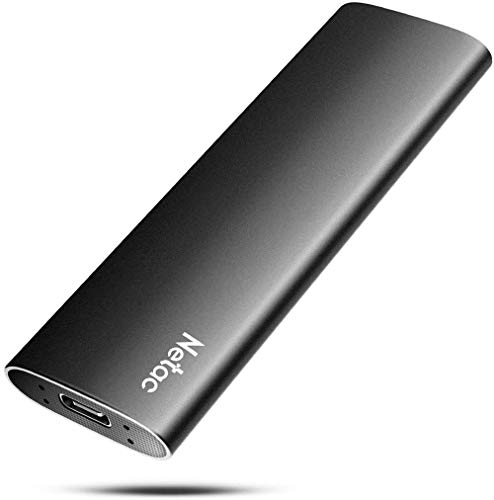
The 2TB ZSlim is the capacity step-up for someone who wants the same Netac line and Gen 2 interface, rather than the requested 1TB size. Netac gives a maximum read rate of 500MB/s and write rate of 450MB/s, and its aluminum housing has a reinforced inner frame. The larger capacity suits bigger photo, video or project collections, while the speed ceiling is lower than the 1TB ZSlim’s 550MB/s maximum read claim. Choose it when extra space matters more than matching the exact capacity or maximizing read speed.
Bottom line: Choose this if 2TB matters more than a 1TB match.
Netac ZX20 2TB

The ZX20 is the speed-oriented alternative, but its 2TB capacity and USB 3.2 Gen 2×2 interface differ from the requested 1TB Gen 2 drive. Netac gives maximum sequential speeds of 2,000MB/s read and 1,700MB/s write, with maximum performance requiring a compatible 20Gbps host port and cable. Its 2TB capacity suits large active project folders. This speed ceiling will not be realized through a regular Gen 2 connection; choose it only if your computer supports Gen 2×2 and that extra throughput is useful.
Bottom line: Choose this when your host supports Gen 2×2 and speed is the priority.
Netac ZX20 II 1TB

The ZX20 II keeps the requested 1TB capacity but stands apart with a built-in magnet and a much higher claimed speed ceiling. Netac gives read speeds up to 2,000MB/s and write speeds up to 1,700MB/s, and includes USB-C-to-C and USB-C-to-A cables. The magnetic attachment can suit phone-centered storage workflows, and the drive is described as having a shock-resistant aluminum housing. The speed figure requires a matching high-speed host and connection; the product name calls the interface Gen 2, so confirm the supported transfer mode for your device before relying on the maximum.
Bottom line: Choose this for 1TB with a magnetic attachment, after confirming host compatibility.
How to choose a portable SSD interface
Match the drive’s interface to the host port, because a USB-C plug alone does not establish transfer speed. USB 3.2 Gen 2 has a 10Gbps signaling rate, while USB 3.2 Gen 2×2 uses 20Gbps; those are link rates, not promised file-copy rates. Cable and host support matter, and a faster drive connected to a slower port runs within the slower connection’s limits. For sustained transfers, the workload and available free space can also affect actual performance. If your computer has only Gen 2, prioritize a drive whose claimed speeds are suited to that connection rather than paying attention to a Gen 2×2 ceiling you cannot use.
Use this comparison to identify the port requirement before selecting a capacity:
| Need | Connection to check | Choice direction |
|---|---|---|
| Typical portable storage | USB 3.2 Gen 2, 10Gbps | Gen 2 drive |
| Higher stated speed ceiling | USB 3.2 Gen 2×2, 20Gbps | Gen 2×2 drive and compatible cable |
Choosing 1TB or 2TB capacity
Pick 1TB when that capacity covers the files you plan to keep on the drive; choose 2TB when you need more room for large media or project folders. Advertised decimal capacity and a computer’s displayed usable capacity can differ because of formatting and how storage units are counted. Keep a separate backup of irreplaceable files: a portable SSD is convenient storage, but one drive is not a backup strategy by itself. For cross-platform use, exFAT is commonly used because Windows and macOS can read and write it, while reformatting erases existing data. Check device compatibility before formatting, especially if the drive will be used with a phone, console or other dedicated device.
What speed claims mean in practice
Read and write figures marked “up to” describe a maximum under compatible conditions, not a constant transfer rate for every file. Large sequential files such as video can approach a drive’s top rates more readily than many small files, which add overhead. USB 3.2 Gen 2’s 10Gbps link rate converts to 1,250MB/s before encoding and protocol overhead, so a drive claiming up to 500 or 550MB/s is below that theoretical ceiling. Gen 2×2’s 20Gbps rate is also theoretical; its higher maximum requires a host port and cable that both support the mode. Check the computer’s port specifications rather than assuming the connector shape signals capability.
Using an external SSD safely
Use the operating system’s eject or safely-remove function before unplugging an external SSD, especially after a write, to reduce the risk of interrupting pending file operations. Keep a second copy of essential files on another device or backup system; portable drives can be lost or damaged. For phone use, confirm that the phone supports external storage and can supply enough power for the connected drive, because compatibility depends on the device and its software. Avoid bending or sharply pulling the cable at the connector, and protect the drive from impact even when the housing is metal or described as shock resistant.
Frequently Asked Questions
Will a USB 3.2 Gen 2 SSD work with USB-A?
Yes, if the drive and computer are connected with a compatible cable or adapter and the computer supports USB data. USB-A describes the connector shape, not a guaranteed speed; the host port’s supported USB mode sets the connection ceiling.
Does USB-C guarantee the fastest SSD speed?
No. USB-C is a connector type, while the host and cable determine which USB data mode is available. Check for explicit USB 3.2 Gen 2 or Gen 2×2 support when comparing stated transfer ceilings.
Why is my portable SSD copying files slower?
Actual transfer rates can be lower than an “up to” figure when the host port or cable is slower, or when copying many small files. Large sequential files are generally a better match for maximum-speed claims than mixed folders.
Can I use one portable SSD with Windows and Mac?
A drive formatted as exFAT is commonly readable and writable on both Windows and macOS. Formatting can erase the drive, so copy existing files elsewhere first and confirm compatibility with any other device you plan to connect.
Should a portable SSD be my only backup?
No; keep another copy of important files on a separate drive or backup system. A single portable SSD can be lost, damaged or fail, so separating copies reduces the risk of losing the only version.